Payroll
Magpie works out your employees’ pay from the hours your team already records. Each pay run ends with a payslip for everyone.
Payroll is Magpie’s area for paying your team’s employees. You keep each employee’s pay, start a pay run for each pay period, and approve it. Each employee reads their payslips in their own Magpie account. Your books in Accounting get one entry per pay run.
Create account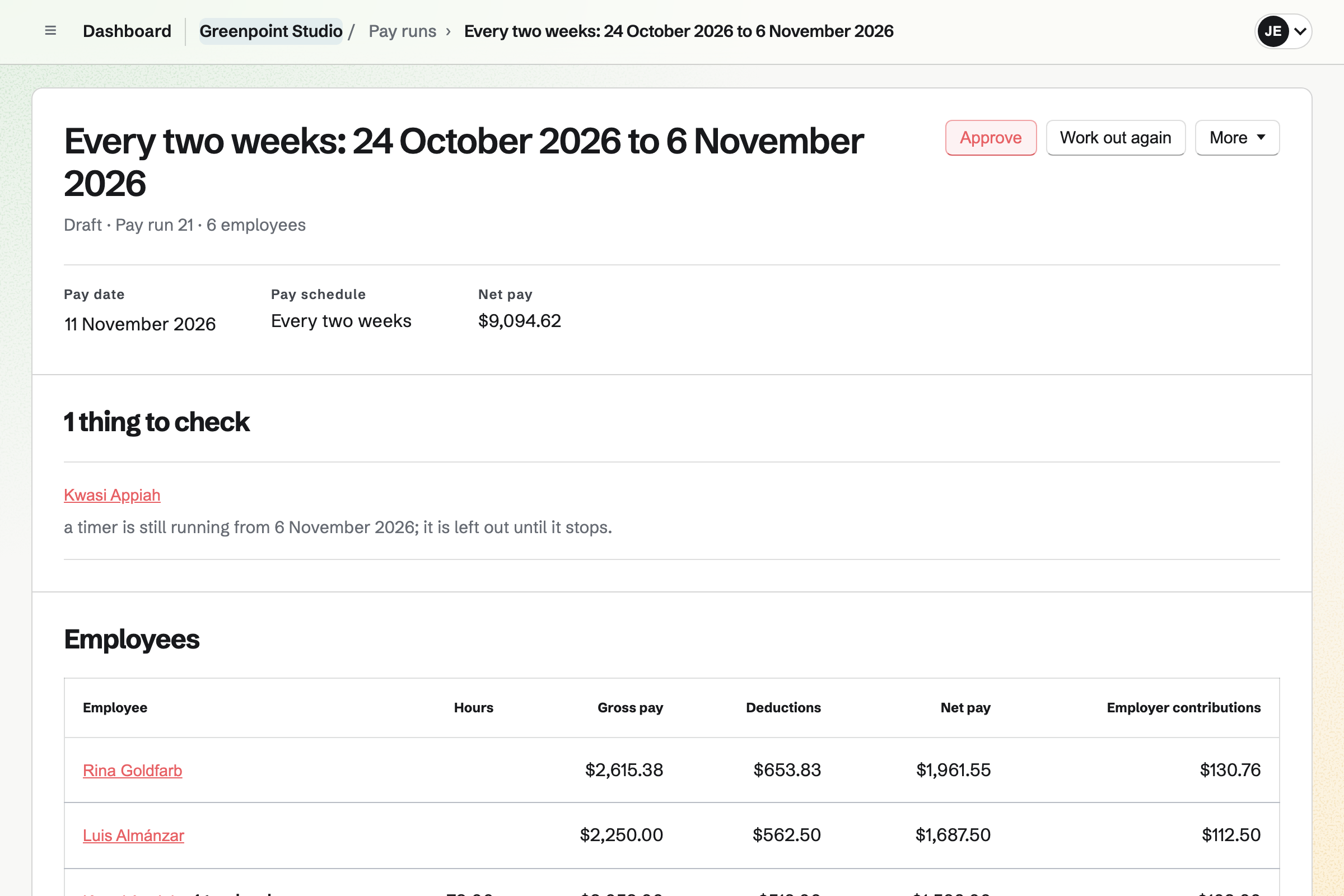
You keep each employee’s pay from a date, and the lines every pay run takes off.
An employee is added with a name and a pay schedule: weekly, every two weeks, twice a month or monthly. They can start from a member of your team or someone on the rota in Staff Scheduling. A candidate hired in Hiring can become one too.
Pay is an hourly rate or a yearly salary from a date. A pay rise is a new entry from the day it starts. The old one ends the day before, and nothing is retyped.
A standing line goes onto every pay run: an allowance, income tax to withhold, or a pension contribution. It is a fixed amount or a percentage of gross pay. It runs from a date and, if you like, until one.
A pay run is worked out from recorded hours, checked, approved and marked as paid.
Start the pay run
Pay runs shows each schedule’s next pay period. Start pay run works out everyone on it in one table with the totals. A bonus or a correction outside the schedule is an off-cycle pay run.
Check it
A band under its name lists anything to check, such as a running timer. Each employee opens in a side drawer. There you enter hours, add a line or leave them out. Work out again reads the latest hours and keeps what you added.
Approve it
Approve shows the totals and the pay date before it approves. It is refused if the pay run changed after you opened it. What you approve is what you saw, and each payslip is kept as approved.
Mark it as paid
You pay your employees from your own bank, then record the date the money left. That releases the payslips. Everyone with a Magpie account is emailed a link to theirs, and the email never shows an amount.
Hours and overtime come from what your team already records.
- Time Tracking
- An employee’s entries in Time Tracking are their hours, on the day each entry starts. A timer still running is left out, and the pay run says so.
- Worked shifts
- Someone on the rota in Staff Scheduling is paid for their published shifts, less unpaid breaks. A cancelled shift is not counted.
- Hours you enter
- An employee whose hours are not recorded in Magpie gets a line on each pay run. You type the hours there.
- Overtime
- Overtime starts after the hours in a day or a week you set. It is paid at the Overtime item’s rate, such as one and a half times. A week that began before the pay period counts its earlier hours.
- Salaries
- A yearly salary is paid in equal parts over the year’s pay periods. Someone who starts or leaves partway through a period is paid for their days of it.
- Where each hour came from
- Every hours line opens the entries or shifts behind it, by date. You can see what was counted.
You set the tax to withhold once, and every pay run takes it off.
Income tax, social insurance and pension contributions are standing lines on each employee. Each is a percentage of gross pay, such as 20% income tax, or a fixed amount. Your accountant or your tax authority’s calculator gives the figure, since it depends on each person.
Once it is set, every pay run takes it off and shows it on the payslip. It goes into the books and the year to date. When it changes, you add the new figure from that date.
Each employee reads their payslips in their own Magpie account.
A payslip shows the employer, the pay period and the pay date. It lists each earning with its hours and rate, and each deduction. Gross pay, net pay and what you paid on top are under them. The tax year’s totals so far follow, and each one downloads as a PDF.
An employee reads their payslips at Your payslips, from every employer that pays them through Magpie. They do not join your team to read them, and they see nothing else of yours. Someone without an account gets an emailed invitation, and the link works once.
You can open and download any approved payslip yourself, and give it to someone who has no account.
An approved pay run goes into your books as one entry, naming no employee.
While your books are kept in Accounting, Payroll adds four accounts to them. They are Wages and salaries, Employer payroll costs, Wages payable and Payroll deductions owed. Approving a pay run posts gross pay, your contributions, what was withheld and net pay on the pay date.
Marking the pay run as paid moves net pay from Wages payable to the bank account it left from. The entries name no employee, so the ledger does not show anyone’s pay. A pay item can post to an account of your own instead.
Summary totals what was paid and withheld for a month, a quarter or a tax year.
Summary totals the approved and paid pay runs with a pay date in the range you choose. It shows gross pay, each pay item, net pay and your contributions, by employee and in all. It downloads as a CSV for your accountant.
The deductions total is what you owe your tax authority and pension provider. You record paying it in Accounting as a bill or a bank transaction. Summary links to the account it is owed from.
Only your team’s admins and the payroll administrators you name can open Payroll.
Other members of your team do not see it, even when they use every other area. It shows everyone’s pay. A payroll administrator can do everything you can, except name other payroll administrators.
An outside bookkeeper joins as a guest, given Payroll as a whole, and can then be named. No page of Payroll is kept by a browser or a proxy. Its logs and emails never carry an amount.
Plans
Payroll is on every plan. The Free plan pays up to 2 employees in a pay run. Pro and the Team plan pay everyone.
Questions
How do I handle income tax and pension contributions?
You enter each one once, as a standing line on the employee. It is a percentage of gross pay or a fixed amount each pay run. Your accountant or your tax authority’s calculator gives you the figure. Every pay run then takes it off and adds it to the year to date. Summary totals what was withheld, ready to pay and report.
Can I pay a bonus between pay runs?
Yes. Start off-cycle pay run asks for a pay date and the employees, and starts empty. You add the bonus to each person, then approve the pay run and mark it paid as usual. The payslip and the books record it like any other pay run.
What happens when someone’s hours change after they were paid?
The next pay run warns you. It names the day and how many hours were added or taken away since that period was paid. You decide what to do about it. A correction is a line on the next pay run, and it can be negative. You name it as you want the payslip to show it.
Can I change a pay run after it is approved?
Yes, until it is marked as paid. Return to draft makes it a draft again and takes its entry out of the books. It keeps its number. Once it is paid, it never changes. You correct a mistake with a line on a later pay run.
Does an employee have to join my team to read their payslips?
They read them in their own Magpie account and take no place in your team. A member of your team is linked to their employee on the employee’s page. Anyone else gets Invite to read payslips, an email with a link. The link connects the account they sign in or sign up with.
Can I bring in my employees from another payroll app or a spreadsheet?
Yes. Import employees takes a JSON document of everyone. It holds each employee’s pay schedule, pay and standing lines. It holds what they have been paid so far this tax year. Copy the prompt gives an assistant the instructions to make it from your export. The preview lists each employee and every problem, and nothing is saved until there are none.
I already keep pay rates in Staff Scheduling. Which one is used?
Payroll’s. Someone on the rota who is linked to an employee is paid at the rate you keep in Payroll. Staff Scheduling shows that rate too. Its labour costs use it, and their profile says it is set in Payroll. Rates by position and location stay in Staff Scheduling for everyone else.
What if I start using Payroll partway through a tax year?
Each employee’s page takes opening totals. They are what the person has already been paid and had withheld this tax year, by pay item. Payslips add them to the year to date. The first payslip from Magpie then shows the right totals.
Who can see pay?
Your team’s admins and the payroll administrators you name. Each employee sees their own payslips and nothing else. Nobody else in the team sees the area at all. Payroll keeps no tax reference, national ID number or bank details. Its emails carry no amounts.
Run your first pay run.
Create a Magpie account, open Payroll in your team and add your employees.