Presentaciones
Build slides with text, pictures, shapes and arrows, and write speaker notes for each one.
The slide editor lists the deck's slides down the left and shows the current slide beside them, in 16:9. Add text, pictures from Your images, shapes and arrows, then drag them into place. Each change is saved to the deck's draft as you work.
Get started free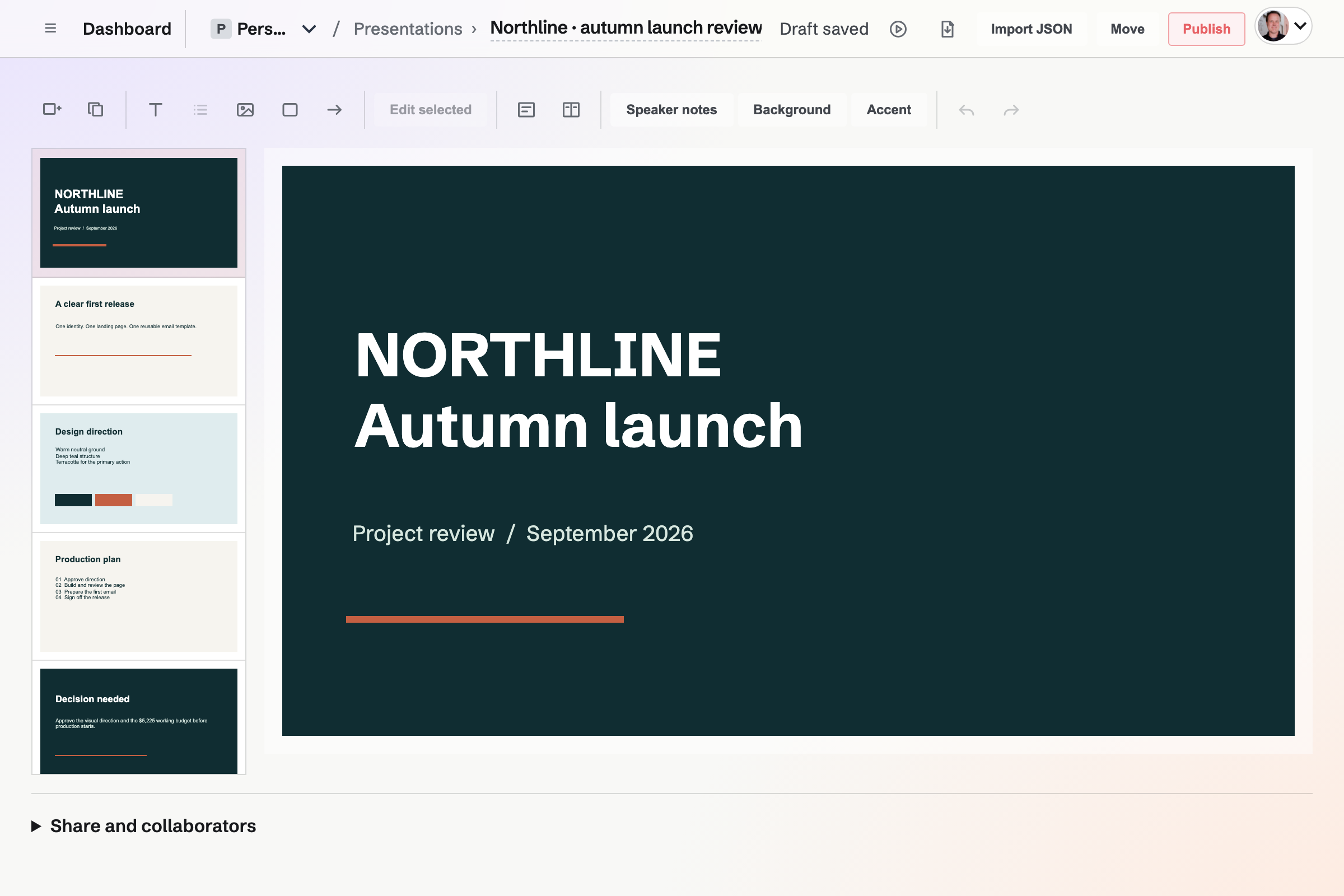
Starting a deck
A deck belongs to Personal or to the team selected when it is made. Create presentation asks for a title and a starting point. A starter adds ordinary slides that you change or delete like any other.
- Blank deck
- One title slide with the deck's title on it.
- Project update
- A title slide, a Progress slide with Completed, In progress and Blocked, and a Next steps slide.
- Pitch deck
- A title slide, The problem, Our approach, and a closing slide for your contact details.
- Paste JSON
- A whole deck built from a JSON document that describes each slide. See Building a deck from JSON below.
What goes on a slide
- Text
- Add text places a text box on the slide. Double-click it to type on the slide, or open Edit selected to change its text, size and alignment. Make selected text a list adds a bullet to each line.
- Pictures
- Add image opens the image picker: choose several pictures from Your images or upload new ones. Each is placed on the slide to move and resize.
- Shapes and arrows
- Add shape adds a rectangle and Add arrow adds an arrow, both in the deck's accent colour.
- Layers
- Bring forward and Send back change which element is drawn on top when two overlap.
- Title and two-column slides
- Add title slide and Add two-column slide add a slide with placeholder text to replace.
- Background and accent
- Background sets the colour of the current slide and of new slides. Accent sets the colour of new shapes and arrows.
Arranging elements and slides
Move and resize
Drag an element to move it, or drag its handle to resize it. It snaps to the slide's edges and centre as you drag. Shift-click selects several elements to move together.
Order the slides
Drag a slide in the list down the left to a new place, or use its up and down buttons.
Hide a slide
The eye button leaves a slide out when presenting, of the shared deck and of PDF export, and keeps it in the draft.
Undo and Redo
Undo and Redo step through your changes while the editor is open, including a deleted slide.
Keys
N adds a slide, Ctrl or ⌘ D duplicates one, and the up and down arrows move between slides. Press ? to list every key.
Speaker notes
Speaker notes opens a box for the current slide's notes. Notes are for the person giving the presentation: they are not shown in the shared deck, when presenting, or in a PDF.
People who can view the deck in Magpie can read its notes in the editor, and people who can edit it can change them.
Building a deck from JSON
A JSON document can describe a whole deck: each slide's layout, its words and its look. Magpie places the words and sizes them to fit. Each slide it makes is an ordinary slide you can change in the editor.
Paste JSON on Create presentation builds a new deck. Import JSON, in an existing deck's More menu, replaces the slides in the draft. The published version stays until you publish again.
Copy the prompt copies the format with instructions for an assistant. The whole document is checked first. If one part does not fit, nothing changes, and the message names the slide.
- Styles
- A style such as corporate, playful or editorial sets the fonts and colours. It adds its own shapes to each kind of slide. A colour or font in the document replaces the style's.
- Layouts
- A slide can hold cards, large numbers, a timeline or an agenda. A long heading or list is set smaller to fit.
- Shapes and lines of your own
- A slide can place its own text, shapes and lines anywhere. Shapes can be filled with gradients, and anything can be turned or made see-through.
- Colours, notes and hidden slides
- Any slide can have its own background, gradient or colours. It can also have speaker notes, or be hidden from presenting.
Saving, copies and the assistant
- Saved as you work
- The editor saves the draft after each change, and the page bar reads Draft saved. The shared deck changes only when someone publishes.
- Two tabs at once
- If another tab or person saves a newer version, the editor will ask you to reload before saving again, so that version is not overwritten.
- Duplicate
- Duplicate, in the More menu, makes a copy of the deck's draft in the selected team and opens it.
- The assistant
- The assistant on Dashboard can create a deck, duplicate one and change a draft. It publishes, shares or moves a deck to Trash only when you confirm it in your message.
Make your first deck.
Create a Magpie account, open Presentations and choose Create presentation.