Documents
Write formatted documents, lay them out on pages, and print or export them.
Documents is a word processor for Personal or a team, with File, Edit, Insert and Format menus above the page and a formatting toolbar under them. Write in one continuous column, or lay the document out on pages with margins, headers, footers and page numbers. Import a Word or other file to keep writing it, then print, download a PDF or export a copy.
Get started free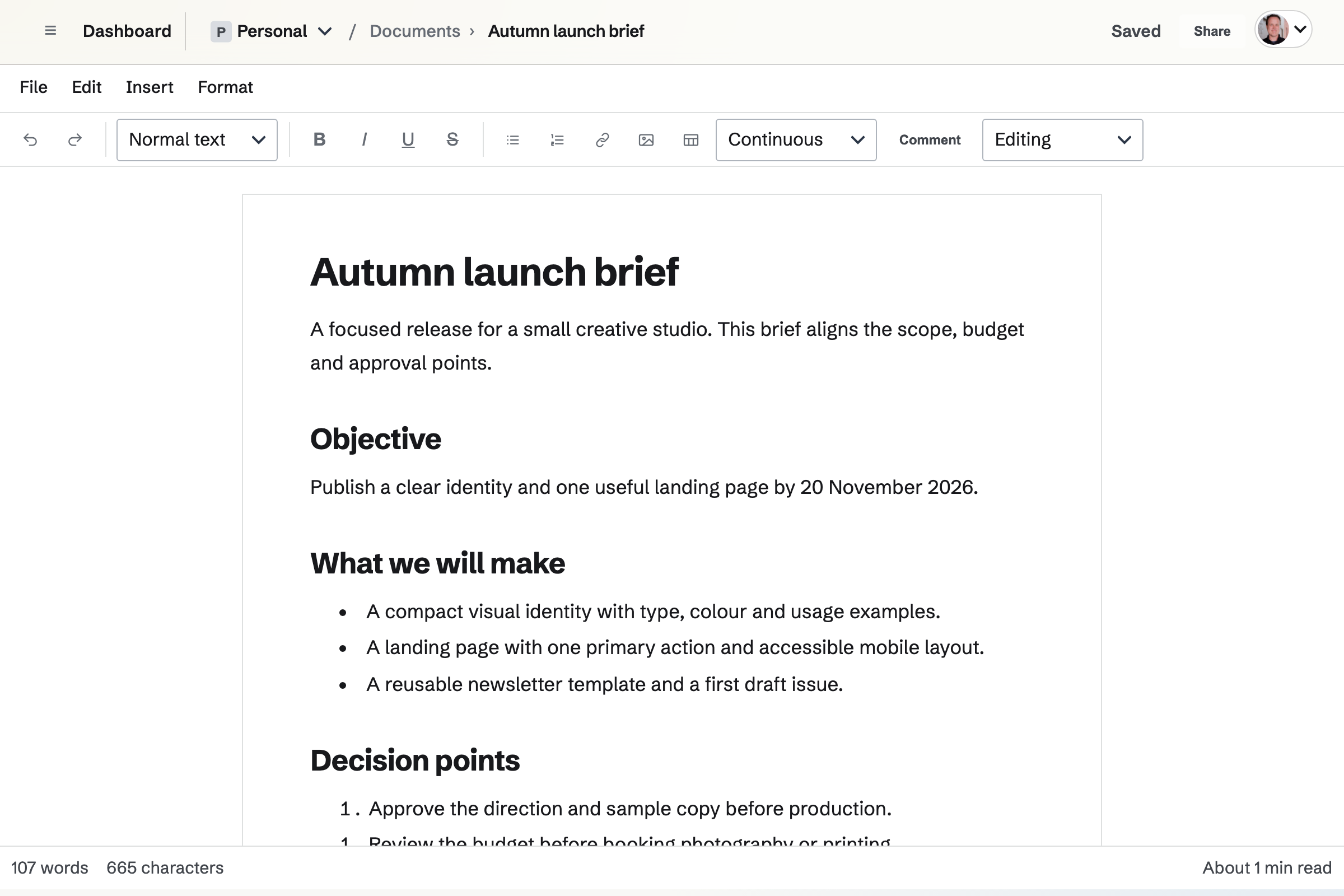
Starters and text formatting
A new document starts blank or from a starter: Business letter, Report, Proposal, Meeting minutes, Policy, Research paper, Resume or Newsletter draft. A starter adds ordinary headings and paragraphs to change or delete.
- Paragraph styles and lists
- Normal text, Heading 1 to Heading 3, Quote and Code block, and bulleted and numbered lists.
- Text
- Bold, italic, underline, strikethrough and inline code. Clear formatting removes them.
- Links and bookmarks
- A link opens a web address, an email address or a bookmark (a named place in the document). Typing example.com links to https://example.com.
- Custom styles
- A named paragraph style with its own font, size, weight, colour and space after. Changing the style changes every paragraph that uses it.
- Find and replace
- Find has Match case, and people who can edit also have Replace and Replace all.
Tables, pictures, notes and citations
The Insert menu adds these to a document. Right-click a table, a picture, a table of contents or a bookmark for the commands that act on it.
- Tables
- Insert or delete rows and columns, and make the first row a header. Tab moves to the next cell.
- Pictures
- Chosen from Your images or uploaded into it, with alt text and a caption. Pictures count toward your file storage, which Pro raises.
- Table of contents
- Built from the document's headings.
- Footnotes and endnotes
- Footnotes are numbered by their position, so removing one renumbers the rest. Endnotes are collected at the end of the document.
- Citations and a bibliography
- A citation keeps the author, title, publisher, year, web address and DOI, in APA, MLA or Chicago style. A bibliography lists the document's citations.
- Cross-references
- Link to a heading, figure, table or bookmark. Figure and table captions are numbered.
- Equations
- An equation keeps its expression and a description for screen readers.
Page layout, printing and PDF
A document opens in Continuous mode, one column without page boundaries. Pages shows it on sheets of its paper size. Page setup will be kept when you switch back to Continuous.
- Paper
- Letter, Legal, A4 or A5, in portrait or landscape.
- Margins and columns
- Narrow, Normal, Comfortable or Wide margins, and one, two or three columns.
- Headers, footers and page numbers
- Header and footer text, and page numbers at the top or bottom, left, centre or right, starting at the number you choose.
- Page and section breaks
- A page break starts a new page, and a section break starts a new layout section.
- Print and Download PDF
- Print opens the browser's print dialog. Download PDF makes a PDF with the document's headings, tables, pictures, footnotes, page breaks, headers, footers and page numbers; the file does not make the document public.
Import and export DOCX, ODT, Markdown, HTML and text
Import will create a new document in Personal or the selected team from a .docx, .odt, .md, .html, .htm or .txt file of up to 25 MB. Scripts, macros and external resources in the file will be removed.
- Word files
- Headings, basic formatting, lists, tables, links and page settings come in. Word comments become comments, and tracked changes become suggestions. Pictures inside a Word file are not imported: add them again from Your images.
- ODT, Markdown and HTML
- An ODT file brings in its headings, paragraphs and lists. Markdown and HTML bring in headings, lists, quotes, links and text formatting, and HTML tables too.
- Export
- DOCX, ODT, Markdown, HTML or plain text, from the File menu. Plain text has no formatting, and Markdown and ODT do not keep every page-layout setting.
- Clean DOCX
- Export clean DOCX leaves out comments and suggestions.
Saving, attachments, mail merge and Trash
- Saving
- Changes save as you write. The page bar reads Saving…, then Saved, or Save failed with a message saying what went wrong.
- Attachments
- Files from your Magpie files, attached to the document. People who can open the document can open them, and they are not public.
- Accessibility check
- Lists missing alt text, skipped heading levels, tables without headers, empty links and broken references. It finds common problems and does not certify a document.
- Mail merge
- Makes a new copy with named placeholders, such as First Name, replaced by values you enter as JSON.
- Move to another team
- Moves a document, with its direct shares, comments, versions and attachments, when you can edit in both places.
- Move to Trash
- Moves the document to Trash, with Undo, and it can be restored from Trash for 30 days.
The assistant
The assistant can search your documents, read one, create one and change its text.
Write your first document.
Documents is on every plan. Create a Magpie account, open Documents and choose a starter, or import a file you already have.