Expenses
Record each expense with its receipt, category, tax and payment method.
Expenses records money spent in Personal or a team. An expense needs only an amount and a date; its receipt, category, tax, payment method, project and contact can be added when you have them. Receipts can also be uploaded first and their details entered later.
Get started free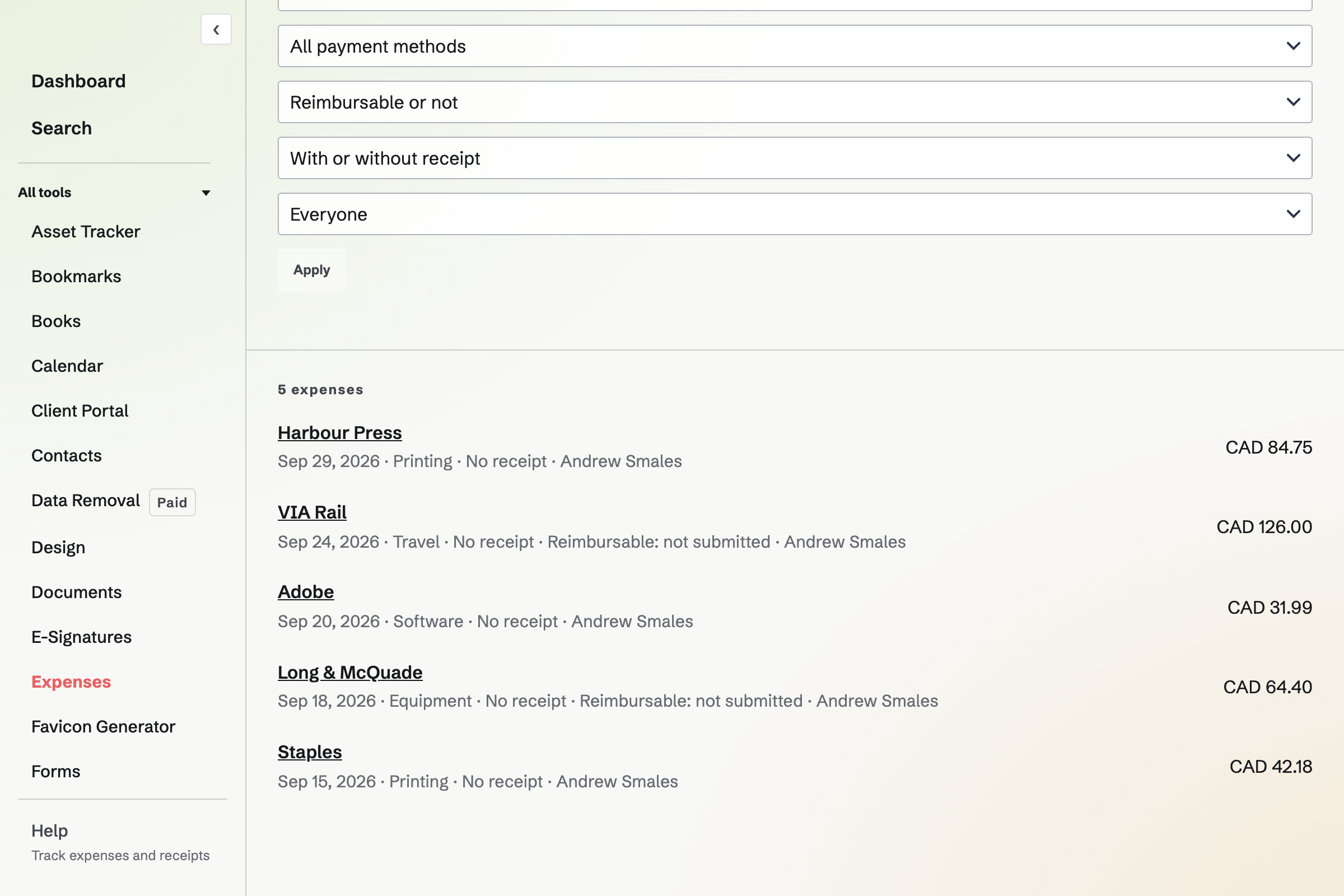
Add an expense
On Overview, Add an expense takes an amount and a date, with a merchant, a category and a receipt if you have them. The expense's page holds its other details, and each one saves as soon as it is changed.
- Tax included
- The part of the total that was tax, entered apart from the amount.
- Payment method
- The method it was paid with, from the list in Settings.
- Project and contact
- A Time Tracking project of Personal or the team, and a contact such as the client or supplier.
- Currency
- Starts as the team's currency. An expense paid in another currency keeps it: Magpie does not convert amounts, so totals show each currency separately.
- All Expenses
- Lists expenses with a search that includes tags and an exact amount, and filters for dates, category, project, contact, payment method, reimbursable and receipt.
Receipts
An expense can have one receipt: a JPG, PNG, WebP or PDF file up to 10 MB. Choose a file, drop it on the page or paste an image; on a phone, the file chooser offers the camera. Magpie checks what a file contains, not only its name. HEIC photos are not accepted on the website.
- Private
- A receipt opens only for people who can see its expense, and it has no public link.
- Receipt Inbox
- + Receipt uploads one or more receipts with no details. They wait in Receipt Inbox until you open each one and enter its amount.
- On the expense's page
- An image receipt is shown beside the details, and a PDF receipt opens in PDF Editor. Replace receipt and Remove receipt change it until the expense is on a submitted report, reimbursed or on an invoice.
- Needs attention
- Overview links to receipts that still need details, and to expenses with no receipt, no category or no merchant.
Bill an expense to a client
An expense paid for a client can go on that client's invoice in Invoicing, at the amount recorded.
Mark it reimbursable
Set Reimbursable to Yes on the expense's page and choose the client as its contact.
Add it to an invoice
In the invoice editor, Add unbilled expenses lists your own reimbursable expenses for the invoice's contact and currency that are not on a report or another invoice. Each one you add will become a line on the draft, linked to the expense.
Issue the invoice
Issuing the invoice will mark the expense billed. The expense shows the invoice number and cannot be changed or deleted.
Take it off the invoice
Removing the line from the draft, or deleting the draft, releases the expense.
Categories and payment methods
Settings lists the categories and payment methods of Personal or the team. In a team, only admins manage them, and archiving one hides it from new expenses and keeps it on the ones that use it.
- Categories
- Every team and Personal starts with Advertising, Bank fees, Contractors, Equipment, Insurance, Meals, Office supplies, Rent, Shipping, Software, Subscriptions, Travel, Utilities and Other. They are not tax categories and are not tied to a country.
- Payment methods
- A label, a type (card, cash, bank account, PayPal or other) and, if you choose, the last four digits. Payment methods are shared by everyone in a team.
- In Accounting
- When the team keeps its books in Accounting, each expense will be added to them: its category chooses the expense account, and its payment method the account it was paid from.
Who sees and changes an expense
Every member of a team can use Expenses. A member sees their own expenses and an admin sees every expense in the team; someone with view access can look but not add. Only the person who recorded an expense can change or delete it.
An expense's page has a History section listing who changed its amount, tax, currency, date, receipt or reimbursement, and when. History cannot be edited or removed.
Record your first expense.
Create a Magpie account, open Expenses and enter an amount and a date, or upload a receipt with + Receipt.