Team chat
Each team talks in its own channels, with threads, reactions and images.
A team's channels are open to everyone in the team who can use Team chat, and an admin can let someone from outside the team into one channel as a guest. Reply in threads, react, and attach images on the website.
Get started free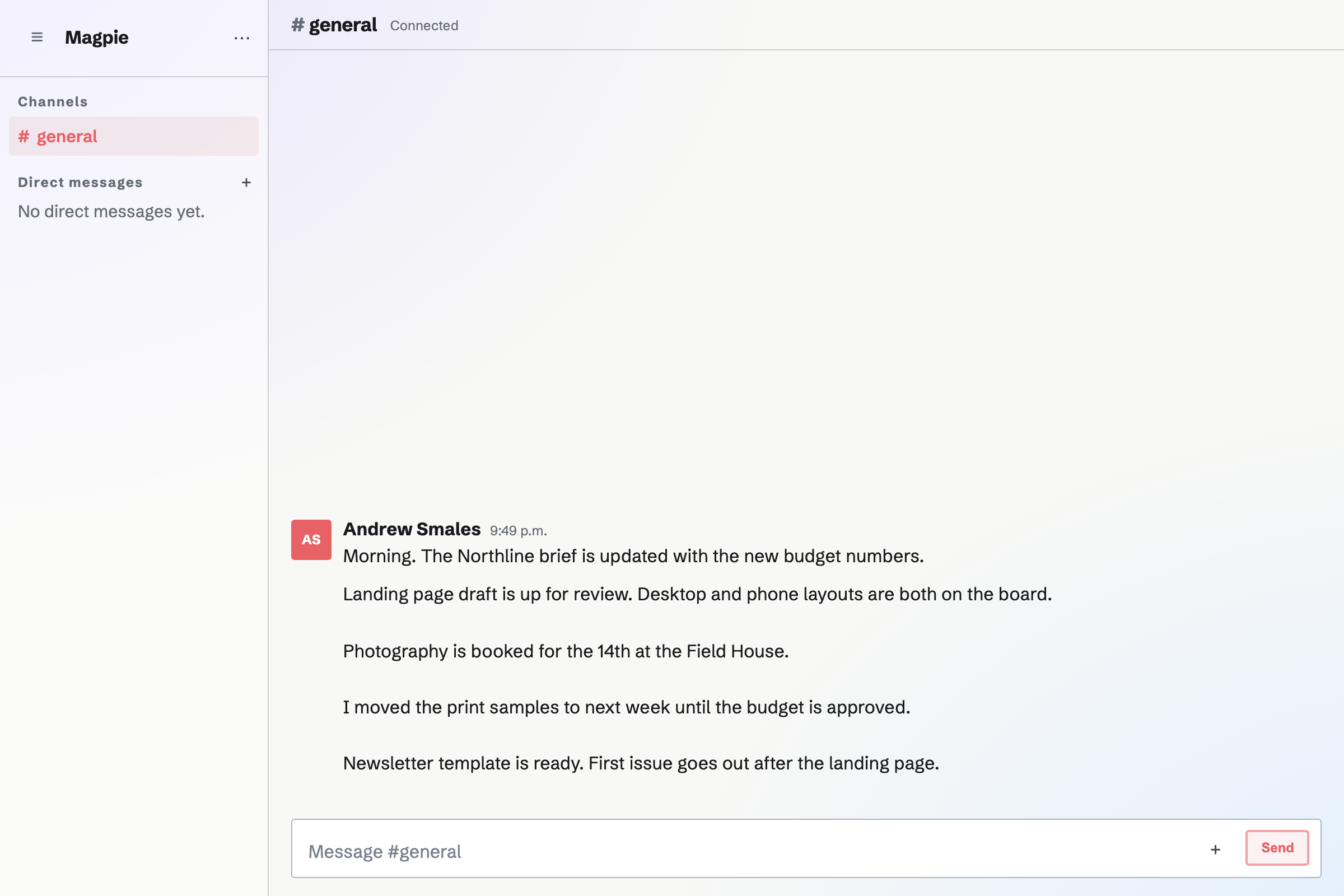
Channels and who reads them
Channels belong to Personal or a team, and every team has a General channel. Team admins create channels; how many a team can have active at once depends on its plan.
- A team's channels
- Everyone in the team who can use Team chat reads and posts in them. Messages from someone who leaves the team stay.
- Channels in Personal
- A channel in Personal is read only by you.
- Archiving a channel
- An archived channel takes no new messages, leaves the channel list and stops counting toward the plan's limit. An admin can restore it. General cannot be archived.
- Discussions
- Chat at the top of a document or a Podcast recording session opens that record's own conversation beside it. Anyone who can open the document or session can join, and Chat lists it under Discussions.
Guests from outside the team in one channel
A team admin can let a client, a freelancer or anyone else from outside the team into one channel. They join as a guest of the team, take no place on the plan, and count toward its guest limit: 10 on the free plan and 100 on Pro and the Team plan.
Make the channel members only
Invite people from outside the team, in Channel details, makes the channel members only: everyone now in the team stays in it, and later teammates can join it. This cannot be undone. General and channels in Personal cannot have guests.
Add people or share a link
Add someone by handle, or create an invite link that works for 7 days and for up to 25 people. Someone without a Magpie account creates one from the link.
What a guest sees
A guest reads, posts, attaches files, reacts and replies in their channels. They see each channel's member list and nothing else of the team's Team chat, not even General.
Remove someone
Remove takes someone out of the channel; their messages stay.
Writing and images
Messages are plain text: Enter sends, and Shift+Enter starts a new line. Attachments are visible only to the people who can read the conversation.
- Images on the website
- Add up to 10 images to a message from Your images, or upload, paste or drag in new ones. A message can be an image without any text.
Threads, reactions and deleting
- Threads
- Continue in thread opens the replies to one message in a panel beside the conversation, and the message shows how many replies it has. A reply cannot start another thread.
- Reactions
- React to someone else's message with 👍, ❤️, 😂, 🎉, 👀, 🙏, ✅ or 🔥, shown under it with a count. On a phone or tablet, double-tap a message to add 👍.
- Deleting a message
- You can delete your own messages, and a team admin can delete anyone's in the team's channels. Deleting the first message of a thread deletes its replies too, and cannot be undone.
Older messages and history on each plan
Load older messages reads further back in a conversation. To find a message by what it said, ask the assistant on the Dashboard, such as "find the chat message about the venue": it searches the channels of Personal or the selected team and your own conversations, and links to the conversation. It can also post a message in a channel you name once you confirm its text.
A team's channel and history limits follow its plan. On the free plan a team can have 5 active channels, and each channel shows its 2,000 most recent messages; older messages are hidden, not deleted, and show again on a paid plan. Pro and the Team plan allow 100 channels and show every message.
Open your team's General channel.
Create a Magpie account, create a team and open Team chat. Every team starts with a General channel, and team admins create more.