Websites
Build a website from sections and pages, and publish every page at once.
An editor website is built in Websites' editor: pages made of sections, with a header, footer and navigation that every page shares. Change a page by clicking its text in Visual mode or by editing its HTML in Code mode. Your changes are drafts until you publish them at the website's Magpie address or your own domain.
Get started free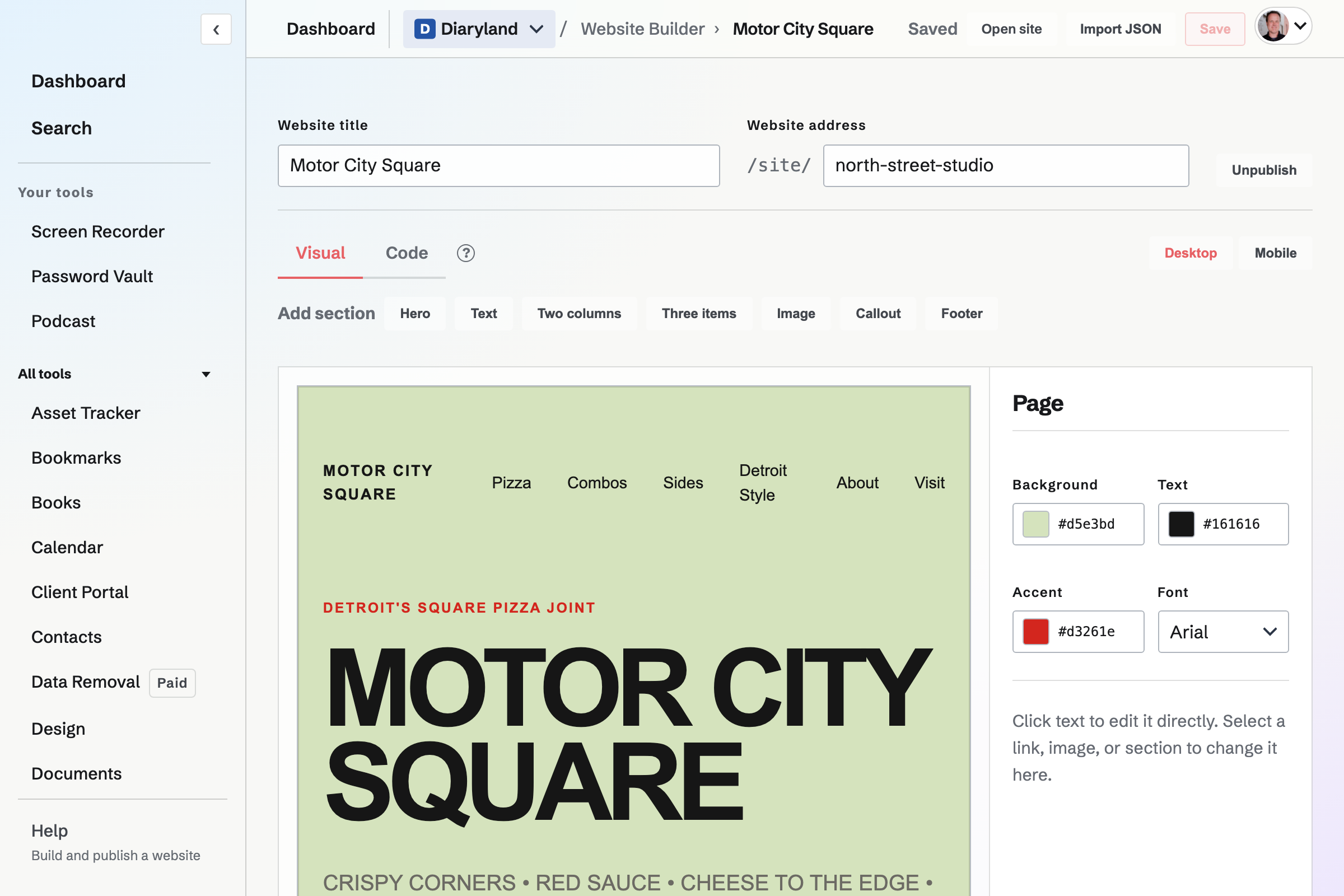
Pages, header and navigation
A new editor website starts from Magpie's starter design, with a home page. Add a page by its name, and its address will be made from the name. The home page is always first and always at the website's own address. A website can have up to 50 pages.
- Header and footer
- The header and footer are on every page, so a change to either changes every page. Show on every page moves any other section of the open page onto every page.
- Navigation
- Once two or more pages are listed, the navigation in the header lists them in the order you set. A page can be left out of the navigation.
- Links between pages
- Link to a page links text to another page of the website. When a page's address changes, links to it change to the new address.
Sections, Visual mode and Code mode
Add section offers Hero, Text, Two columns, Three items, Image, Callout, Footer and Store products sections: click one to add it, or drag it to where it goes. In Visual mode, click text in the preview to change it. Select a section, a link or an image to change it in the panel beside the preview, or to move, duplicate or delete it.
- Appearance
- A section has its own alignment, text size, text colour and background where it uses them. Page sets the background, text colour, accent colour and font of the whole page.
- Images
- An image comes from Your images, the image library shared across Magpie, or from an image's web address.
- Store products
- On the published website, this section lists your Store's published products with their images and current prices, each linking to the product in the Store.
- Code mode
- Shows the HTML as two files: the open page's own sections, and Layout, which every page shares (the head, the styles, the header, the footer and any scripts).
- Desktop and Mobile
- Show the preview at a desktop width and at a phone's width.
Drafts, Publish and History
Changes are saved as a draft a moment after you stop typing. Visitors do not see drafts.
Publish
Puts the drafts of every page online at once.
Discard unpublished changes
Every page's draft will go back to what visitors see now.
History
Each publish keeps the website as it was published. History lists the last 50 versions, with who published each one and when.
Restore
Makes a version the draft of every page it had, including a page deleted since. Visitors will see it once you publish.
Building from pasted JSON or HTML
A JSON document describes a website's sections and what they say, and Magpie writes them into the starter design. The import box shows the format, and Copy the prompt copies it with instructions for writing one.
- A new website
- Import from JSON, in New website, creates the website with the document's name, address, colours and sections. It starts unpublished.
- A page of HTML
- A whole page, such as a game written as one HTML file, becomes the website exactly as written, named from its title. Its scripts run on the published website.
- One page of a website
- Import JSON, in the editor's File menu, replaces the open page's sections with the document's, or with a pasted page of HTML as one section. The layout every page shares is kept, and visitors will see the new sections once you publish.
- The assistant
- The assistant on the Dashboard can create a website, change its home page, and publish it once you confirm.
Addresses, your domain and the website as files
- The Magpie address
- Made from the website's name when it is created, and changed in Edit details. Turning off Published, in the same place, takes the website offline.
- Your domain
- Team admins can show the website at a domain the team owns, such as example.com, by adding the DNS records Magpie lists. Once the domain is live, links to the Magpie address open the same page at the domain.
- Download as files
- A ZIP of the website as visitors see it: an index.html for each page, with the pictures it uses.
- Switch to your own files
- Turns the website into a files website of its published pages, at the same address and domain. It cannot be switched back.
Team access and plans
A website belongs to Personal or to a team. In a team, admins can change and publish its websites, and so can other members when the team's Member access is Can edit. With View only, members can open a website in the editor without changing it. Only a team admin can connect a domain.
The Free plan includes 1 website, and Pro and the Team plan include 20, counting editor websites and files websites together.
Build your first website.
Create a Magpie account, open Websites, choose New website, then Build it in the editor.