Books
Write books in sections and publish a web reader or EPUB.
Arrange front matter, chapters and back matter, write each section in a formatted editor, and keep earlier versions of every section.
Get started free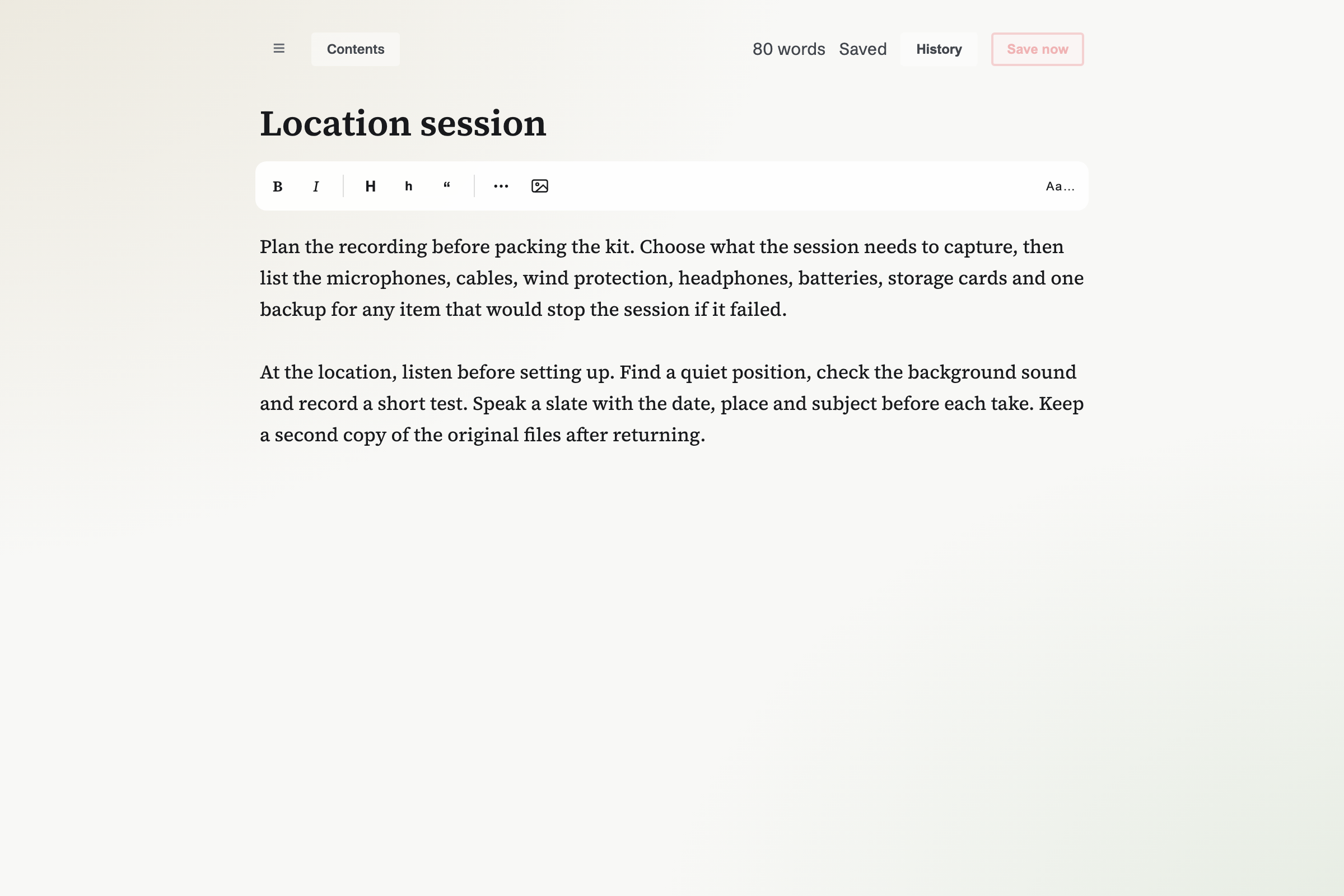
Arrange the manuscript.
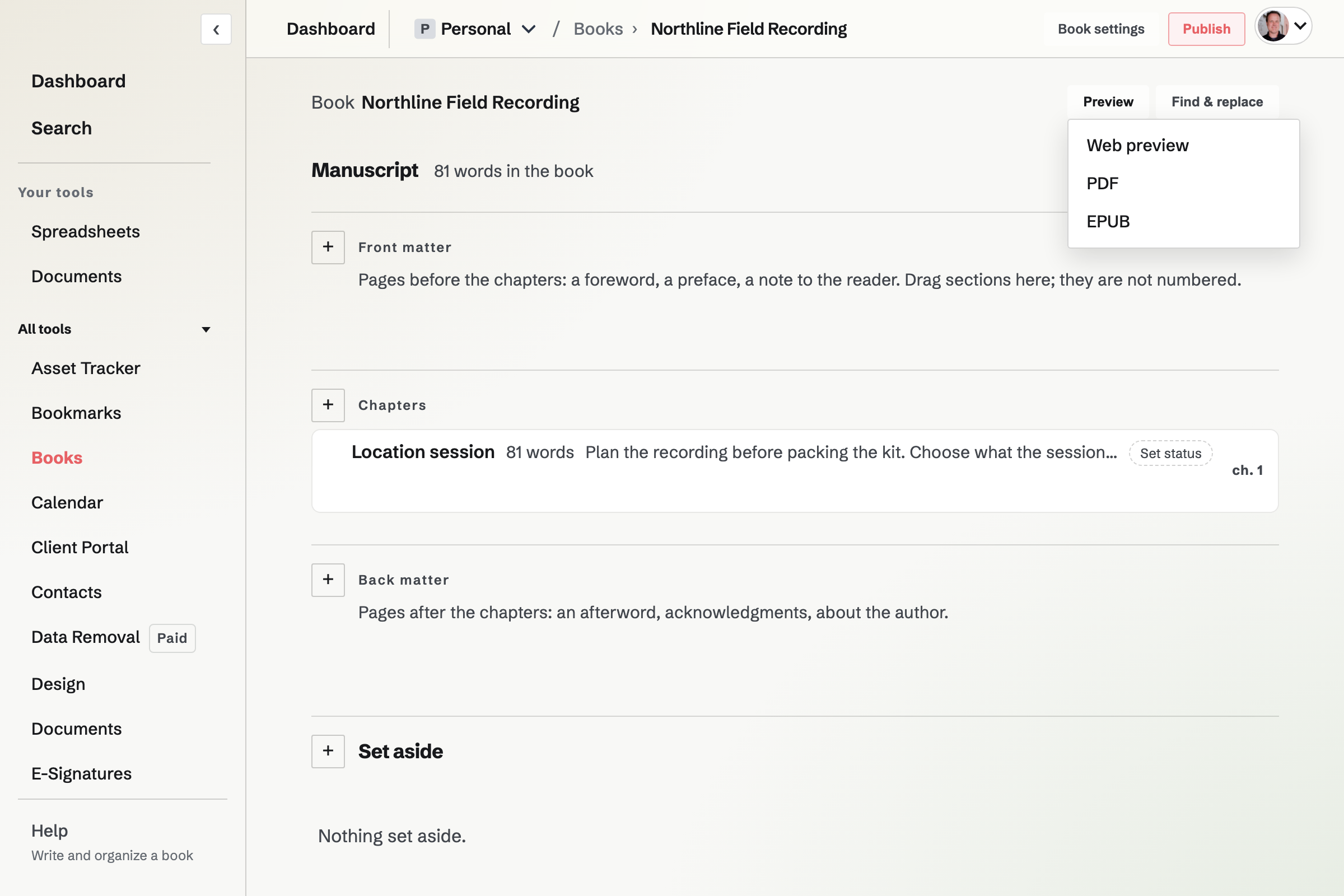
A book's Contents has front matter, chapters and back matter. Front matter and back matter are not numbered. Drag a section to move it within or between groups.
Set aside keeps material in the book without including it in the finished manuscript. Each section can have a synopsis and a status: Outline, Draft, Revised or Done. Contents shows the word count of each section and of the book.
Writing a section
- Formatted text
- Bold, italic, headings, quotes, scene breaks and pictures. The editor shows the word count and when the section was saved.
- History
- Each section keeps up to 30 earlier versions. Restore earlier text while retaining the current text as another version.
- Find and replace
- Search every section of the book, including titles, and review the matches before replacing. Changed sections are kept in History first.
- On a phone
- The native app edits section text as Markdown, preserves existing pictures and page breaks, moves sections between groups and can publish or return a book to draft.
Set up the finished book.
Book settings hold the title, subtitle, author, description, public address, language, cover colour or image and author bio. Text settings cover the font, size, line spacing, text width, chapter numbering, running heads, page numbers and page size.
Optional front pages add publisher, edition, copyright details, ISBN, dedication and epigraph.
Preview, publish and export
- Web preview
- Assembles the included sections in order so you can read the whole manuscript before publishing or exporting.
- Web reader
- Publishing opens a reader at the book's public address, with contents links and a choice of continuous text or pages. Unpublishing removes public access without deleting the book.
- A print layout to print or save as PDF from your browser.
- EPUB
- Packages the included sections and the book's details for ebook readers.
Book ownership and limits
How many books can I make?
Free allows one book. Pro does not cap the number of books. A book can have up to 400 sections, including sections set aside.
Who owns a book?
A book belongs to your account, whichever team is selected.
Start a book in Magpie.
Create an account and add the first section.