PDF Editor
Open a PDF, arrange its pages, add text and markup, and export a new copy.
The PDF editor changes one PDF in your browser tab: its pages, and the text, highlights, shapes, notes, links and page numbers you add. Open a PDF from your device or from another Magpie area, then download the result, save it to Secure Files or send it for signature. The file you open is never changed.
Get started free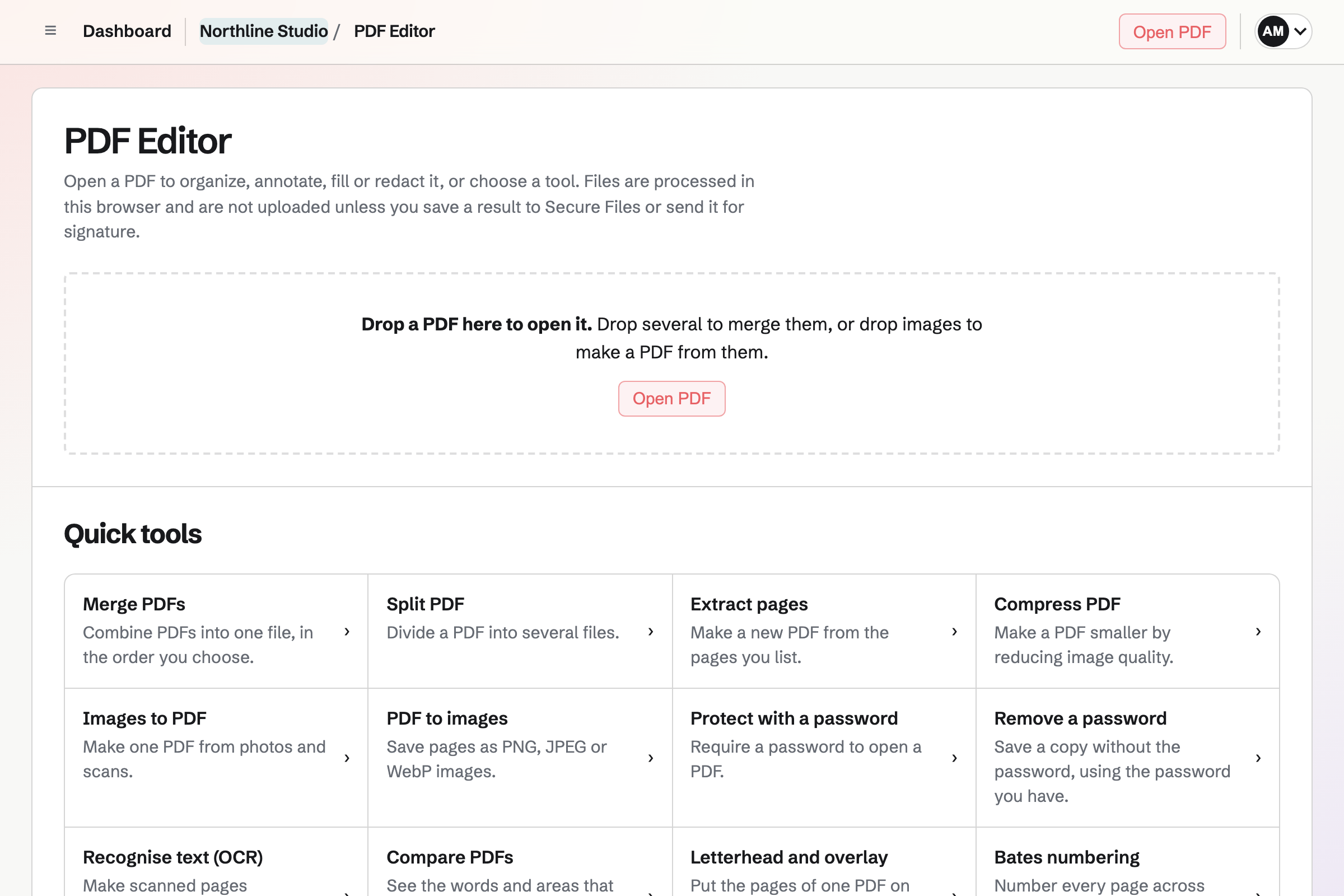
Processed in the browser tab, kept in one browser
A PDF you open is read into the browser tab and changed in it, whether it comes from your device or from Magpie. It is not uploaded to Magpie unless you save the result to Secure Files or send it for signature. Pictures you insert or use as a watermark come from Your images, where a new upload is stored like any other picture.
The editor keeps the open PDF and your changes in that browser, so reloading the page continues where you stopped. Recent in this browser, on the PDF Editor page, shows how long each will be kept, and Remove deletes it sooner. Work in progress is not stored on Magpie or available on other devices. A PDF's password is not stored, so a protected PDF asks for it again when reopened.
Opening a PDF
Choose Open PDF or drop a PDF on the PDF Editor page. Each file can be up to 200 MB; large files use a lot of the browser's memory, so on a phone smaller files work more reliably.
- Secure Files
- Open in PDF Editor, in a PDF's More menu, decrypts the file in your browser and opens it in the editor.
- Mail, Invoicing and Expenses
- A PDF attachment in Mail, an invoice's More menu and a PDF receipt on an expense each have Open in PDF Editor.
- Client Portal
- A PDF shared in a client portal has Open in PDF Editor beside Download.
- E-Signatures
- The upload page for a signature request links to PDF Editor, to remove or rotate pages, fill in details or redact before sending.
Arranging pages
Page actions apply to the ticked pages in the list, or to the current page. Undo and Redo reverse each change one at a time.
- Reorder, rotate and delete
- Drag pages in the list or move them to the beginning or end. Rotate the chosen pages or every page, duplicate pages with what you added to them, and delete the ones you do not need.
- Insert and extract
- Insert pages from another PDF, images from Your images or a blank page. Extract makes a new PDF from the chosen pages and leaves them in place.
- Straighten
- Levels tilted scans. A straightened page becomes an image of itself, so recognise its text afterwards to search or select it.
- Page size and crop
- Put pages on A4, Letter, Legal, A3, A5 or a size in millimetres, scaled to fit or centred. Crop hides the margins you set; the content stays in the file.
- Merge and split
- Merge PDFs and Split PDF, among the quick tools, combine several PDFs or divide one without opening the editor.
Text, highlights, shapes and notes
What you add goes on top of the page's own content and can be moved, changed or deleted until you export. Text already in the PDF stays as it is; Redact removes it from the exported file.
- Add text
- Type onto a page in Helvetica, Times or Courier, at the size and alignment you choose. Text in other alphabets, such as Greek, Arabic, Hindi or Chinese, is drawn with Noto Sans.
- Highlight
- Marks the text you drag across, or the area you drag on a scanned page.
- Draw, shapes and notes
- Freehand lines, rectangles, ellipses and arrows in the colour and line width you choose, and notes that PDF readers show as a note icon.
- Annotations
- Highlights, drawings, shapes and notes are saved as PDF annotations, so other PDF apps can select, move or delete them.
Links, bookmarks, page numbers and watermarks
- Links and bookmarks
- Link an area of a page to another page, a web address, an email address or a phone number. Add, rename and nest bookmarks. Both follow their pages when pages are moved.
- Header, footer and page numbers
- Text at the top and bottom of every page, with the page number, page count, export date or file name, and numbers such as Page 1 of 24. A cover can be left unnumbered.
- Watermark
- Text such as DRAFT, or a logo from Your images, over or under the page content on every page or the pages you list.
Export, save or send for signature
Export PDF makes a new file from the pages and your changes. It can also flatten form fields, remove document properties, compress images and protect the PDF with an AES-256 password.
Download only
The new PDF will download to your device.
Secure Files
Secure Files will open in a new tab, where the PDF is encrypted in the browser before it is uploaded. For a PDF opened from Secure Files, Replace the original in Secure Files saves the new file in the same folder and moves the original to Trash in Secure Files.
Send for signature
Creates a signature request in E-Signatures with the current PDF, up to 25 MB and 500 pages; you then add signers and place signature fields in E-Signatures. It appears when you can edit the selected team.
Edit your first PDF.
Create a Magpie account, open PDF Editor and choose Open PDF, or open a PDF from Secure Files or Mail.