Secure Files
Open a PDF from Secure Files; it is decrypted in your browser. Export can save the result back to Secure Files, encrypted in the browser before it is uploaded, or replace the original and move it to Trash.
PDF Editor
PDF Editor merges, splits, compresses, annotates, fills and redacts PDFs. Files are read from your device and processed in the browser tab. A PDF reaches Magpie only when you save the result to Secure Files or send it for signature.
Get started free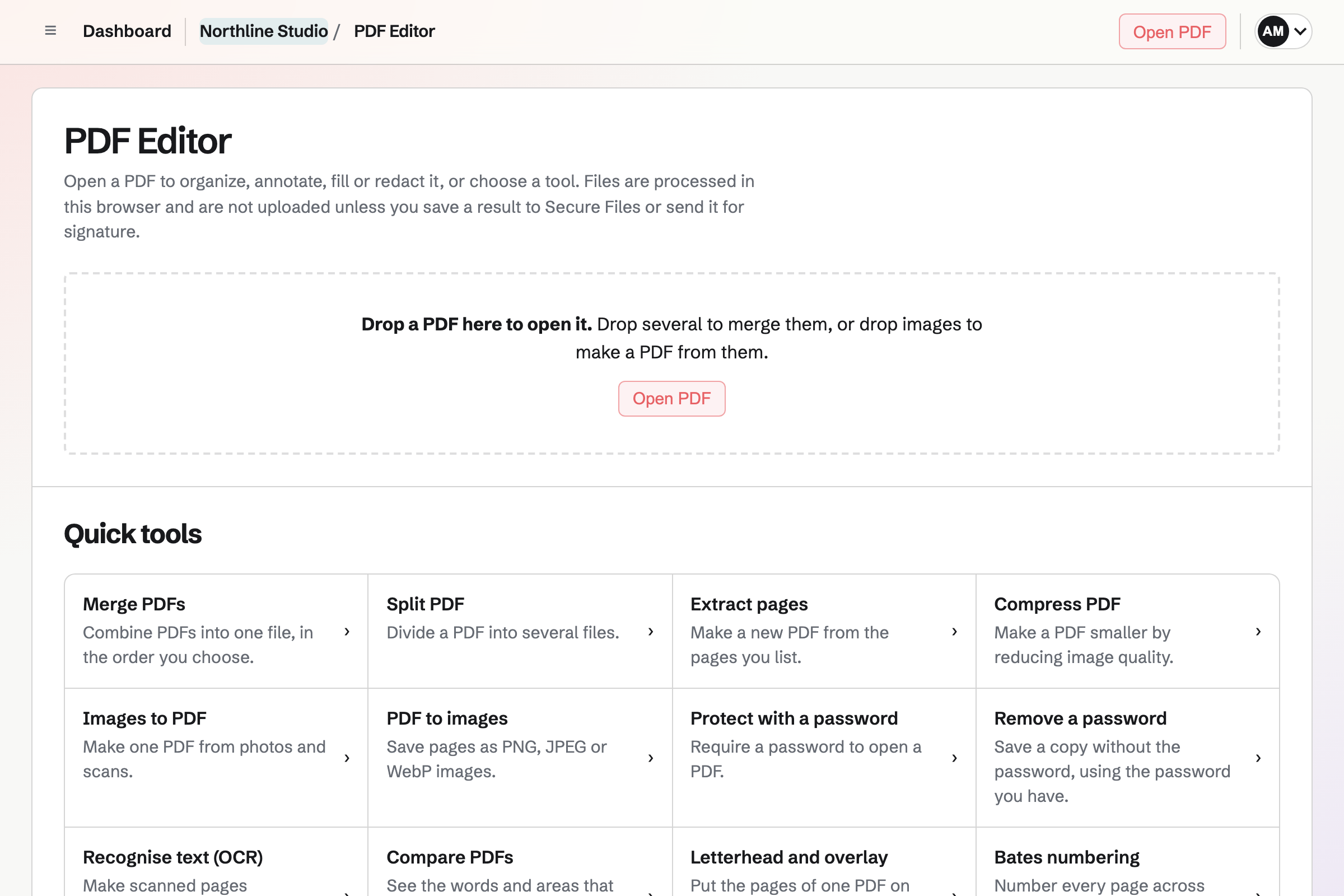
A PDF you open is read from your device and changed in the browser. It is not uploaded to Magpie unless you save the result to Secure Files or send it for signature. The file you open is never changed; every tool makes a new PDF.
The editor keeps an open PDF and its changes in your browser for 24 hours after the last change, so reloading the page continues where you stopped. They are not stored on Magpie and are not available on other devices.
Drag over text or images with Redact, or use Find and redact to mark words, email addresses, phone numbers or web addresses on every page. When you export, each page with marks is replaced by an image of the page with the marked areas painted black, so nothing underneath remains in the file.
PDF Editor then checks the exported file: the redacted pages must contain no text or annotations, and nothing from the original pages may have been copied into it. If the check fails, nothing is exported.
Open a PDF from Secure Files; it is decrypted in your browser. Export can save the result back to Secure Files, encrypted in the browser before it is uploaded, or replace the original and move it to Trash.
Send for signature creates a signature request in the team's E-Signatures with the current PDF, up to 25 MB and 500 pages. You then add signers and place fields.
A PDF attachment in Mail has an Open in PDF Editor link. Invoices, PDF receipts in Expenses and PDFs shared in Client Portal open the same way.
Each file can be up to 200 MB. Merge takes up to 50 PDFs, Images to PDF up to 100 images, and the editor up to 2,000 pages. Large files use a lot of the browser's memory; on a phone, smaller files work more reliably.
The Magpie app for iPhone, iPad and Android has PDF Editor for files on your device: scan a document with the camera, make a PDF from photos, merge PDFs, organize pages, and add or remove a password. Files and passwords are not uploaded to Magpie.
English, French, German, Spanish, Italian, Portuguese, Dutch, Polish, Russian, Ukrainian, Chinese (Simplified), Japanese, Korean, Arabic and Hindi. Recognition runs in the browser; the first time a language is used, its data (about 1 to 3 MB) is downloaded and kept in the browser.
Create a Magpie account, open PDF Editor and choose Open PDF.