Link-In-Bio List
Build one public page of links and publish it at magpie.diy/links/your-name.
A Link-In-Bio List is a public page of links, headings and text under your picture, name and social profiles, for the one address a social profile gives you. Personal has one list and each team has one. Add, remove and reorder its links, and the address you shared will stay the same.
Get started free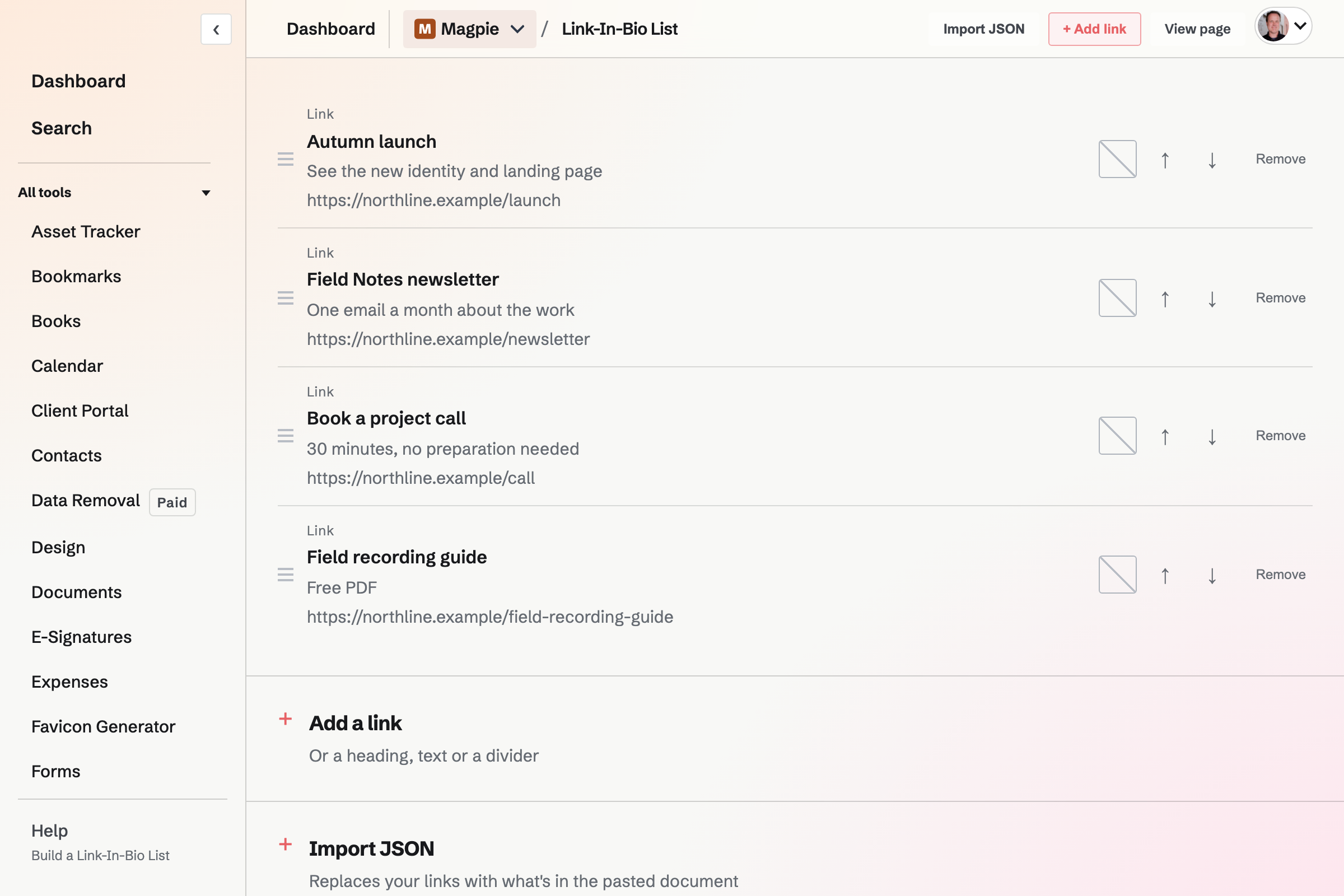
Links, headings, text and dividers
Everything under the profile is a block, shown in the order of the list. Blocks are added on the Links tab and moved by dragging or with each row's arrow buttons.
- Link
- A title, an address and an optional description shown under the title. An address typed as example.com becomes https://example.com, and email (mailto:) and phone (tel:) addresses work too.
- Heading and text
- A heading labels the blocks under it. A text block is a line of writing between them.
- Divider
- A rule between blocks.
- Magpie page
- A link to the published Store, Supporters page or Website of the same team or Personal. It follows that page's current address, and is left off the public page while that page is unpublished. It is added from the assistant or a JSON import.
- A link's own colour
- The swatch on a link's row gives it its own background colour, with black or white text, whichever is readable. The × beside it returns it to the page's button style.
Publishing at its Magpie address
A new list starts as a draft, named after you in Personal or after the team, with an address made from that name.
Draft
Members of the team can open the address and see the draft, with a notice that only the team can see it. Anyone else sees Page not found.
Address and slug
The address is magpie.diy/links/ followed by the list's slug. Changing the slug in Settings will change the address, and copies of the old address already shared will stop working.
Published
Turn on Published in Settings, and anyone with the address will be able to open the page without a Magpie account. Turning it off makes the list a draft again.
Share and QR code
Settings has the address to copy into a social profile, a printable QR code for the same address, and Share. Preview text, or the description when it is empty, appears under the title when the address is shared or found in search.
Your own domain
A team admin can also show the list at a domain the team owns, such as links.example.com.
What a visitor sees
The public page shows your profile, then the blocks. It has no Magpie navigation and no prompt to sign in, and its foot links to Magpie.
- Picture
- Chosen from Your images in the image picker, which can also upload a new one.
- Display name and description
- The header of the page, set in Settings.
- Social profiles
- A row of icons under your name for Instagram, TikTok, YouTube, X, Bluesky, Facebook, LinkedIn, GitHub, Twitch, Discord, Spotify and Apple Music, plus Website and Email. Each network can appear once, and Email takes a plain email address.
Page views and link clicks
Analytics shows page views, link clicks and clicks per view, then Clicks by link, most clicked first. Only members of the team can read it.
- Counts only
- Each view or click adds one to a total. Nothing is recorded about who made it, and views by members of your team are not counted.
- From the day a link is added
- A link's count starts when the link is added, and is kept while the link is hidden.
- What counts as a click
- A click on a link or a Magpie page block. Social profile icons open the profile directly and are not counted.
Build or replace a list by pasting JSON
A JSON document sets the display name, description, preview text, slug, appearance, blocks and social profiles in one step. Paste it before the list exists and the list will be created from it, or paste it later under Import JSON in the File menu. Help describes the format, with a complete example.
- Only what the document names
- A field the document leaves out stays as it is. Blocks, when included, replace every block on the page, and social links replace the whole row of social profiles. Replaced blocks are new, so their click counts start again.
- Checked before anything is saved
- If any part does not fit the format, nothing is created or changed, and the problem is named.
- Publishing stays as it is
- An import never publishes a draft or unpublishes a live list.
Who can change the list, and where
In Personal, the list is yours. In a team, admins can change it, and so can members when the team's Member access is Can edit. Every member of the team can see the draft and Analytics.
The assistant on the Dashboard can build and change the list too, and publishes or unpublishes it only after you confirm.
Start your Link-In-Bio List.
Create a Magpie account, open Link-In-Bio List and choose Create your list, then add your first link.