Link-In-Bio List
Choose how your Link-In-Bio List looks, and show it at a domain you own.
Appearance sets the public page's palette, background, container, layout, typeface, buttons and header, with a preview of the page above the controls. Each choice saves as it is made, and the preview changes with it. A team admin can also show the list at a domain the team owns, such as links.example.com, in place of its Magpie address.
Get started free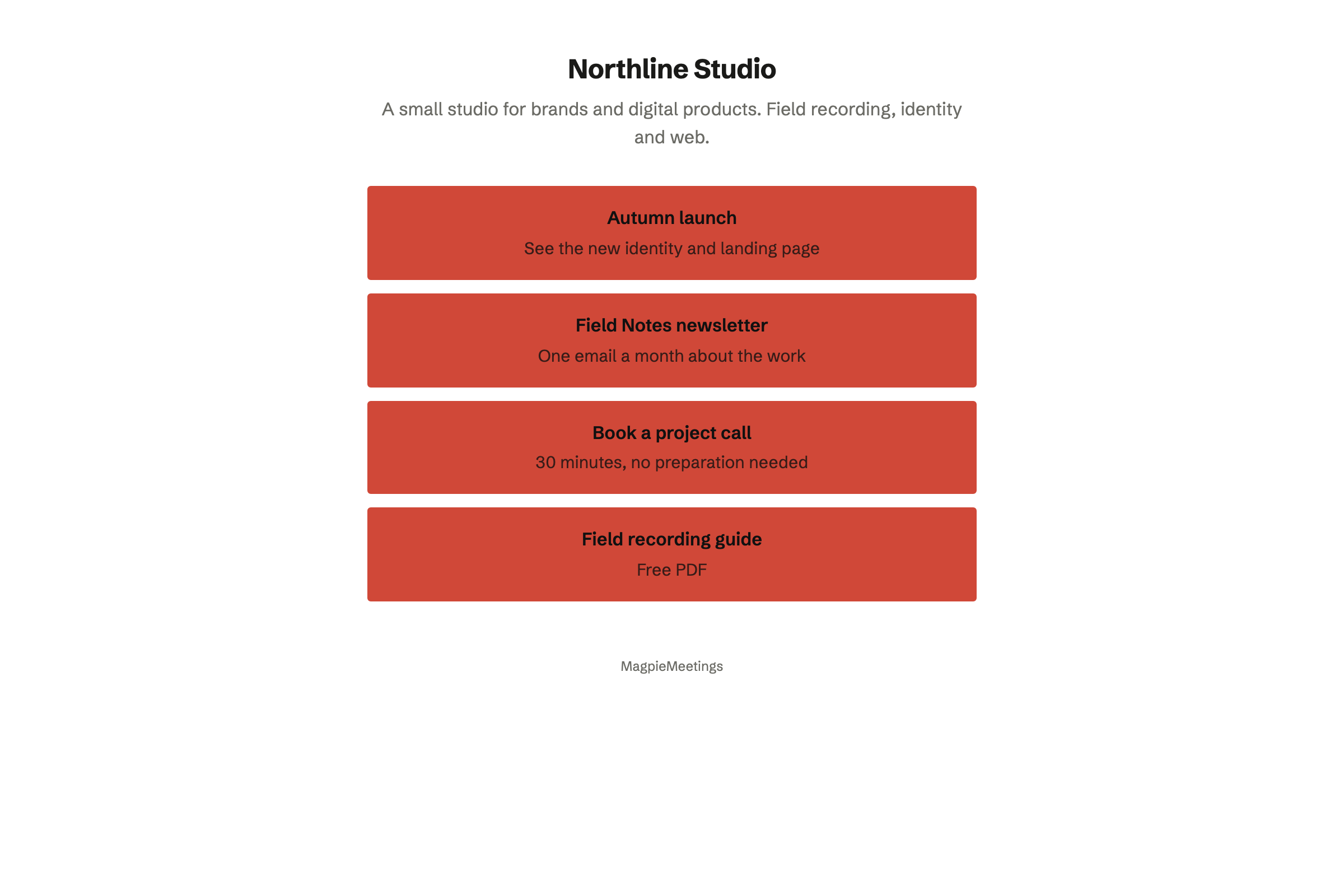
Palettes and colours
Palette sets the background and text colours together, as a pairing checked for contrast. The accent colour is yours to choose with any palette.
- Light palettes
- Light, Paper, Mist, Sand, Blush, Sage, Soft and High contrast.
- Dark palettes
- Dark, Midnight, Noir, Forest, Plum, Ocean and Ember.
- Your accent colour
- A palette built from the accent colour instead.
- Accent colour
- Any colour, for buttons, highlights and the tint in a patterned background. Text on it is black or white, whichever is readable.
- Background colour
- Replaces the palette's background with a colour you choose, and the text will change to black or white to match. The × beside it returns the page to the palette's background.
Backgrounds and containers
Background sets how the background colour is painted. Patterns are mixed from the palette and the accent, so the text stays readable with any combination.
- Flat colour
- One colour, edge to edge.
- Vertical fade, Corner glow and Aurora
- The accent blended into the background from the top, from a corner, or in several places.
- Dot grid, Line grid, Diagonal stripes and Fine grain
- A pattern drawn in the text colour at low strength.
- Vignette
- Darker at the edges than in the middle.
- Container
- With No container, the default, the column of links is drawn straight on the background. Panel, Outlined, Raised, Frosted glass and Full-height sheet draw a box around it.
Layout, typeface and buttons
- Layout
- Stacked puts one link on each row, and Two across puts links in pairs, with headings and dividers across the full width. Compact rows reduces the spacing for a long list, and Wide column and Narrow column change the column's width.
- Typeface
- Sans, Serif, Display, Typewriter, Rounded or System default, for the whole page. Display, Typewriter and Rounded load one font file when the public page opens; the others load none.
- Button style
- Solid, Outline, Soft, Glass, Hard shadow, or Text only, which draws a line of text with a rule under it. Glass and Hard shadow are made for a patterned background.
- Corners
- Softly rounded, Pill or Square, for the buttons and the container.
- A link's own colour
- A link given its own colour on the Links tab keeps that colour with any button style.
Picture, name and social profiles
- Picture
- Circle, Rounded square, Square, Banner, which shows the picture as a full-width cover, or Hidden, which leaves it off the page and keeps it in Settings.
- Alignment
- The name and description Centred, Left, or Beside the picture. With a Banner, Beside the picture puts them under the picture, aligned left.
- Social profiles
- The row under your name as Icons, Filled icons or Text labels.
- In JSON
- A JSON import offers the same choices.
Show the list at your own domain
Every list keeps its Magpie address, magpie.diy/links/ followed by its slug. A team admin can connect one address the team owns: a subdomain such as links.example.com, or a whole domain such as example.com, which will also answer at www.example.com.
Add the DNS records
Custom domain, in Settings, lists them: a TXT record that proves the domain is the team's, and a CNAME record for a subdomain or an ALIAS record for a whole domain. Email at the domain keeps working. When Magpie hosts the domain's DNS, Add the records for me adds them.
Wait for Live
Magpie checks the records in the background, and the open Custom domain page updates as the checks find them. Magpie then gets a security certificate, usually within a few minutes, and the page shows Live.
Visitors arrive at your domain
Once the domain is live and the list is published, the list is shown at the domain, and its Magpie address will open the domain, so addresses already in social profiles and on printed QR codes keep working. Turn off Magpie address to show the list at both. Address, QR code and Share in Settings will use the domain, and Analytics counts views and clicks at both addresses.
If the records go missing
The list stays at the domain, the page shows Problem found, and Address, QR code and Share use the Magpie address until a check finds the records again. If the problem lasts 24 hours, Magpie will email the team's admins, and again after 7 days.
Disconnect
Disconnect stops showing the list at the domain. The list stays at its Magpie address.
Who can change the design and the domain
In Personal, you change the list's appearance. In a team, admins can change it, and so can members when the team's Member access is Can edit.
Connecting a domain is for team admins, because it adds the domain to the team's domains.
Design your Link-In-Bio List.
Create a Magpie account, open Link-In-Bio List and choose Create your list, then open Appearance.