Contacts
Start entering a name or email address when composing a message to choose a matching Contact. Suggestions use Contacts in the selected Personal or team context.
MailNew
Host your domain’s email, read and send messages in your browser, and give your team access to a shared mailbox. Mailboxes and addresses belong to Personal or a team.
Get started free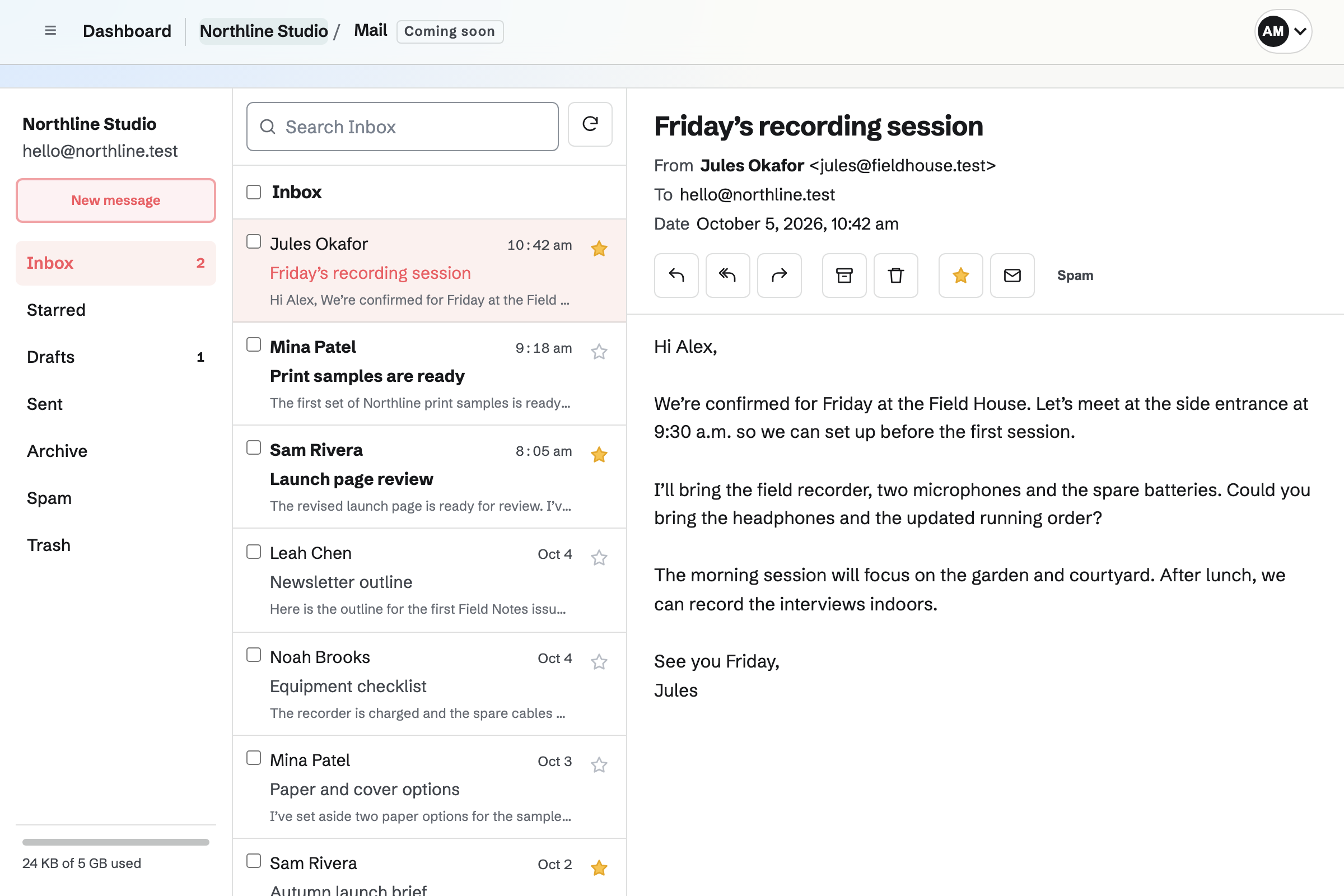
On desktop, folders, the message list and the open message appear side by side. On a phone, open a message from the list and return to the list when you finish. Search the selected folder, star messages, and archive or move several messages together.
Reply, reply all or forward from the open message. New messages and replies save as drafts while you write, including attachments. If sending fails, the draft remains available to edit and retry.
Personal mailboxes are private to their owner. In a team, members with access can read, send and organize messages in a shared mailbox. Read status, stars and folders are shared, so everyone sees the same message state.
Team admins connect domains and manage catch-all settings and mailbox suspension. Suspending a mailbox stops sending and receiving while keeping its stored messages.
Connect a domain you control by adding verification and Mail records at its current DNS provider, or use Magpie’s nameservers to manage the whole domain’s DNS. The domain page shows verification and delivery-record status.
For nameserver setup, Magpie copies existing records for you to review before changing nameservers. Check for missing records: any record Magpie does not have will stop working after the change. Existing mail-provider records stay in place until you choose Move mail to Magpie, after creating your mailboxes. Messages already at the previous provider remain there.
Start entering a name or email address when composing a message to choose a matching Contact. Suggestions use Contacts in the selected Personal or team context.
Mail requires Pro for Personal or the Team plan for a shared team. The paid plan applies to the context that owns the domain.
Each new mailbox has 5 GB of storage, with its usage shown below the folders. A message can have up to 25 recipients and 10 MB of attachments in total. Each mailbox can send up to 100 accepted messages per hour.
Images attached to a message appear in it. Images loaded from other sites are hidden until you choose Show images, or remember the sender with Always show images from. Each person controls their own choice, including in a shared mailbox.
Create a Magpie account, then choose Pro for Personal or a Team plan to add your domain.