Secure Files
Files encrypted in your browser before they are stored.
Secure Files encrypts each file, file name and folder name in your browser with your Password Vault identity. Magpie stores the encrypted data and cannot read it.
Get started free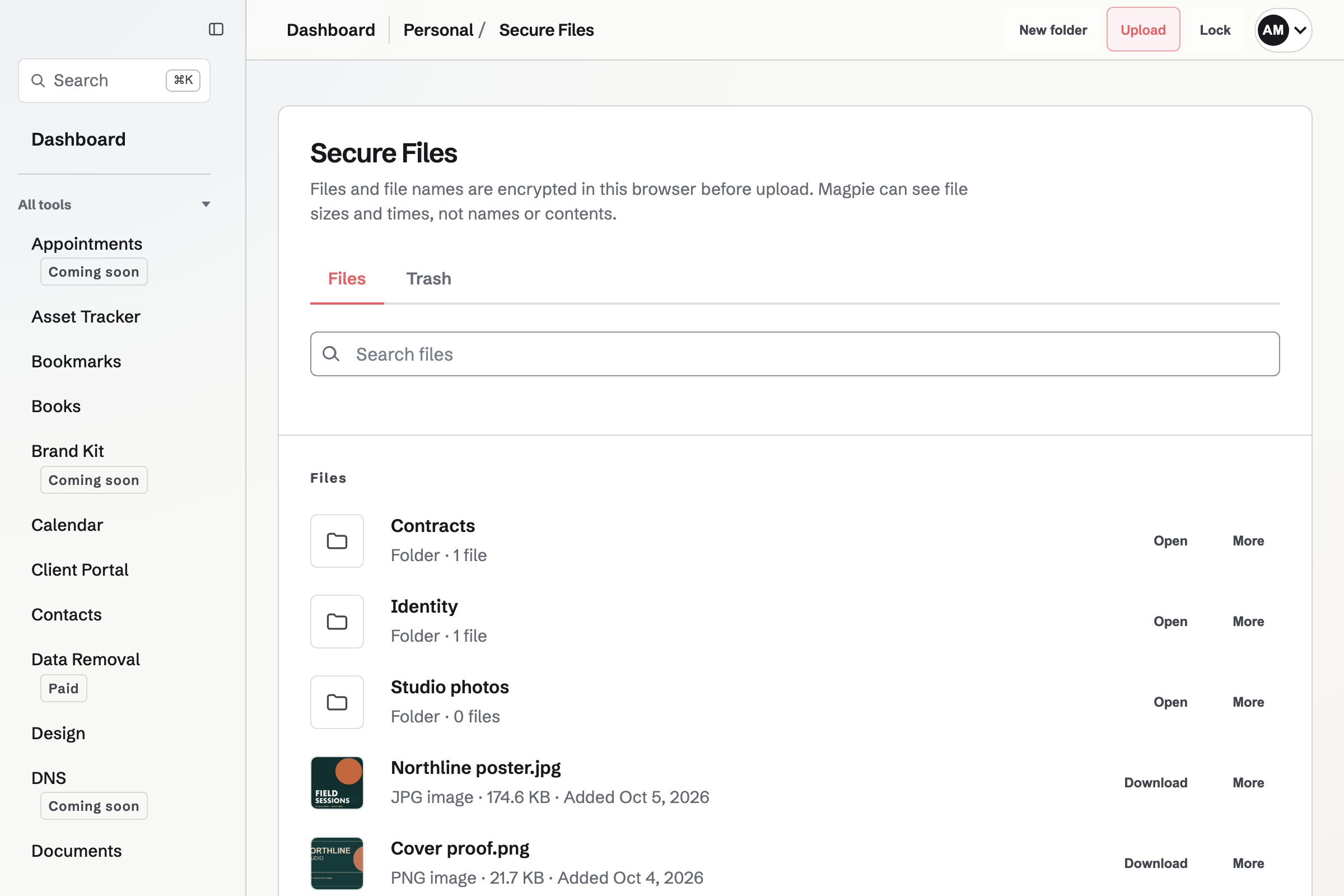
Encrypted before upload
Choose Upload and select one or more files, each up to 2 GB. Secure Files encrypts and uploads them in chunks. Magpie stores the encrypted file, its encrypted name and a wrapped copy of its random file key, never the plaintext file or the unwrapped key.
Secure Files uses the encryption identity from Password Vault, so set up Password Vault first. An unlocked Password Vault in the same tab also unlocks Secure Files; otherwise, enter the same Password Vault password.
Organize encrypted files
- Folders
- Create folders inside folders and move a file with More. Folder names are encrypted, and your browser prevents two folders with the same name in one place.
- Search
- Search file and folder names in every folder. Search runs on names decrypted in your browser; the search text is not sent to Magpie.
- Image previews
- PNG, JPEG, GIF, WebP and AVIF images up to 10 MB show a preview, decrypted in your browser and discarded when Secure Files locks.
- Trash
- Move to Trash removes a file from Files, and Restore returns it to its folder. Delete forever removes the encrypted file and its key from active storage.
Send one file with a secure link
Choose the limits
Choose Share securely beside a file. Set the link to expire in 1 hour, 1 day, 7 days or 30 days, and allow unlimited downloads or one download.
Add a passphrase
Optionally require a passphrase. The recipient needs both the complete link and the passphrase, so send the passphrase separately.
Copy the link once
The decryption secret is after the # in the link, which browsers do not send to Magpie. Magpie cannot show the complete link again, so copy it before closing the drawer.
Revoke when needed
Choose Revoke to stop new downloads and any active transfer. Moving the file to Trash also revokes its links. A copy already downloaded stays with the recipient.
What Magpie can see
Magpie can see file sizes, folder relationships, timestamps, sharing relationships, download authorizations and access patterns. It cannot read file contents or names, and it cannot scan encrypted contents for malware.
Storage and links
Which storage does Secure Files use?
Secure Files counts toward your plan's storage with your other stored files. The file list shows how much Secure Files uses and your plan's total. Files in Trash use storage until you choose Delete forever.
What does a one-download link count?
It stops accepting new downloads when a recipient starts one, and that transfer can finish for up to two hours. It counts the download Magpie authorized, not whether the recipient opened or saved the file.
Who can I share a file with?
Anyone you send a secure link to. The recipient does not need a Magpie account, and their page locks after 15 minutes without activity.
Store your first encrypted file.
Create a Magpie account, set up Password Vault, then open Secure Files.