Git Repositories
Git repositories with team permissions and HTTPS access.
Create repositories in Personal or a team, initialize them with starter files, and use ordinary Git tools to clone, fetch and push over HTTPS with access tokens.
Get started free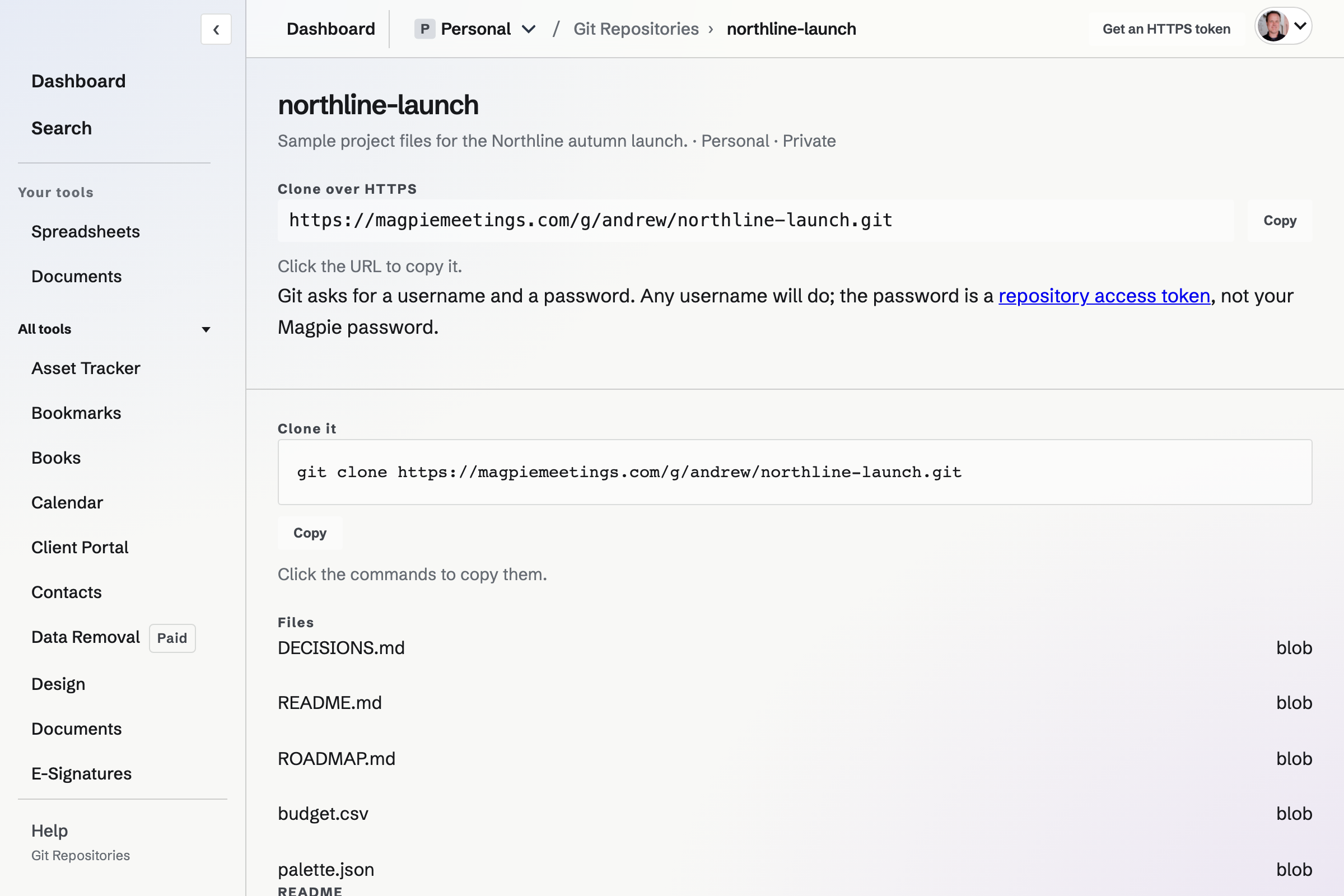
Access follows the owning context.
A repository belongs to Personal or a team. Team editors can work with the team's repositories; a private repository can also grant a Magpie user read-only or read-and-write access without adding them to the team. Public repositories can be read without a token, but writes still require permission.
Starter files, scoped tokens and repository browsing
- Start with files or start empty
- Create a repository with an optional README, .gitignore and license, or push an existing project.
- Use a repository token
- Git over HTTPS uses a repository access token. Choose a read or write scope; the token owner must also have access to the repository. Revoking the token stops that credential from working.
- Inspect the repository page
- See the default-branch root files, a rendered README when one is present, and recent commit subjects and authors.
Git access and transport
Does a public repository require a sign-in?
Public Git reads over HTTPS do not require a token. The Magpie website repository page requires a sign-in. Writes always require authorized access.
Can I use an SSH key?
No. This Git transport uses HTTPS repository tokens; it does not accept SSH keys.
Is the website a full code browser?
The website shows root files, a README and recent commits. Use a Git client for branch work and full file history; the native app can browse folders and text files.
Create a Git repository.
Create an account and choose the Personal or team context that should own it.