Staff Scheduling
Plan the week's shifts as drafts, check them against your rules and publish them.
Staff Scheduling shows a week with a row for each person and a first row of open shifts. Every shift is a draft until you publish it, and every way someone is put on a shift is checked against the team's rules. Publishing shows each person their own shifts and tells them what changed.
Get started free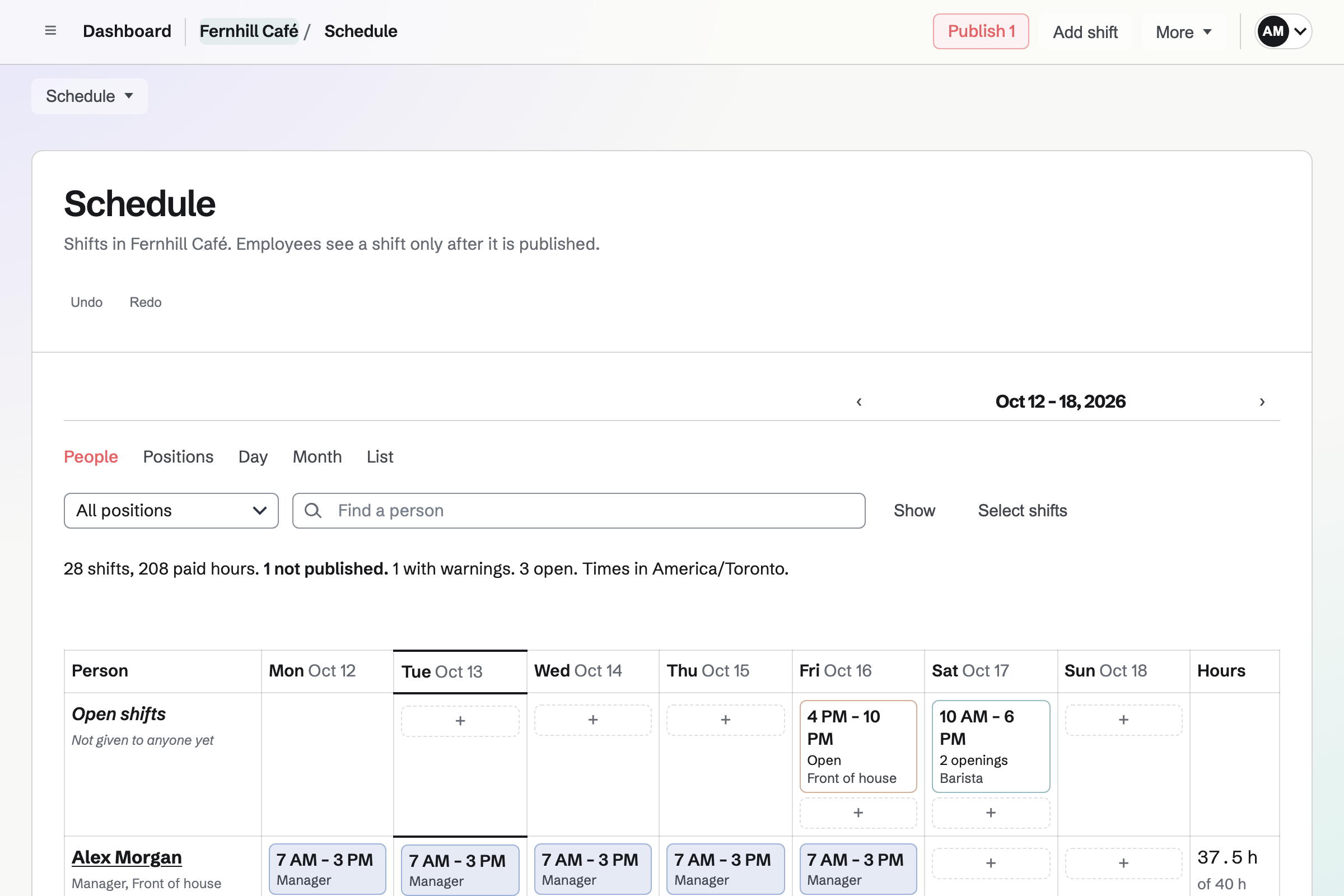
Adding and changing shifts
Team admins, Managers and Schedule editors plan shifts.
Times as you would say them
Choose Add shift, or the + in a person's day, and type times such as 9-5 or 10pm-6am. The position, location, breaks and instructions are optional.
Open shifts
A shift with nobody on it is an open shift. One open shift can have up to 50 openings, each for a different person.
Breaks
Breaks are unpaid unless they say paid, such as 30 unpaid or 15 paid at 10am.
Moving and changing
Drag a shift to another day or person, or hold Alt (Option on a Mac) to copy it. Select shifts changes up to 1,000 shifts at once, and Undo steps back.
Filling a week
Copied and added shifts are drafts. Anyone who cannot work one of them will be taken off it, and the shift will be left open.
- Copy a week
- Copy another week into this one with the same people, or with every shift as an open shift.
- Starter weeks and starter shifts
- Save a week, or two, as a starter week to add to any later week. Starter shifts are named times, such as Opening, that fill in a new shift.
- Repeating shifts
- A shift can repeat every week, every two weeks, Monday to Friday or every month on that weekday. Repeats are created as drafts 12 weeks ahead.
- Auto-fill open shifts
- Auto-fill proposes a person for each open shift from their availability and preferred hours, the hours they already have, and how weekend and late shifts are spread, never someone a blocking rule stops. Nothing changes until you choose Apply as drafts.
Rules checked on every shift
Adding or moving a shift, copying a week, auto-fill, and the swaps, cover and open shifts staff ask for are all checked against the same rules. Only team admins change the rules.
- Always checked
- Two shifts at the same time, someone who is not working on that date (inactive, archived, or outside their start date and last day), and someone on leave.
- Time off and availability
- Approved time off, time off waiting for a decision, and times outside someone's availability or outside the earliest start and latest finish on their profile.
- Positions and qualifications
- A position someone does not hold, a location they are not set up for, and a required qualification they do not hold or that has expired by the shift's date.
- Hours and rest
- Minimum rest between shifts, the most hours in a day or a week, a person's own maximum, the most days in a row, daily and weekly overtime, breaks on long shifts and split shifts. The limits are off until you set them: Magpie does not know the employment rules that apply to you.
- Block, warn or inform
- Each rule you set blocks the shift, warns, or is shown as information. When Managers can override is on for a rule, a team admin or Manager can save a blocked shift with a reason, which is recorded in the shift's history.
Publishing the schedule
Drafts never reach anyone. Publishing is the only way a planned shift, or a change to one, reaches the people on the schedule.
The review
The review lists every shift that will be added, changed or cancelled, who will be told, who could take the open shifts, and times short of people. Publish a week, chosen shifts or one shift.
Conflicts and warnings
A blocked shift must be fixed or overridden first. Publishing with warnings needs a reason, which is recorded with the publication.
One notification each
Each person will get one notification listing their changes, by email or app notification as they chose. People who could take a newly published open shift will be told about it.
Changes after publishing
A change to a published shift is a draft until you publish again; until then the person sees the published version. A schedule editor can publish only if a team admin allowed it.
History and PDFs
Publication history lists every publication: when, by whom, and what changed for each shift. The published week downloads as a PDF by person or by position.
Pay estimates
Pay rates, under Settings, are hourly rates for estimating labour cost. The estimates use base rates with no overtime premium; Magpie does not run payroll.
- Where they appear
- Estimates appear as Estimated pay on the publish review and as labour cost in Reports, which downloads as CSV.
- Which rate applies
- The most specific rate in effect on the shift's date: the person in that position, the person, the position at that location, the position, then the location.
- Who sees them
- Pay rates and estimates are hidden from everyone, team admins included, until a team admin turns on Sees pay rates for them.
Plan your first week.
Create a Magpie account, open Staff Scheduling, add the shifts of a normal week and publish it.