Time Tracking
From two hours before a shift starts until it ends, its person can start Time Tracking from the shift. Reports can show when each person started and stopped against their shift.
Staff Scheduling
Staff Scheduling shows a week by person, with open shifts on the top row. Shifts are drafts until you publish; then each person sees their own shifts and can swap, ask for cover or take an open shift.
Get started free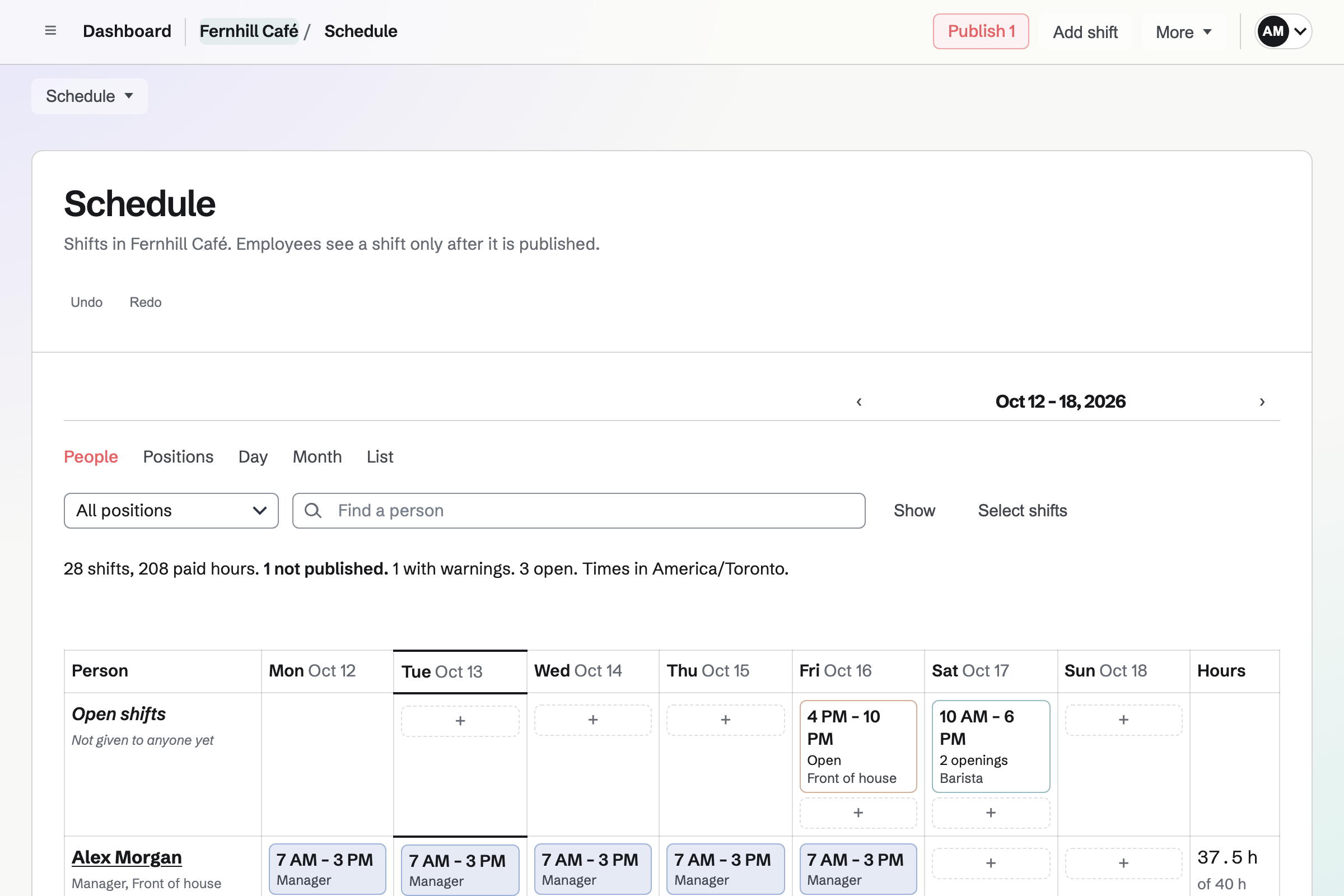
Choose Add shift, or the + in a person's row on a day, and type the times as you would say them, such as 9-5 or 10pm-6am. A shift with nobody on it is an open shift, and one open shift can need several people.
Copy another week into this one, add a starter week, or repeat a shift every week. Auto-fill proposes people for open shifts from their availability, preferred hours and the hours they already have; nothing changes until you apply its proposals.
The review lists every shift that will be added, changed or cancelled, and who will be told. Each person will get one notification about their changes, by email or in the app, as they chose. Drafts never reach anyone.
My shifts shows each person their next shift and the coming three weeks, with times, breaks, the address and your instructions. A change reaches them only when you publish it.
From one of their shifts they can swap with a coworker, ask for cover, or say they cannot work it. Open shifts lists published shifts nobody is on that they could work. They ask for time off and set their availability from their own pages, and your settings decide whether a manager approves each change or it applies straight away.
From two hours before a shift starts until it ends, its person can start Time Tracking from the shift. Reports can show when each person started and stopped against their shift.
A candidate marked hired in Hiring can be added to the roster from their page with Add to Staff Scheduling.
Link a Daily Operations location to a Staff Scheduling location, and people with a published shift there open that location first.
Published shifts appear in each person's Personal Calendar unless they turn that off, and a subscription address works with Google Calendar, Apple Calendar and Outlook.
A staff profile needs only a name. To see their own shifts, a person accepts an invitation with a Magpie account. Accepting adds them to the team as a member who can use the areas chosen for new staff (Staff Scheduling, Team chat and Daily Operations unless a team admin chose otherwise) and takes one of the plan's member places.
Team admins manage everything. A team admin can make another member a Manager, Schedule editor or Schedule viewer, for every location or only some. Pay rates are hidden from everyone, admins included, until Sees pay rates is turned on for them.
Import a CSV file with a header row; only a name is needed. You check how the columns were matched and the result for each row before importing, and positions and locations the file names are added.
Create a Magpie account, open Staff Scheduling and start from a business type to add the usual positions and shift times.