Forms
Build a Form with pages, conditional questions and file uploads, then publish it at its own address.
A Form is one or more pages of questions that people answer at a public address. You edit a draft, publish a fixed version, and keep editing without changing what respondents see until you publish again.
Get started free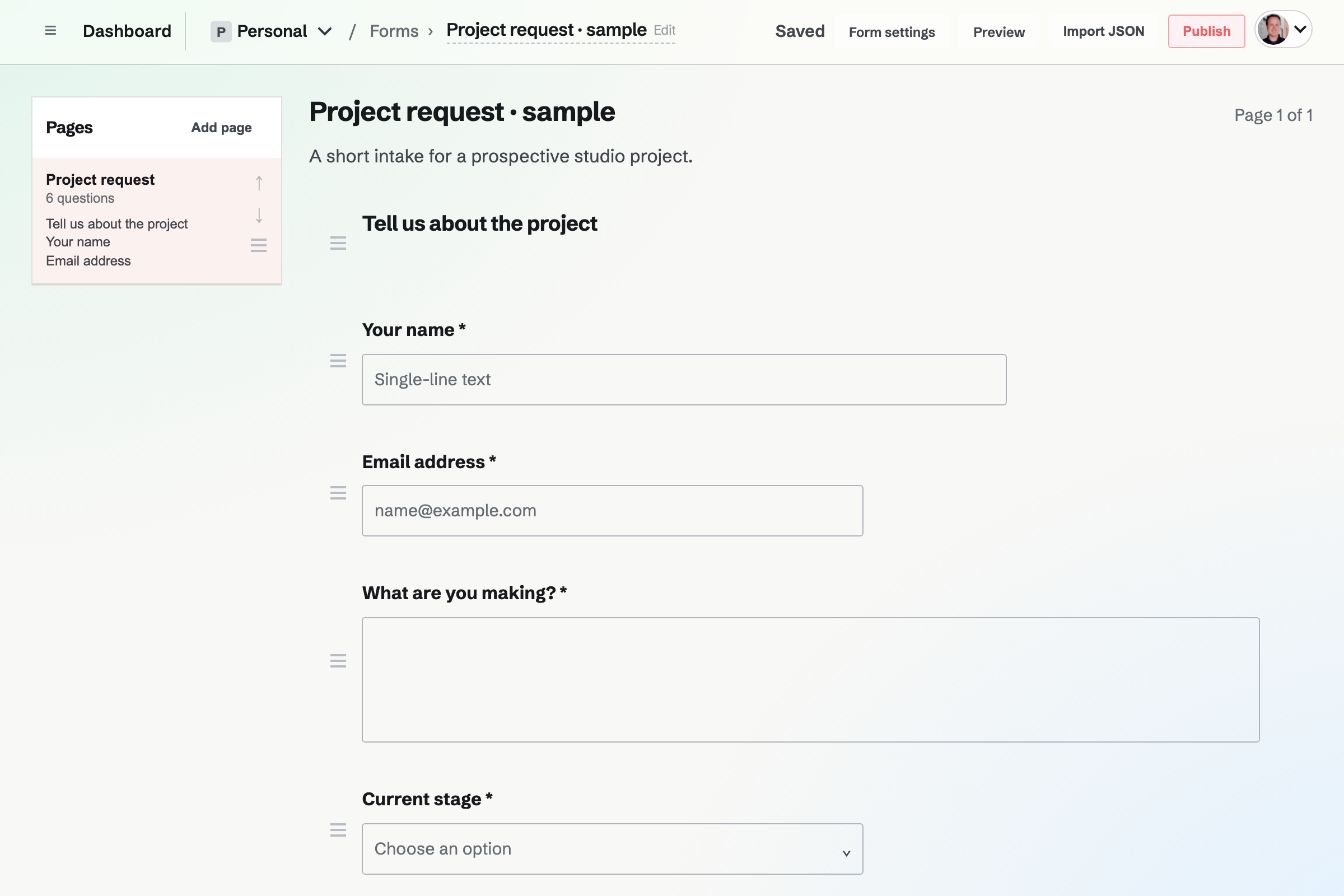
Questions and answer types
Start a Form blank or from a starting point, such as Contact, Registration or RSVP, which copies its questions into the new Form.
- Written answers
- Text, Textarea for longer answers, Email, Phone, URL and Number. A web address typed as example.com is saved with https:// added.
- Choices
- Radio and Select for one choice, Checkboxes for several, Yes/No and Rating.
- Dates and times
- Date and Time questions use the date and time controls of the respondent's browser or phone.
- Files
- A File question accepts one PDF, JPG, PNG, WebP or plain-text file up to 10 MB. Only people who can see the Form's responses can download it.
- Text and required answers
- Headings, paragraphs and dividers, Help text under a question, and Required for answers that cannot be left empty.
Pages and conditional questions
Reorder pages, and the questions on each, by dragging or with the arrow buttons. A Form with more than one page shows the respondent Next and Back.
- Show a question when
- Conditional visibility shows a question only when another question's answer equals the value you enter, such as Guest names after Yes to Bringing any guests. It appears as the respondent answers.
- More conditions
- A pasted JSON document also offers not equals, contains, answered and not answered. JSON can also require all or any of several conditions.
- Hidden questions
- A hidden question is not required, and its answer is not stored.
Draft, publish and close
The editor saves the draft as you type, and Preview shows it as respondents will see it.
Publish
Publish copies the draft into a fixed version and opens the Form's public address: /forms/ and a name made from its title.
Publish changes
Later edits stay in the draft until you choose Publish changes. Each response stays attached to the version its respondent saw.
Appearance
Plain, Paper, Blue, Dark, Magpie, Ink or Sage. A new appearance will show on the public Form as soon as it is saved.
Close form
Closing the Form will stop new responses. The Form, its versions and its responses are kept, and Publish opens it again.
Who can respond, and how often
Anyone with the link can open a published Form and respond without a Magpie account, so the link is public access, not a password. Form settings change that.
- Require sign-in
- Only people signed in to Magpie can submit.
- One response per person
- With Require sign-in on, each signed-in person can submit once.
- Forms and responses on every plan
- No plan limits how many Forms Personal or a team has, or how many responses a Form receives.
- Magpie link
- A line under the Form with the Magpie name, shown on the free plan. On Pro and the Team plan it can be turned off for each Form.
Links, QR codes and other Magpie pages
Send the Form's address by email or message, or link to it from your website. In QR Codes, choose A page in Magpie and pick a published Form to make a code for a poster or handout.
A published Form can also be shown, in its own appearance, beside a recording on its Screen Recorder share page and under a Supporters post as a poll or survey. Those answers arrive with the Form's other responses.
Build a Form from JSON
A JSON document describes every page, question, choice and condition of a Form. Paste one as the starting point of a new Form, or choose Import JSON in the editor's File menu to replace the draft's pages and questions; a published Form keeps its last published version until you publish again.
- Checked before saving
- If any part of the document does not fit the format, nothing is created or changed, and the problem is named.
- Copy the prompt
- Copy the prompt, under the paste box, copies the format with instructions for writing one from a description of the Form.
- Completion message
- A document can also set the heading and message shown after a response is sent.
Who can build and edit a Form
A Form belongs to Personal or a team, and team members work on it with their team permissions. To let someone outside the team help, add them by their handle as a collaborator with Can view (the Form and its responses) or Can edit (changes, publishing and responses). Once they accept, they join the team as a guest who can open this Form and nothing else. A team has room for 10 guests on the free plan and 100 on Pro and the Team plan.
Build your first Form.
Create a Magpie account, open Forms and choose Create form, then publish when the questions are ready.