Issues
Track each bug and piece of product work as an issue with an identifier, a status, a priority and an assignee.
An issue keeps its identifier, such as MAG-12, for good. Its page holds the description, properties, comments, files and links to other issues, and each change saves at once. The list and the board show the issues in Personal or a team, and each team sets its own statuses, custom fields and automation rules.
Get started free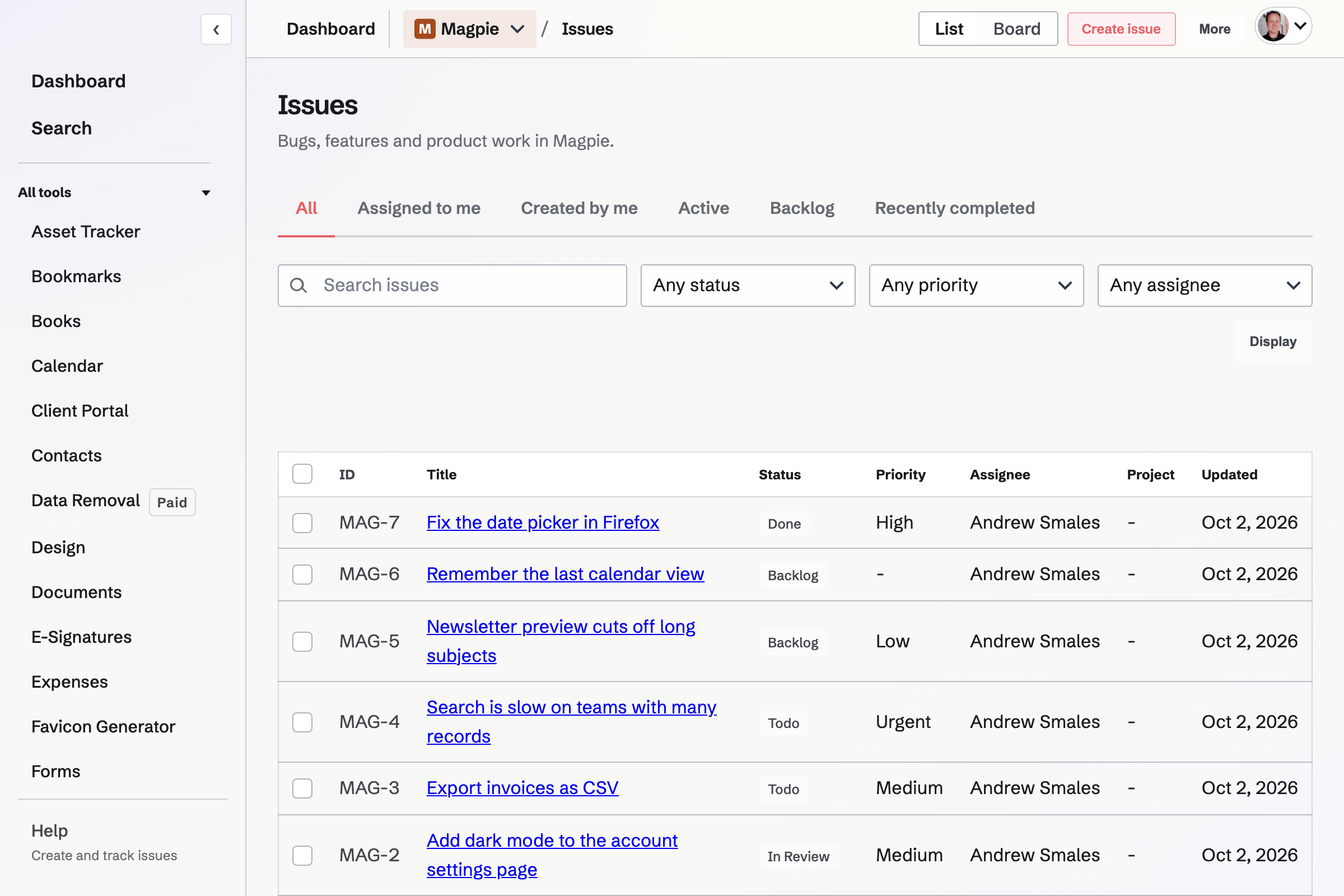
Identifiers and properties
Create issue asks for a title, the team that will own the issue and, optionally, a project. A new issue starts in Backlog with no priority; everything else is set on its page.
- Identifiers
- Issues in a team share one number sequence. An issue created in a project takes the project's prefix, such as WEB-14, and the others take MAG. An issue keeps its identifier when it moves to another project, and searching for the whole identifier finds it.
- Status, priority, assignee and due date
- The priorities are No priority, Urgent, High, Medium and Low. The assignee can be any member who can use Issues in the team, and the due date is optional.
- Labels and description
- Labels are shared by the whole team and show beside the title on the list. The description is written in Markdown and edited in place.
Comments, related issues and files
Activity lists comments and changes together, oldest first, each change naming who made it and when. An open issue page updates when another member changes the issue or comments on it.
- Comments
- Written in Markdown. The author and team admins can edit or remove a comment.
- Related issues and sub-issues
- Link another issue in the same team as related, blocking or a duplicate, or set a parent issue. A parent counts how many of its sub-issues are complete.
- Attachments
- Members who can edit attach files to the issue or to one of its comments, up to 25 MB each, and can paste an image. Only people who can see the issue can open its files.
- Time Tracking
- Start timer starts a Time Tracking timer linked to the issue, and Your time shows the time you have recorded on it.
The list, the board and saved views
The Issues list shows each issue's identifier, title and labels, status, priority, assignee, project and last update.
- Quick views
- All, Assigned to me, Created by me, Active (statuses in the Started category), Backlog and Recently completed.
- Search and filters
- Search matches titles, descriptions, label names and comment text. Filter by status, priority, assignee, project or label.
- Sort and group
- Sort by recently updated, recently created, due date or priority, and group the rows by status, project or assignee.
- Board
- A column for each status, in the team's order. Members who can edit drag a card, or use its move button, to change its status.
- Saved views
- A view keeps the quick view, search, filters, sort, grouping and List or Board display, for you alone or, when you can edit, for the whole team.
Changing many issues at once
Members who can edit select issues on the list and set their Status, Priority, Assignee, Project or Cycle, or add or remove a label, from the bar above it. The change is recorded in each issue's activity, and issues moved to another project keep their identifiers.
Statuses, custom fields and automations
Each team, and Personal, has its own workflow. A new team starts with Backlog, Todo, In Progress, In Review, Done and Cancelled.
- Statuses
- Team admins add, rename, reorder and remove statuses. The order is also the order of the board's columns.
- Categories
- Each status is in one category: Backlog, Unstarted, Started, Completed or Cancelled. The category, not the name, decides what counts as completed in projects, milestones and cycles.
- Custom fields
- Members who can edit add Text, Number, Select, Multi-select, Date, Checkbox or User fields. They appear on every issue page and in CSV and JSON exports.
- Automations
- A rule sets a priority or a status when an issue is created, its status or assignee changes, a label is added or a public form is submitted, for every issue or only those with a chosen status, priority, label or project.
Subscriptions, mentions and email
The creator, the assignee and everyone who comments on an issue are subscribed to it, and get a notification on the Issues Notifications page when someone else changes it or comments.
- Subscribe and Unsubscribe
- Change your own subscription on any issue. Unsubscribing is kept even if you comment on the issue or are assigned to it later.
- Mentions
- Writing @ and a member's handle in a comment or a description notifies that member, even if they unsubscribed.
- Off until you turn it on, separately for mentions, assignments, comments, and other changes to subscribed issues that are in a project.
Who can change issues
Every member who can use Issues in a team can open its issues, comment, subscribe and export. Team admins create and change issues, and so do other members when the team's Member access setting lets members edit. In Personal you can do everything. Issues is on every plan.
An issue moved to Trash can be restored with its comments and history for 30 days.
Create your first issue.
Create a Magpie account, open Issues and choose Create issue.