QR Codes
A QR code made in Magpie can point at the newsletter’s signup page.
Newsletter
Newsletter is Magpie’s email newsletter. Personal and each team have one, with its own signup page and subscriber list.
Create account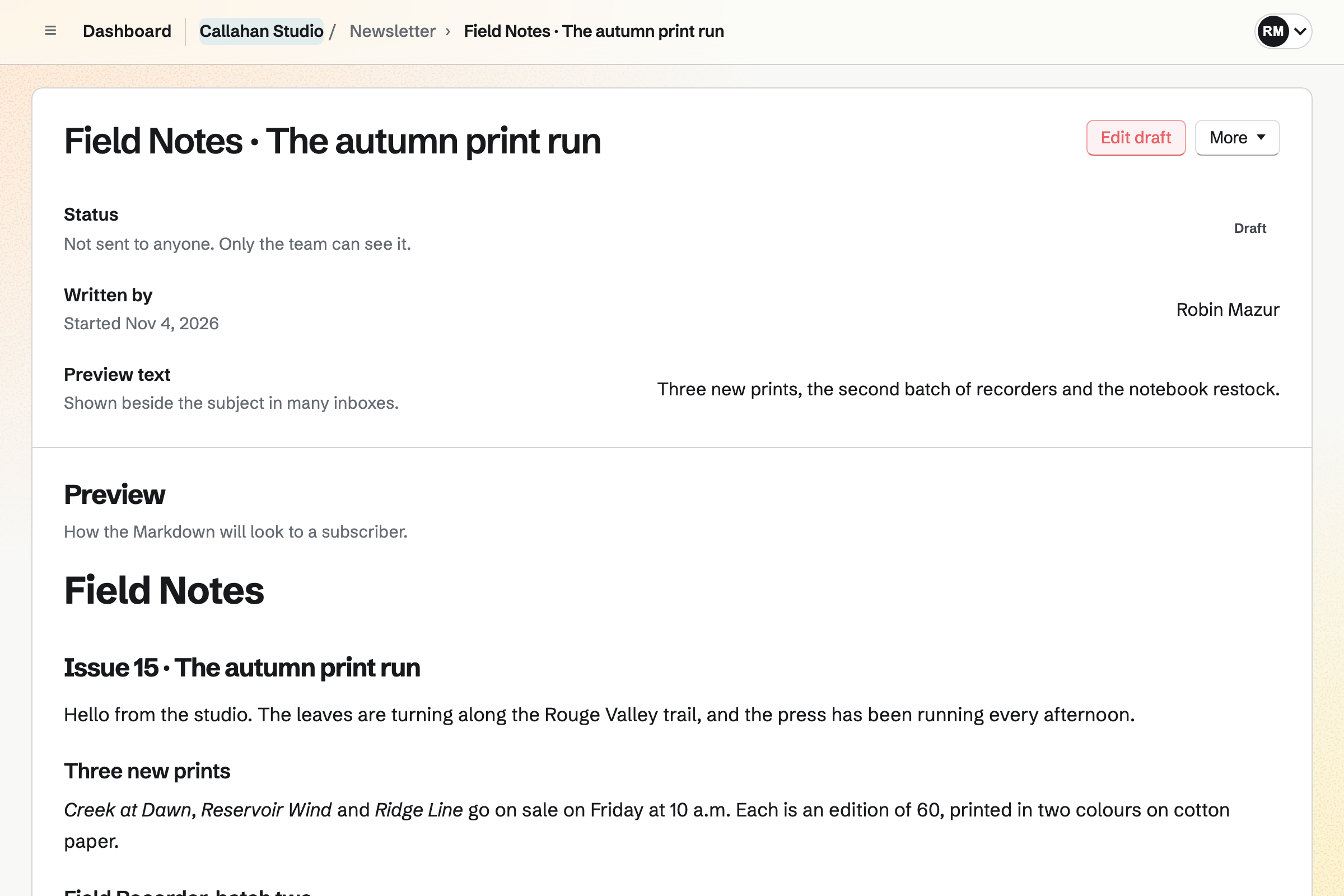
Each email has a subject and preview text. Its text is written in Markdown or taken from a Document. Design HTML gives an email a look of its own.
Send a test sends the draft to up to 10 addresses. You then send to every active subscriber now, or at a time you schedule. An email sent now waits a few minutes. Cancel sending puts it back as a draft.
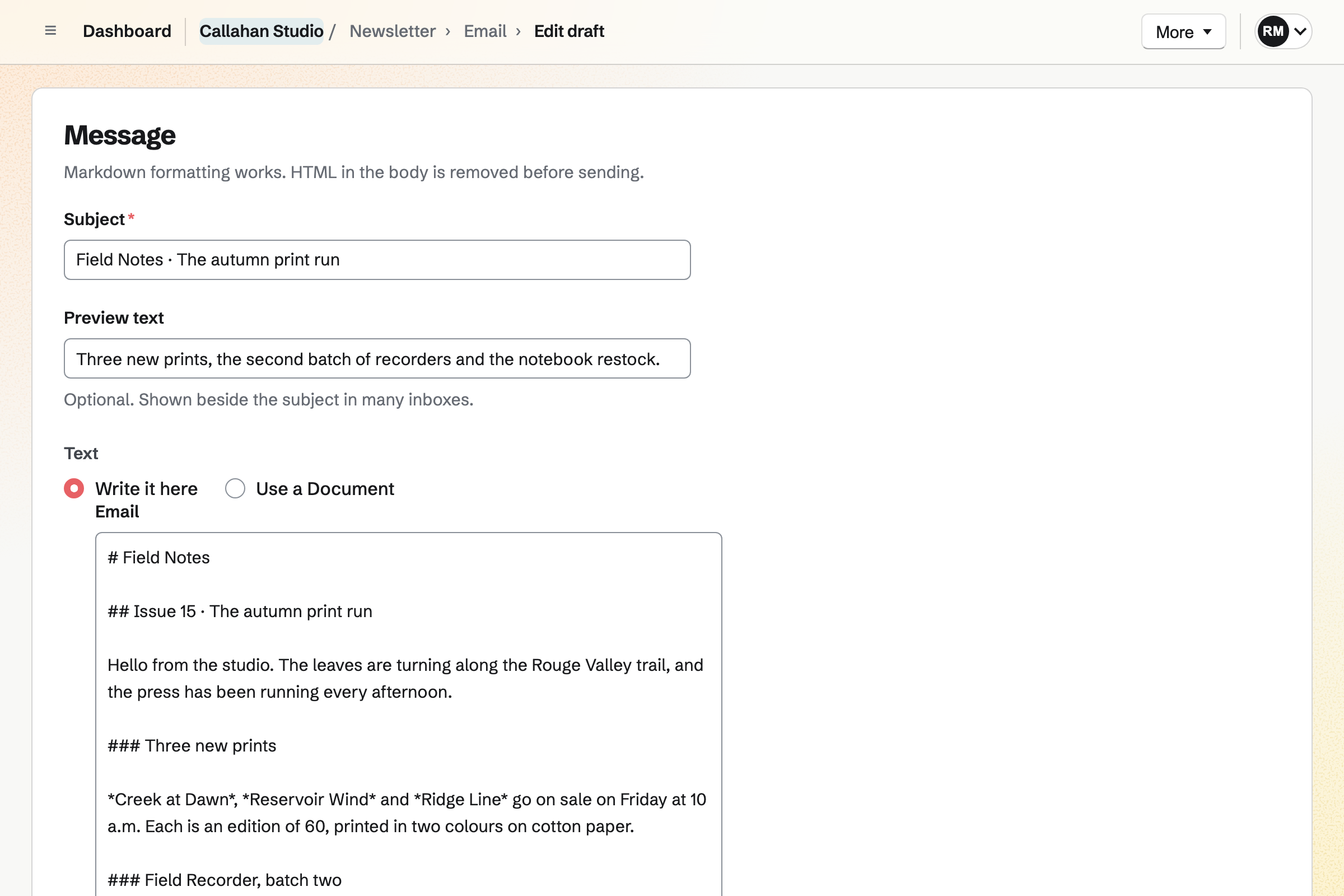
An email’s page shows who wrote it and the copies delivered, failed and skipped. It shows the email as subscribers received it.
With web copies on, each sent email has a public page. The signup page lists them under Past emails. Share to Social Media makes a post with the email’s subject and address.
The signup page shows the newsletter’s name, its description and a box to subscribe. A new address becomes active once the person confirms it from their email. Your Store can sign up buyers at checkout or from its home page.
You can import a list from Substack, Mailchimp or a CSV file. Magpie records how its people agreed. The subscriber list opens only for team admins, because it shows email addresses. It exports as CSV.
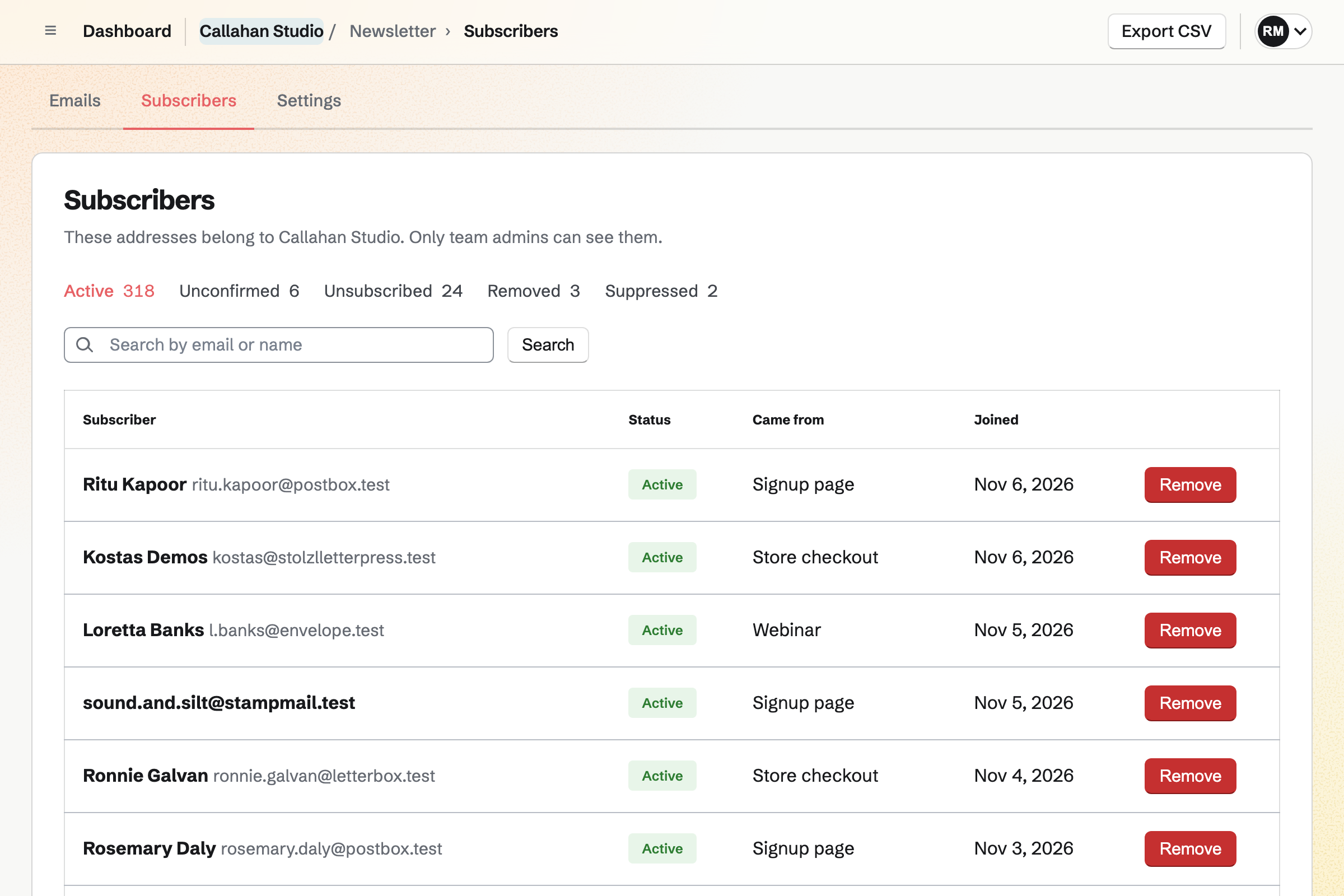
Every email has an unsubscribe link, which asks the subscriber to confirm. A hard bounce or a spam complaint suppresses the address. A later import cannot add it back. Outreach campaigns never email an address that unsubscribed from your newsletter.
A QR code made in Magpie can point at the newsletter’s signup page.
Newsletter is on every plan. Each plan sets a number of subscribers and of emails sent in a month.
Yes. Import a list takes a Substack export, a CSV file or pasted addresses. You say where the list came from and how its people agreed. Rows the export marks as unsubscribed or bounced are left out. Only new addresses count towards your plan’s limit.
Yes. Schedule sends the email at the time you choose, within a minute of it. Before then, Cancel email puts it back as an unsent record. The email goes to the people subscribed when you scheduled it.
Yes. Members who can edit in the team write drafts, send tests and send email. A draft can use one of the team’s Documents. Team admins start the newsletter, change its settings and see the subscribers.
Replies go to the reply-to address you set in the newsletter’s settings. The from name is the one subscribers see. A footer note can go under every email, above the unsubscribe link.
Yes. New signups turns the signup page’s box off, and Paused hides the signup page. Your subscribers stay on the list either way.
Create a Magpie account and start a newsletter with its name.