Social Media
Write a post once, give each account its own version, then queue it, schedule it or publish it now.
A Social Media post has one text, an optional link and images, and goes to every account switched on for it. Any account can have text of its own. At the post's time, Magpie publishes it to Bluesky, Mastodon and LinkedIn, and reminds the team to post the X and Instagram copies.
Get started free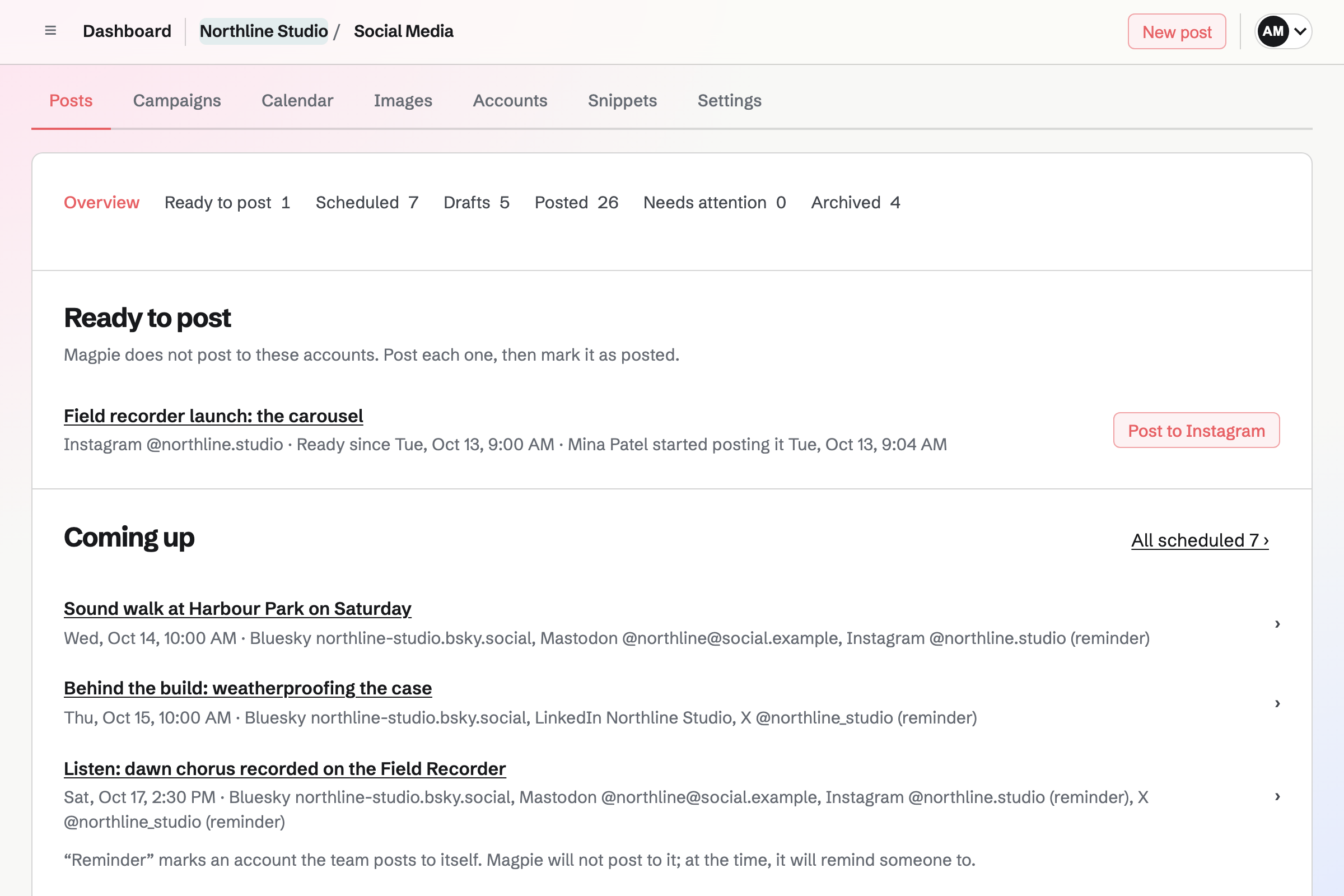
One post, a version for each account
New post opens a draft on its own page, where every part saves as you type. A new post goes to every account of the team; switch one off under Post to to leave it out. Images come from Your images, and each account receives a copy in its own shape.
- The post's text
- Every account gets it, with a character count as its platform counts it. Bluesky counts an emoji made of several parts once, and Mastodon counts every link as the fixed length its server reports.
- Text for one account
- Write separate text gives one account text of its own, and later edits to the post's text will not reach it. Use the post's text returns the account to the post's text.
- Link
- Bluesky and LinkedIn show the link as a preview card when the post has no images. Otherwise, and for Mastodon and X, it goes at the end of the text. Instagram captions do not make links clickable, so Instagram is not given the link.
- Snippets
- Text saved under Snippets is inserted where the cursor is. A post keeps its own copy, so editing a snippet does not change posts that used it.
- Checks
- As you write, each account is checked against its platform's rules: text length, number of images, image descriptions and its connection. A problem is shown in that account's section, and the post can be scheduled once every problem is solved.
Choose when it goes out
Publish asks when the post should go out. Magpie publishes it at that time, and nobody needs to be signed in.
At the next posting time
Team admins set weekly posting times, such as 10:00 AM on weekdays in a chosen time zone. Add to queue takes the next one that no other post in the team has taken.
A date and time I choose
Schedule sets an exact date, time and time zone. Change time and Unschedule work on every scheduled post, queued or not.
Now
Publish now asks you to confirm the accounts, then publishes within about a minute. The page shows each account's state as it changes.
X and Instagram
At the same time, the X and Instagram copies move to Ready to post, and Magpie emails a reminder to post them by hand.
Failures, retries and the publish log
Each account that published shows a link to the post on its platform. Temporary problems, such as a platform being unavailable, are retried automatically a few times. If an account still fails, the post shows the reason and Retry for that account, and Magpie emails the person who scheduled the post and the person who wrote it. Publish log lists every attempt for every account, with its time and result.
A post that every account has published can no longer be edited, and Duplicate as a new draft copies it. Removing a published post can also delete its published copies from the platforms.
Lists, calendar and archive
- The Social Media page
- Ready to post and Needs attention (failed posts and accounts to reconnect) come first, then a few posts each from Coming up, Drafts, current campaigns and Posted recently.
- Full lists
- Ready to post, Scheduled, Drafts, Posted, Needs attention and Archived each search a post's name and text, with 25 posts a page.
- Calendar
- Social Media's calendar shows scheduled and published posts by month or as a list. A team admin can also show the team's posts in Calendar, and each person can show their own posts, or all posts, on their Personal Calendar.
- Archive
- Archive takes a draft, posted or failed post out of every list but Archived and keeps its text, images and history. Restore returns it.
Campaigns
A campaign groups posts, such as those for a launch, to prepare together and schedule at once. Posts do not need one.
- Posts in order
- A campaign has a name, a description, start and end dates, and its posts in the order they will be scheduled.
- Finished drafts
- Switch on Finished on a draft when its text and images are done. The campaign shows which drafts are finished and who marked them.
- Schedule campaign
- Schedules every finished draft at the team's next free posting times, in the campaign's order, from its start date or now, whichever is later. Other drafts stay drafts.
- Link tracking
- While it is on, as it is for a new campaign, links in its posts are sent with utm_source set to each platform, utm_medium=social and utm_campaign set to the campaign's name.
Who can write, schedule and publish
Every member of a team can see its posts, accounts and calendar. Members who can edit write drafts and snippets, archive posts and make campaigns. Team admins schedule and publish, and can let everyone who can edit do that too with Who can schedule and publish in Social Media settings. Team admins add accounts and set posting times. In Personal, you do all of these.
Write your first post.
Create a Magpie account, add your team's accounts in Social Media, then write a post and choose when it goes out.