Kanban Boards
Track work as cards that move through columns you name.
A board starts with Inbox, To Do, In Progress and Done columns; rename them, add your own and put them in the order your work follows. Each card holds a Markdown description, an assignee, a due date, a color, images, To-dos and comments, and the board's activity log records every change. A whole board can also be built from a pasted JSON document.
Get started free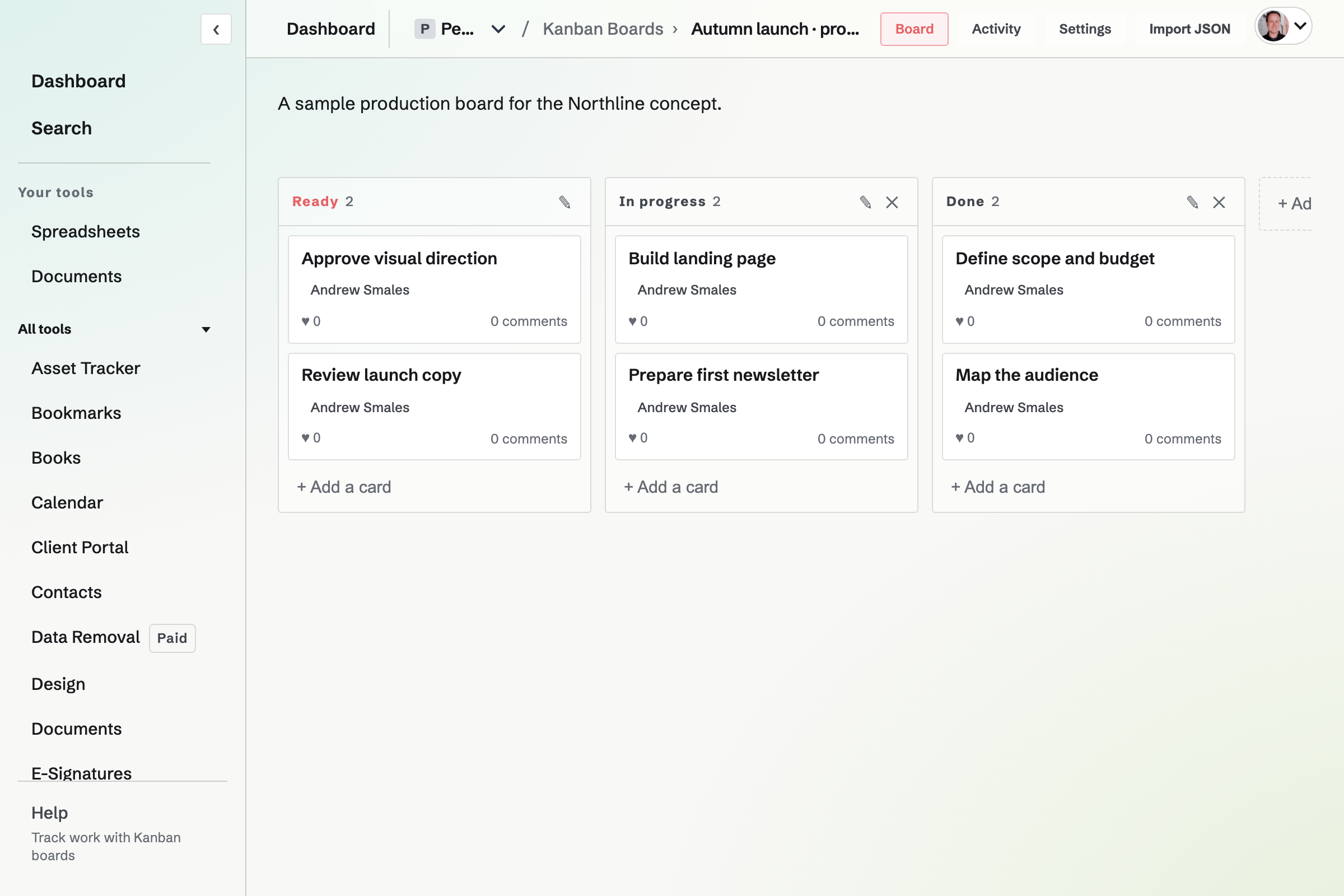
Boards and columns
A board is created in Personal or a team, and every member of the team can change its columns and cards. A guest of the team uses its boards only when given Kanban Boards.
- Your own columns
- Rename any column, add more, up to 20 on a board, and drag a column by its header to move it. A column can be deleted once it has no cards.
- The Inbox column
- Every board has an Inbox column, which cannot be deleted. Suggestions from people outside the team arrive in it.
- Cards on a board
- A board holds up to 500 cards across all its columns.
- Boards on each plan
- Kanban Boards is on every plan. The free plan limits the number of boards to 1; Pro and the Team plan have no limit.
- Deleting a board
- Delete board, in the board's More menu, deletes its columns, cards and comments after you confirm, and cannot be undone.
What a card holds
A new card needs only a title and opens for the rest. Each detail is edited in place on the open card and saves on its own. On the board, a card shows its due date, its assignee, when it was added, and how many hearts, images, comments and To-dos it has.
- Description
- Written in Markdown, up to 20,000 characters.
- Assignee and due date
- One assignee, who must be a member of the board's team, and an optional due date.
- Color
- The whole card takes a light shade of its color, picked from the colors already used on the board or any other.
- Images
- Up to 10 images or screenshots, picked from Your images, uploaded, pasted or dropped. Removing one from the card keeps it in the image library.
- To-dos
- An ordinary To-do in the board's team, also listed in To-dos, where it can have a date and a reminder. Ticking it off in either place ticks off the same To-do, and the card counts them, such as 2 of 5 To-dos done.
- Comments and hearts
- Comments are written in Markdown and can include images, or be only images. A heart is a vote for the card, and the number beside it counts the votes.
Moving cards
- Drag and drop
- Drag a card up or down its column or into another column.
- From the open card
- Choosing another column on the open card moves the card to the bottom of that column.
- Keyboard
- j, k, h and l or the arrow keys move between cards and columns, and Cmd or Ctrl with an arrow moves the highlighted card to the next or previous column. Press ? on a board to list every key.
Activity and email about your cards
Activity, beside the board's name, lists the board's changes newest first: cards added, moved, edited and deleted; columns added, renamed and deleted; comments, images, hearts, and To-dos added to cards.
When someone else moves, edits, recolors, comments on or changes the images on a card you created, Magpie will email you, with the changes on one board collected into one email. Kanban card updates, in Account settings, turns these emails off.
Build a board by pasting JSON
A JSON document describes a board's name, description and outside access, its columns, and each card's title, description, due date and color.
Write the document
By hand, or with Copy the prompt in the import box, which copies the format with instructions for writing one.
Create a new board
Import a board from JSON, in Kanban Boards' More menu, builds the board in Personal or the selected team, with Inbox followed by the document's columns, and opens it.
Or add to a board
Import JSON, in a board's More menu, adds the document's cards. A column whose name matches one on the board, ignoring capitals, takes its cards; other columns are added at the end. Nothing already on the board is renamed, moved or removed.
Checked before saving
If any part of the document does not fit the format, nothing is imported, and the message names the field. Imported cards are unassigned.
The assistant
The assistant finds boards, cards and their comments, and can create boards and columns, add, edit and move cards, comment and heart. It deletes a board, a column, a card or a comment only after you confirm in your message.
Create your first board.
Create a Magpie account, open Kanban Boards and choose New board.