Client Portal
Create a private portal for each client, invite its people by email, and stop their access at any time.
A Client Portal is a page at its own address, where the people you invite sign in with an emailed link, a six-digit code or a Magpie account. Every request checks that the client still has access and that what they open is shared with them. Revoking one person, or turning off sign-in for everyone, keeps everything in the portal.
Get started free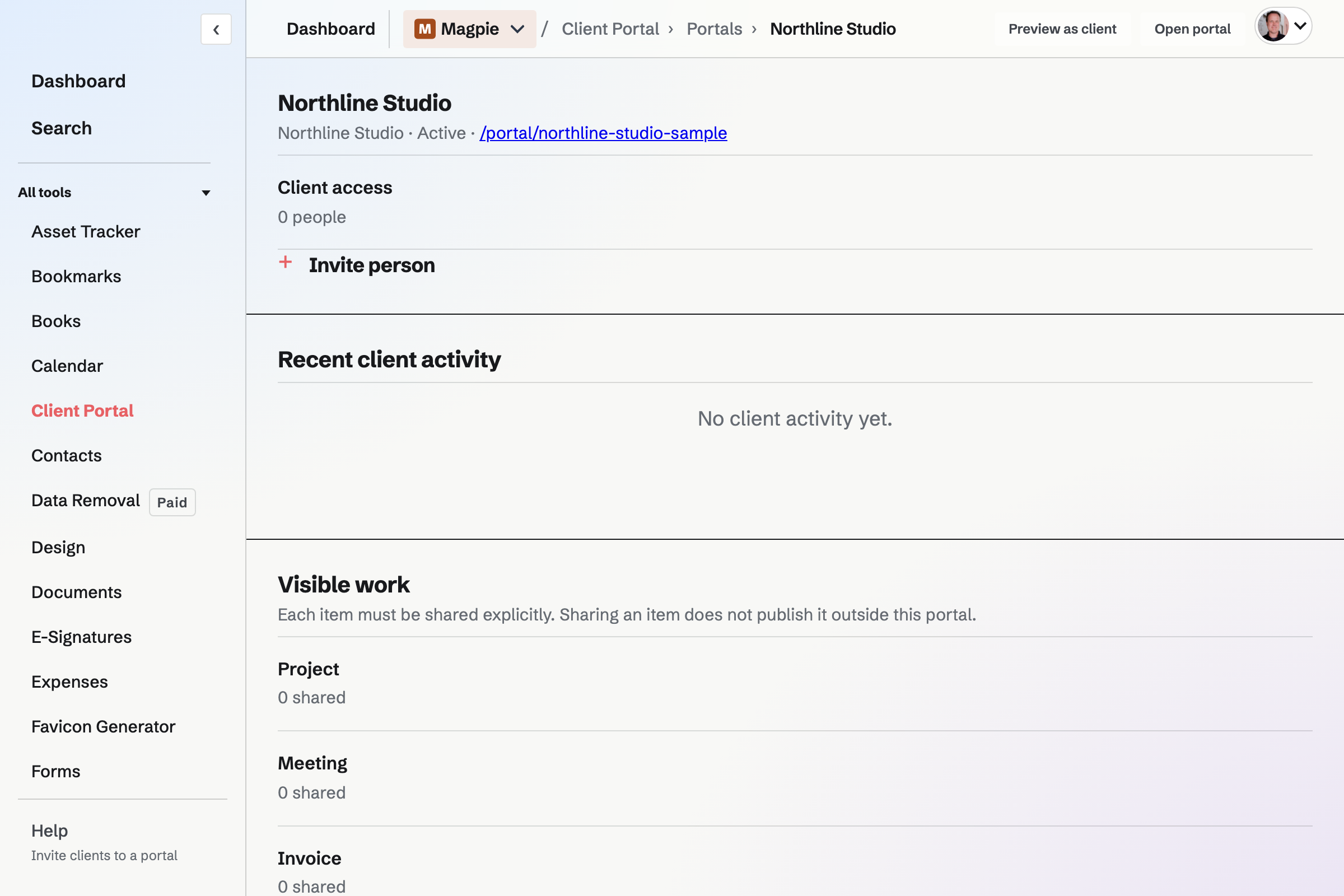
Create a portal
New portal asks only for the client's name, a person or a company. The client is an organization in Contacts, and each client has one portal. On a Contact's page, Create a portal fills in their company or name and opens the invitation with that Contact chosen.
- The address
- It is made from the client's name, such as /portal/northline-studio, and does not change. Knowing it is not enough: a client must sign in.
- Name and welcome message
- Edit details changes the name, shown at the top of every page clients see, and the welcome message under it on the Overview.
- Colour and logo
- An accent colour (blue, teal, purple, orange, green, indigo, gold or pink) tints every page clients see. A PNG, JPEG, GIF or WebP logo from Your images is shown above the name, on the sign-in page too.
- View as client
- Opens the portal as clients see it, in a new tab, with draft plans included and the clients' buttons turned off. A preview works while client sign-in is off, and signs nobody in.
Invite clients, and how they sign in
Invite client gives a person access: choose a Contact, or enter a name and email address. A Contact you invite is linked to the portal's client in Contacts. Clients do not need a Magpie account.
The invitation
The email's Open portal button signs the client in once, within 7 days. Resend invitation sends a new one to a client who has not signed in yet.
Staying signed in
A client stays signed in until they sign out, their access is revoked, client sign-in is turned off, or 365 days pass without a visit.
Signing in again
At the portal's address, the client enters their invited address and gets an emailed link and six-digit code, each usable once within 15 minutes. The link signs in the device the email is read on, and the code the device that asked.
A Magpie account
A client can log in to a Magpie account they have, or sign up for one, then sign in once with the invited address, in the same browser, to connect it. The portal is then listed on their Dashboard. The account does not join your team and sees nothing else of yours.
What each request checks
Every page a client opens checks that the portal is not archived and has client sign-in on, that the client still has access, that the section is on, and that what they open is shared with the portal. A plan must be shared, not a draft. File downloads, and signing and proposal links opened from the portal, go through the same checks.
- Codes and links
- A code works only in the browser that asked for it, and 5 wrong codes use it up.
- Contacts and team work
- Being a Contact, or sharing the client's company name, gives no access, and a Magpie account is never let in because of its email address. Contact notes, issues and project comments are not shown in a portal.
- What clients can change
- Clients tick their own steps and record progress in active plans, upload files while Files is on, sign the signature requests they are a signer of, and open shared proposals addressed to them. Everything else is read only.
Your team's access
Every member who can use Client Portal in the team sees its portals and can preview them. Members with edit access to the team's work create portals, invite and remove clients, share work and change plans; a member with view access sees the same pages with nothing to change.
Everyone invited to a portal sees everything it shows. The Clients band lists each person who can sign in, when they last visited or were invited, and who no longer has access.
Stop access
- One person
- Revoke access signs them out at once. Their unused links and codes stop working, and a Magpie account they signed in with is disconnected. What they did stays in the portal's activity, and Invite again gives them access back.
- Everyone, for a while
- Turning off Client sign-in in the portal's details signs every client out until it is turned on again. Shared work stays shared.
- Close the portal
- Archive portal signs its clients out and keeps its plans, files and history. Restore portal, under Archived, lets them sign in again.
Create a portal for your first client.
Create a Magpie account, open Client Portal, choose New portal and invite the client by email.