Invoicing
Bill a contact with line items, tax and tracked time, then email the invoice with its PDF.
An invoice bills one of the contacts saved in Personal or a team. Add line items, a discount and tax, bring in tracked time and expenses, and email the invoice with its PDF. The invoice list shows which invoices are drafts, due, overdue, paid or void, and how much is still owed.
Get started free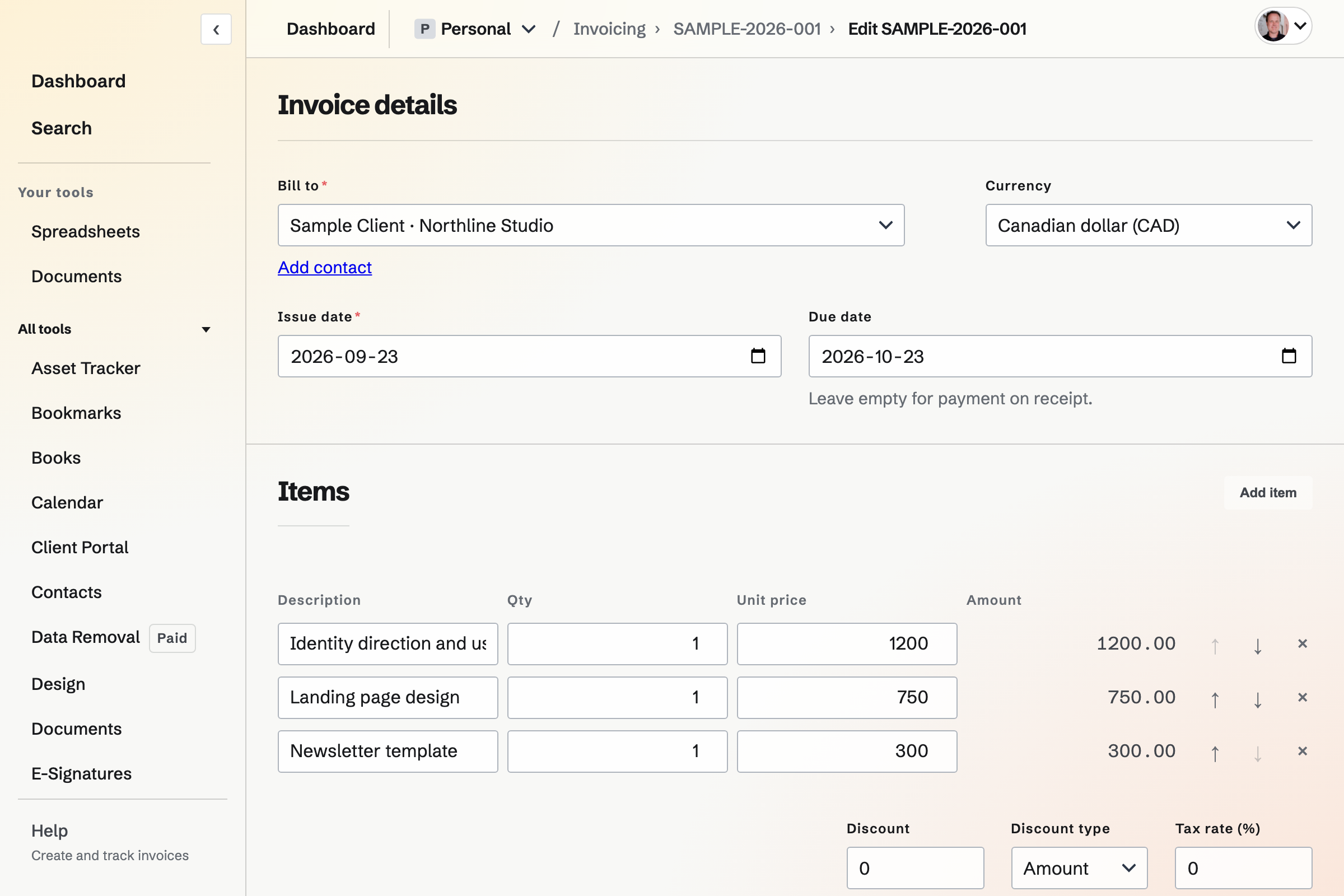
Line items, discounts and tax
The due date comes from the contact's payment terms, or from your default terms; zero days means payment on receipt. Totals update as you type, and Magpie works them out again when the draft is saved.
- Line items
- A description, a quantity with up to four decimal places, such as 1.25 hours, and a unit price.
- Discount
- One discount on the invoice, as an amount or a percentage, taken off before tax.
- Named tax rates
- Each tax you charge has the name the invoice prints, such as VAT or HST, and a percentage. Each line uses one of them or No tax.
- Combined rates
- A rate such as GST + PST has two components, and the invoice shows each tax on its own line. A compound component is charged on the amount plus the other tax.
- Tax returns
- Magpie works out the tax you set up. It does not register you to collect tax or file returns.
Tracked time and expenses
Add unbilled time
Lists your completed, billable Time Tracking entries for the invoice's contact that have an hourly rate in its currency. It is shown in Personal and to a team's admins. Each entry you tick will become a line priced from its time and rate, with its project's billing rounding.
Add unbilled expenses
Lists your reimbursable expenses for the same contact and currency, to add as lines.
Issue the invoice
Its time entries will be marked Invoiced and its expenses billed, so neither is offered for another invoice.
Your details, numbering and the PDF
Invoicing settings hold what each new invoice starts with: your business name, address, tax ID or registration number and logo, the currency, payment terms and terms text.
- Numbering
- A prefix, the next number and zero padding, such as INV-0001. A deleted draft's number is not used again.
- Preview PDF
- Shows a draft as the customer will receive it.
- What issuing fixes
- Sending a draft will issue it. Its number, your details, the customer's details, lines, amounts, terms and PDF will become final, and later changes to settings will not change them.
- After issue
- An issued invoice cannot be edited. Duplicate makes a new draft from it, and the PDF can be downloaded, sent again or opened in the PDF Editor.
Sending and payment reminders
The email has your message, the amount due, the due date and the PDF, and a Pay online button when the team takes card payments. The invoice's Activity lists each email and whether the email service accepted it.
- Recipients
- To starts with the contact's primary address; add more, or Bcc. Send me a copy adds your own address to Bcc.
- Your own message
- The subject and message start with your team's wording, with the customer's name, amount due and due date filled in, and can be changed for each email.
- Payment reminders
- Reminders go to the To addresses on the due date, then 7 and 14 days after, or on the days you choose from 7 days before the due date to 30 days after. They show the balance still due and stop when the invoice is paid in full or voided.
Draft, Due, Overdue, Paid and Void
The invoice list has a tab for each state. Outstanding and Overdue above it add up the balances still due on the invoices that match your search or chosen contact.
- Draft
- Not yet issued, and can be changed or deleted.
- Due and Overdue
- Issued with a balance to pay, before or after the due date.
- Paid
- Payments reach the invoice's total.
- Void
- Issued and kept on record with nothing to pay. Reopen returns it to unpaid.
Building an invoice from JSON
Import JSON, on a new invoice, fills in the form from a pasted JSON document, such as one written from a timesheet or a quote. Copy the prompt copies the format with the instructions for writing one. The contact and tax rates are matched by name, the totals are worked out from the lines, and nothing is saved until you create the draft.
Teams, Store orders and plans
In a team, members who can edit create and send invoices, and members with view access can read them. Store makes invoices too, from a quote request or when a wholesale customer chooses Pay by invoice at checkout.
On the free plan, 5 invoices can be created each month; paid plans have no limit. Sending again and recording payments are not limited, and invoices made by Store or a proposal do not count.
Create your first invoice.
Create a Magpie account, add a contact, then start a draft in Invoicing.