Invoicing
Invoice a client for the same lines every month, quarter or year.
A recurring invoice is a schedule: on each of its dates, Magpie issues an invoice with the schedule's lines and emails it to the client. A schedule started from an accepted proposal can also charge each invoice to the client's saved card. You can pause a schedule, change its lines or its next date, or end it.
Get started free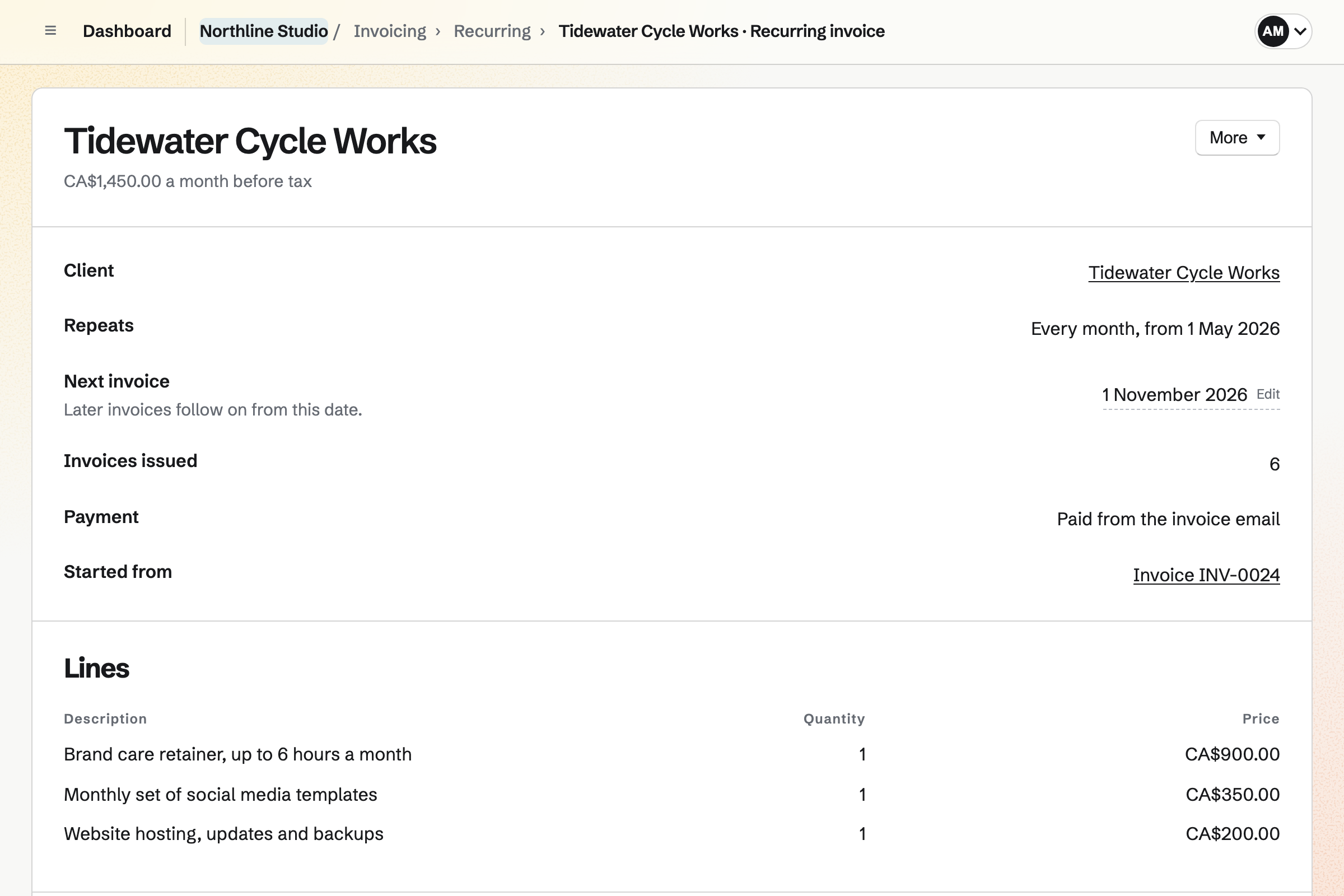
Starting a schedule
From an invoice
Make recurring, in an invoice's More menu, starts a schedule with that invoice's lines, tax rates, notes and client. Choose every month, every quarter or every year, the date of the first invoice (today or later) and, if the schedule should stop, how many invoices to send.
From a proposal
When the work on an accepted proposal starts, its lines billed monthly, quarterly or yearly become one schedule for each billing period.
On each date
Magpie will issue an invoice with the schedule's lines, due on your default payment terms, and email it to the client with its PDF. It is listed in Invoicing as a sent invoice.
Dates and endings
The day of the month is kept where the month has it, so a schedule on the 31st invoices on the last day of shorter months. A schedule with a number of invoices ends after the last one.
Charging the client's saved card
A schedule started from a proposal will charge each invoice to the client's card when it is issued, if the client chose automatic payment on accepting the proposal or the proposal required it. The client saves the card when accepting, or later from a link to update it. A schedule made with Make recurring is paid from each invoice's email instead.
- Where the card is kept
- Stripe saves the card on the team's Stripe account. Magpie keeps only its brand, last four digits and expiry date. The schedule's Payment row shows the card, or that it is waiting for the client to save one; until then, each invoice is paid from its email.
- A successful charge
- The payment will be recorded on the invoice, and the client will be emailed the paid invoice. Magpie takes no fee; Stripe's processing fee applies.
- A declined card
- The client will be emailed the invoice with its Pay link and a link to update the card, and the person who set up the schedule will be emailed too. The schedule will show Payment problem until one of its invoices is paid. The next invoices are still issued and charged.
- A card about to expire
- In the month before the card expires, the client will be emailed a link to update it.
Pausing, changing and ending a schedule
Recurring, in Invoicing, lists the schedules of Personal or the team, and a schedule's page lists each invoice it issued, with its state. In a team, every member who can open Invoicing can read the schedules, and members who can edit invoices can change them.
- Next invoice
- Change the date of the next invoice, and later invoices will follow on from the new date.
- Change lines
- Changes what future invoices hold. When the amount changes, the client will be emailed the new amount before the next invoice. Invoices already issued do not change.
- Pause and Resume
- Pause stops invoices until you resume the schedule. Dates that pass while it is paused will not be invoiced.
- End
- Stops the schedule for good. Ended schedules are listed under Ended.
The invoices a schedule issues
Each invoice a schedule issues is an ordinary issued invoice in Invoicing. The client can pay it by card from Pay online when the team takes card payments, and Record payment records a bank transfer, cash or a cheque. When an invoice of a schedule with a payment problem is paid in full, the schedule is active again.
Start a recurring invoice.
Create a Magpie account, send an invoice from Invoicing, then choose Make recurring from its More menu.