Inventory
Record what you keep in stock, where it is kept, and every change to it.
Inventory is one stock list for Personal or a team. Each item is a kind of thing you keep, counted, weighed or measured by volume, and its stock is recorded in pools such as the café, the back store room or the online store. Deliveries, waste, moves, counts and sales are each recorded as a change.
Get started free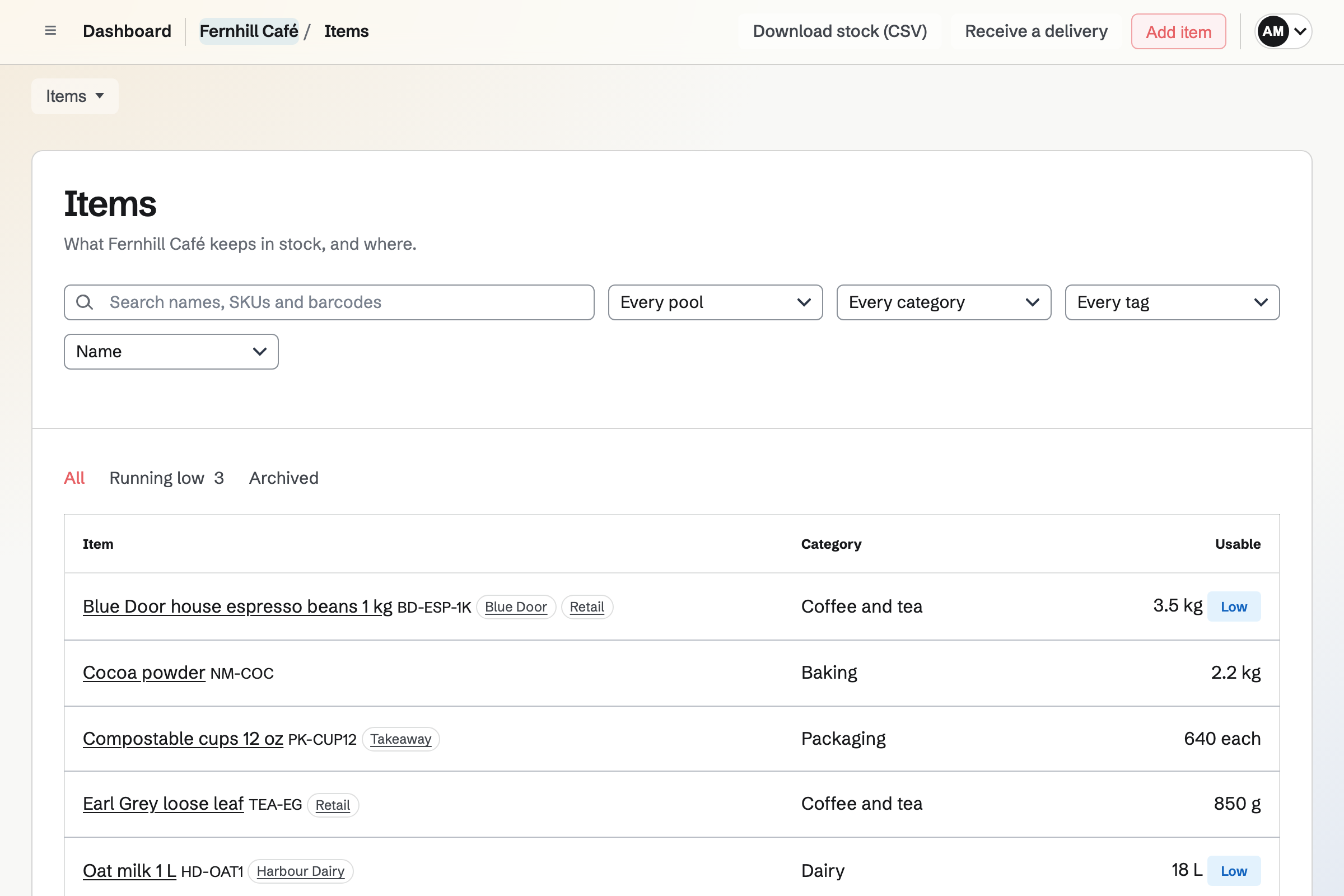
Items, units and pack sizes
An item is added with its name and how it is measured; the rest is set on its page.
- Units
- Each is the unit for things counted one by one; weighed things use g, kg, oz or lb, and liquids ml, L, fl oz, qt or gal. Quantities can include decimals, such as 2.5 kg.
- Pack sizes
- A pack such as a Case of 24, with the outer pack's barcode if it has one, lets stock be typed in cases.
- Category, SKU, barcode and tags
- Search finds names, SKUs and barcodes. A category groups items for browsing and counting, and tags are free labels.
- Lots and expiry dates
- Lots or batches records a lot code with each delivery, and Expiry dates records when each delivery expires. The item's page lists each lot in each pool with its expiry date.
Pools and stock levels
A pool is a place or a purpose stock is kept for. Inventory starts with one, Main stock, and team admins add more. One item can have stock in several pools, so cans for the café and cans for the online store are two balances of the same item.
Each item can have a Minimum and an Order-up-to level in each pool. Items marks an item Low when its usable stock in a pool is below the minimum, and Running low lists the packs to order from its usual supplier, counting what is already on order.
In Daily Operations, each location keeps its stock in a pool: recording a batch of a recipe takes its ingredients out of the pool, and logged waste is recorded as Inventory waste.
Recording stock
- Opening stock
- Record what is in a pool when you start, with its cost if you want a stock value.
- Add or remove
- Change a pool's stock with a reason: a correction, stock found, a sample, staff use, or another reason with a note.
- Waste
- Record stock that expired, spoiled, was damaged or recalled, or was lost or stolen, among other reasons. History lists it as Wasted.
- Move and hold back
- A move takes stock out of one pool and adds it to another. Held-back stock stays in its pool but is not usable, for a suspect delivery or a recall.
- Stock below zero
- A change that would take more than a pool holds is refused, unless a team admin turns on Allow stock below zero. Store sales are always recorded, even below zero.
Counting a pool
Start
Count a whole pool or one category in it. Each line shows the Expected quantity, which Hide the expected quantities keeps from the people counting.
Count
Type what you find for each line and save as often as needed. A line left empty does not change, and an item found that is not on the list can be added.
Hand in
Each counted line will be corrected by its difference from the expected quantity, so stock received or sold during the count keeps that change.
Review
If a line differs by more than the percentage a team admin sets, or stock was found where none was recorded, stock will be corrected only when a team admin approves the count. Count again sends it back with a note. A team admin's own count is corrected when handed in.
History, costs and access
- History
- Every change is listed with who made it, and links to the delivery or count it came from, or to Store or Daily Operations. A team admin can reverse a change once, and both stay in the history.
- Average cost and value
- Deliveries and opening stock entered with a cost set each item's average cost, and its page shows what its usable stock is worth, in the currency a team admin chooses.
- Download stock (CSV)
- The CSV lists every item in every pool, a row for each lot and held-back quantity, with its SKU, category, expiry date, quantity, average cost and value.
- Who can do what
- Team admins, and you in Personal, manage settings, pools, approvals, reversals and Store links. Other members record stock, counts and orders when the team's members can edit, and only read when they can view, without costs, prices or values.
Selling Inventory stock in Store
A team admin can link a Store product that tracks stock to an item in one pool, so the same stock is not counted twice, and set how much of the item one sale uses: 1 for a single can, or 6 for a six-pack sold from single cans.
Store sales and stock changes will then be recorded in the pool, and a delivery, count or move in Inventory will set the product's stock in Store, in whole sales. Unlink stops this, and the product keeps the stock it shows at that moment.
Record your opening stock.
Create a Magpie account, open Inventory, add an item and record what is in Main stock now. Inventory is on every plan.