Hiring
Move applications through each job's stages, rate candidates on scorecards and record the outcome.
Each application starts in the first stage of its job. Your team moves it through the stages, adds notes and tags, emails the candidate and rates them on scorecards, and each step is recorded in its activity. Reject, Mark hired and Mark withdrawn record how it ended.
Get started free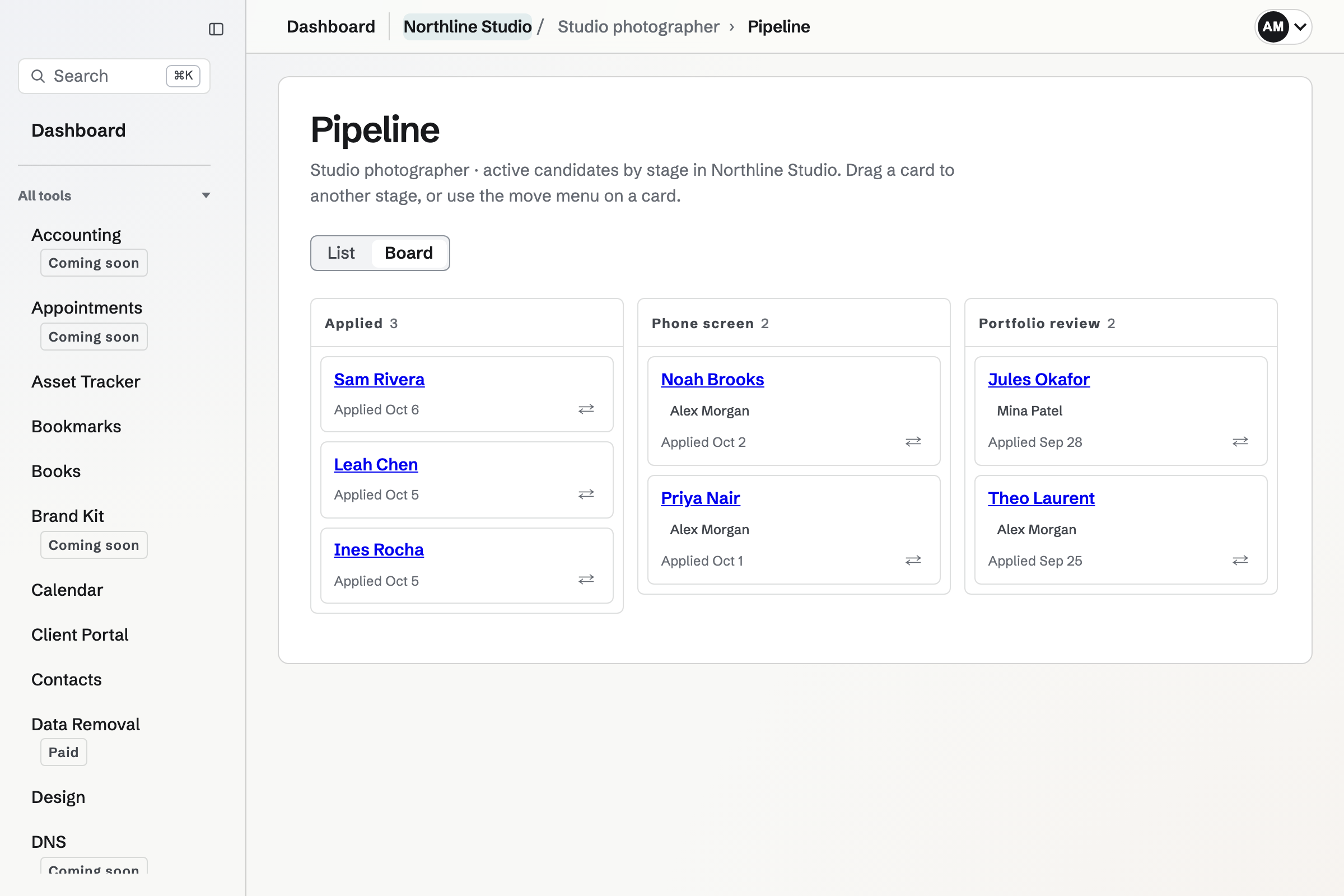
Stages and the Pipeline board
Each job has its own stages, starting with New, Review, Phone screen, Interview and Offer. Rename, add, remove and reorder them on the job's page. A stage that holds applications can be removed once they have moved.
- Pipeline board
- The Pipeline board has a column for each of the job's stages, with its active applications. Drag a card to another stage, or use the move menu on the card.
- Candidates
- Candidates lists the team's active applications, searchable by name, email address, job title or tag, and filtered by job, status (including rejected, withdrawn and hired), reviewer or tag.
- Reviewer
- A reviewer is the team member responsible for an application. Candidates can be filtered to the applications assigned to you or to no one.
- Tags
- Tags such as strong-portfolio belong to the candidate, so they show on every application the candidate has made to the team. A candidate can have up to 20.
The candidate's page
A candidate's page shows their answers and files, their stage and reviewer, and where the application came from: the job board, a source added to the job page's address such as referral, or Add candidate, for someone who applied another way. A candidate added by hand has no answers or files.
One email address is one candidate in the team. Applying again with the same address adds an application to the existing candidate, and Other applications by the candidate lists the rest. Their name, email address and phone number are edited in place and change on every application.
Notes are seen by the team and never by the candidate. The activity list records the application, stage changes, assignments, tags, notes, emails, interviews, scorecards and outcomes, with who made each change.
Email from the candidate's page
Email candidate starts a message from a starter (Next steps, Request more information or Application not continued) or from your own words, with the candidate's name, the job title and the name on the job board filled in, to edit before sending. The email is headed with the name on the job board, replies go to your own email address, and the message is recorded in the activity list.
Magpie never emails a candidate a rejection or any other message on its own. The confirmation after applying is the only automatic email, and it can be turned off.
Reject, hire, withdraw or delete
- Reject
- Reject asks for a reason from a fixed list. The reason is for the team and is not sent. Email the candidate is unchecked, and nothing is emailed unless you check it. Their interviews that have not started will be cancelled.
- Reject several
- In Candidates, tick up to 100 active candidates and reject them with one reason. With Email each candidate checked, each will get their own copy with their name and job filled in.
- Mark hired
- Mark hired keeps the candidate in the list as hired. When every opening is filled, Magpie says so, and you can mark the job Filled. Members who manage staff in Staff Scheduling can then add the candidate to Staff with their name, email address and phone number.
- Mark withdrawn and Reopen application
- Mark withdrawn records that the candidate no longer wants the job, without emailing them. Reopen application returns a rejected, withdrawn or hired application to its stage.
- Delete candidate
- Delete candidate permanently deletes the candidate with every application, note, activity entry, interview and file in the team. It cannot be undone.
Scorecards
A scorecard gives the candidate a rating in each of the job's categories, a recommendation of strong no, no, yes or strong yes, and notes.
- Categories
- Each job starts with Relevant experience, Skills for the role, Communication and Collaboration. Rename, add, remove and reorder them on the job's page. A submitted scorecard keeps the categories it was submitted with.
- When interviewers submit
- Once an interview has started, each of its interviewers will see a scorecard to submit on the candidate's page, and the Hiring overview lists the ones they still owe. Add a scorecard rates a candidate without an interview.
- The summary
- Scorecards, on the candidate's page, lists each scorecard with how many of each recommendation there are and the average rating for each category and overall.
- Independent ratings
- An interviewer who has not submitted a scorecard for the candidate sees only how many others there are, until they submit their own. Each person can change or delete only their own.
Who sees and changes applications
Everyone in the team who can open Hiring sees every job and application, with its answers, files, notes, activity and scorecards. Members with view access read them without changing anything.
Review your first applicants.
Create a Magpie account, open Hiring and post a job. Each application will arrive in the job's first stage.