Proposals
Send each recipient their own link, see what they read, and have them sign and pay the deposit.
Each recipient is emailed their own link and needs no Magpie account to ask questions, choose, sign and pay the deposit. Activity shows each opening and how long each section was read, and the payments that follow are invoices in Invoicing.
Get started free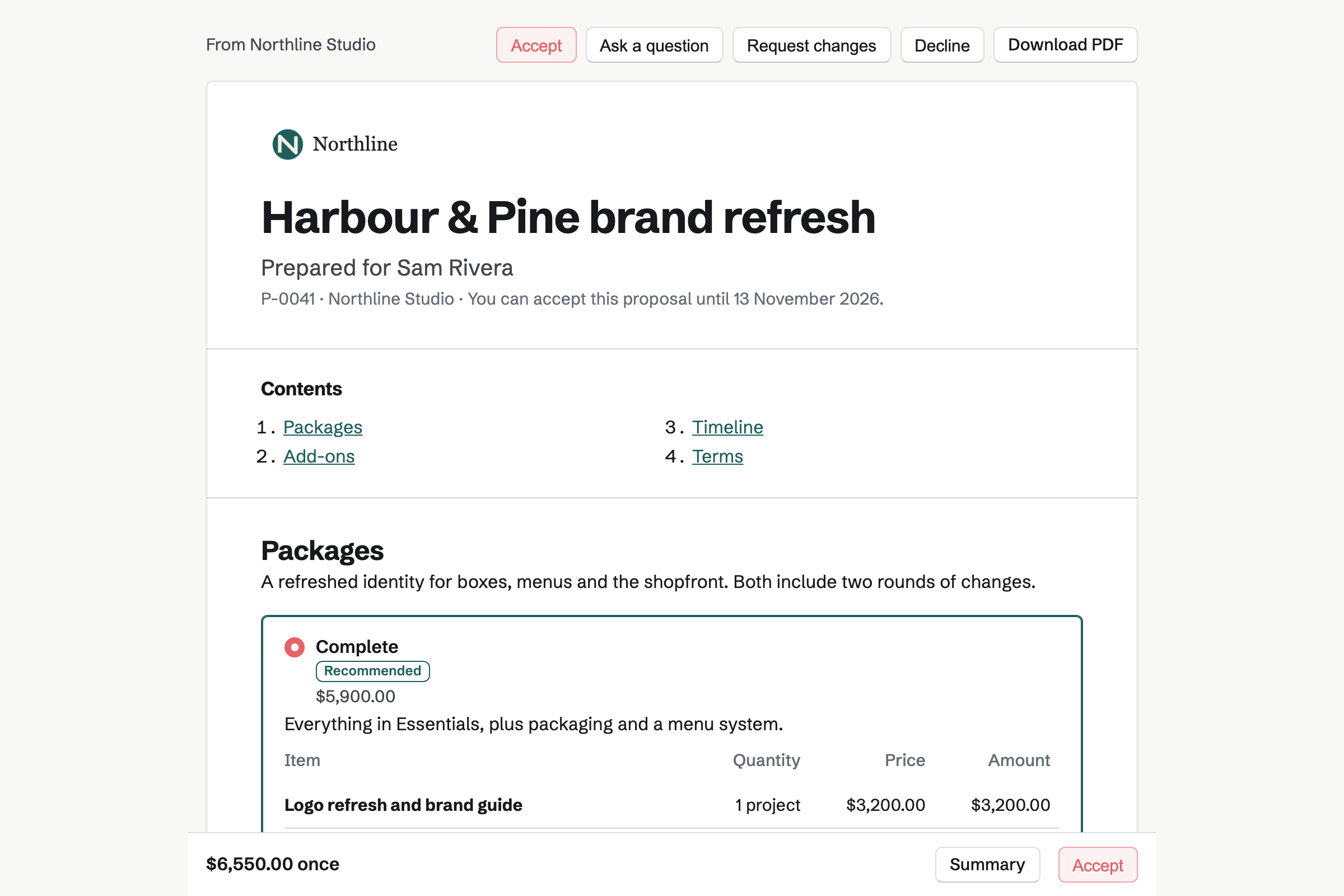
Sending
Send first checks for anything that stops the proposal going out: no client, a placeholder or example price from a starter, an empty field, approval still needed, or the plan's limit. On the free plan, 5 proposals can be sent each month, and only a proposal's first send counts; Pro and the Team plan have no limit.
- Recipients
- A proposal goes to up to 20 recipients, chosen from Contacts or typed as a name and email address. Each signs and accepts, or reads only and can ask questions; at least one signs.
- The email
- Each recipient gets their own link, from your business name via Magpie, now or at a date and time you choose, and replies go to you. Copy link copies a recipient's link to send another way.
- Access code
- Recipients will be asked for the code before the proposal opens; it is not in the email, so send it another way. After 5 wrong codes in an hour, that link stops working for the rest of the hour.
- Valid until
- Valid until is the last day the proposal can be accepted. After it, the client's page says the proposal has expired and offers to ask you for an updated one.
Follow-ups, approval and revisions
- Follow-ups
- Magpie can email recipients who have not opened the proposal, signers who opened it but did not answer, and signers shortly before it expires, at most 3 times a proposal. Send reminder emails the waiting signers, at most once every 10 minutes.
- Approval
- In a team, admins can require approval for every proposal, or when the one-time total reaches an amount or the discount a percentage. The approvers, any team admin unless settings name some, approve or ask for changes, and any later change asks again.
- Revise
- Revise starts the next version as a draft. Recipients will see the version they were sent until the new one goes out with your note on what changed, and earlier versions stay readable.
- Expiry and withdrawing
- Change valid-until date gives more time, or reopens an expired proposal, without a new version. Withdraw ends it and tells the client.
Activity, questions and reports
Activity lists everything that happened to a proposal, including each opening: by whom, when, and on a phone, tablet or computer. Opens by your team are not counted. The client's page tells them you can see when it is opened and which sections are read.
- Reading time
- Reading time shows how long each recipient spent on each section, counted while the section is on their screen and they are using the page.
- Questions and change requests
- A recipient can ask about the whole proposal or one section, or request changes. Your reply is emailed to them and shown on their page.
- Notifications
- The proposal's owner is emailed when it is first opened, asked about, signed, accepted, declined, paid or expired. Each person turns these on or off in Your notifications.
- Reports
- Reports show how many proposals were sent, accepted, declined and expired over a range of dates, their value, the win rate, the median days to a decision and the value still open, by owner, starter or client, with Download CSV.
Accepting and signing
Choose
The client chooses a package and any options. Accept shows their choices with the totals and payment schedule worked out again.
Sign
They enter their full name and draw a signature with a mouse, finger or stylus, or type it. Selecting Accept and sign is their agreement to the proposal and to signing electronically.
Every signer
Signers sign in any order, and the proposal is accepted when the last one signs. A signer can decline instead, with a reason if they choose, which ends the proposal for every recipient.
The signed PDF and certificate
Every recipient and you will be emailed the signed PDF and a signing certificate, which lists each signer's name, email address, signing time, IP address and browser, the agreement text and the SHA-256 fingerprint of the PDF.
The deposit and later payments
With a deposit, its invoice will be issued and emailed to the signers on acceptance. When the team takes card payments, the proposal's page offers Pay deposit, and the client pays by card through the team's own Stripe account, which receives the money. Magpie takes no fee; Stripe's processing fee applies. Otherwise the invoice is paid another way.
Each later payment is an ordinary invoice in Invoicing that names the proposal. Payments on a date will be issued and emailed on their date; Bill this milestone and Bill the final payment issue the others. The proposal and the client's page show each payment's state, and with card payments the client can pay each invoice from their page.
Magpie can also start recurring invoices for the accepted monthly, quarterly and yearly lines. The client's page lists each with its next date and the card it is charged to, with a link to save or update the card.
Send your first proposal.
Create a Magpie account, open Proposals, write a proposal and choose Send.