Read, organize and answer your domain's email in the browser.
Inbox shows a mailbox's folders, the messages in the chosen folder and the open message side by side. Search and file messages, snooze them until later, write with images and attachments, and send now or at a time you choose.
Get started free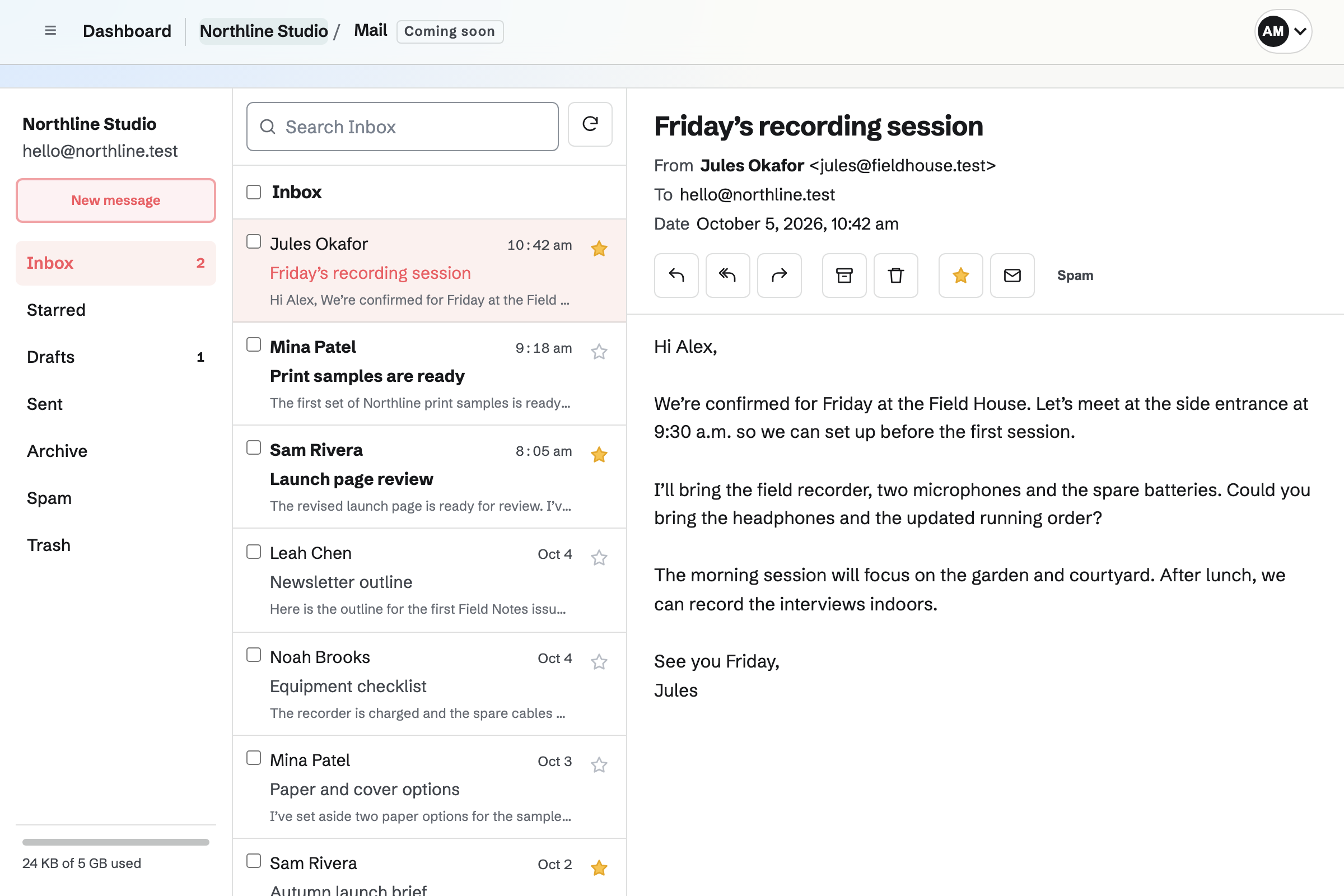
Folders, search and conversations
Every mailbox has Inbox, Starred, Snoozed, Drafts, Scheduled, Sent, Archive, Spam and Trash. On a phone, the list and the open message take turns. While Inbox is open, new mail appears in the list without reloading the page.
- Search and sort
- Search looks through the chosen folder: senders, recipients, subjects and message text. Show and sort narrows the list to unread messages or those with attachments, and orders it by date, unread first, sender, subject or size.
- Folders you make
- Add folders, and folders inside folders, to a mailbox; in a shared mailbox, everyone who can open it sees them. Drag a message onto a folder, or choose Move to.
- Several messages at once
- Tick messages, then drag them onto a folder or apply an action such as Mark read or Move to.
- Conversations
- Below an open message, the other messages in its conversation are listed oldest first, from any folder except Trash and Spam.
- Spam and Trash
- Every message arrives in Inbox, and Spam moves one to the Spam folder. Messages stay in Trash and Spam until you empty the folder or delete them permanently.
- Unread mail across teams
- Dashboard and the account menu list each mailbox with unread mail, in Personal and in every team where you can use Mail.
Reading a message
The buttons above a message reply, reply all, forward, archive, move, snooze, star and mark it unread. In a shared mailbox, read status, stars and folders are the same for everyone who opens it.
- Images from other sites
- They are hidden until you choose Show images, because loading them lets the sender see when the message was opened. Always show images from shows them in every message from that sender. Each member chooses for themselves, also in a shared mailbox.
- Attachments
- Images attached to a message are shown in it, and other attachments download as files. A PDF attachment also opens in PDF Editor.
- The sender in Contacts
- More adds the sender to Contacts in Personal or the team, or opens their contact when they are already saved.
Snoozing a message
Snooze moves a message to Snoozed until Later today, Tomorrow, This weekend, Next week, or any date and time within the next year, in the time zone in your Account settings.
At that time the message will go back to Inbox, unread, at the top of the list. Moving a snoozed message to another folder ends its snooze.
Writing, replying and forwarding
New message writes from the selected mailbox. Messages are written as plain text and can hold images.
- From and recipients
- Choose the From address when the mailbox has more than one, such as an alias. Start entering a name or email address in To, Cc or Bcc to choose a contact from Contacts in Personal or the team.
- Images in the message
- Drag an image onto the message, paste a screenshot, or add one from Your images with Insert images. Each image is saved in Your images too.
- Attachments
- Attach files with the paperclip or drop them on the message. Attachments and images together can be up to 10 MB.
- Drafts
- A draft saves as you write, including its images and attachments, and stays in Drafts when you close it or sending fails. Discard moves it to Trash.
- Sending limits
- A message can go to up to 25 recipients in To, Cc and Bcc together, and each mailbox can send up to 100 messages an hour.
Sending later
Send later, beside Send, offers Tomorrow morning, Tomorrow afternoon, Monday morning, or any date and time within the next year, each shown in your time zone.
Waiting in Scheduled
The message is checked as Send checks it, then waits in Scheduled, where you can choose another time, Unschedule it back to Drafts, or move it to Trash so that it is not sent.
Sent at its time
Magpie will send it from the address on its From line and move it to Sent. You do not need to be signed in.
If it cannot be sent
If the mailbox has been suspended or the From address removed, the message will go back to Drafts with the reason.
Open your first mailbox.
Create a Magpie account, choose Pro for Personal or the Team plan for a team, then add your domain and a mailbox under Mail.