One picture
Use the single-image editor when you need to place the crop by eye, rotate or flip the source, or make several sizes from it.
Image Converter
Set crops by eye, create several sizes from one source, or apply shared rules to a batch of up to 200 images. Download results or save separate copies to your Magpie image library.
Get started free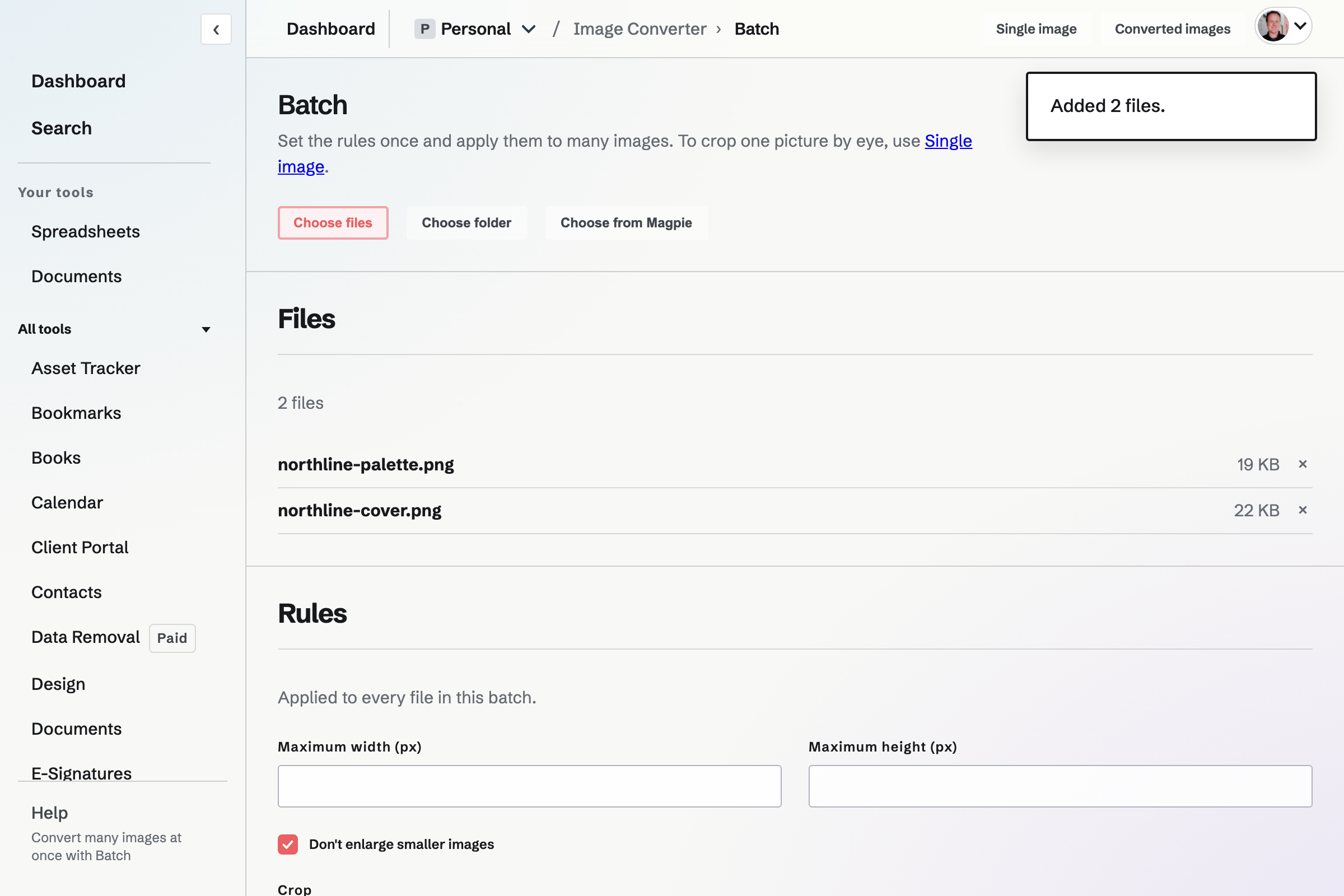
Batch can take images from your device, a folder or the Magpie image library. The same conversion rules apply to every file, while each image keeps its own shape unless you choose a centre crop.
Use the single-image editor when you need to place the crop by eye, rotate or flip the source, or make several sizes from it.
Use Batch when a folder needs the same width limit, format or file-size rule. Preview the first five results before converting the full set.
No. The original remains the source. Download the result or save a separate copy to Magpie.
Yes. HEIC and HEIF photos are accepted on the single-image and Batch pages. Each one is converted to a JPEG when it is uploaded.
Unsaved results remain downloadable for 48 hours. Save a copy to the image library to retain it under your storage allowance.
Create an account and choose a source file or a batch.