RSS Reader
Save an RSS Reader entry to Bookmarks and it keeps the entry's text for Reader view after it leaves your feed. From a bookmark, Follow adds the site's feed to your RSS Reader subscriptions.
Bookmarks
Save links for yourself or a team, search their details and notes, and read stored article text in Reader view. Collections can also be shared publicly without exposing notes or highlights.
Get started free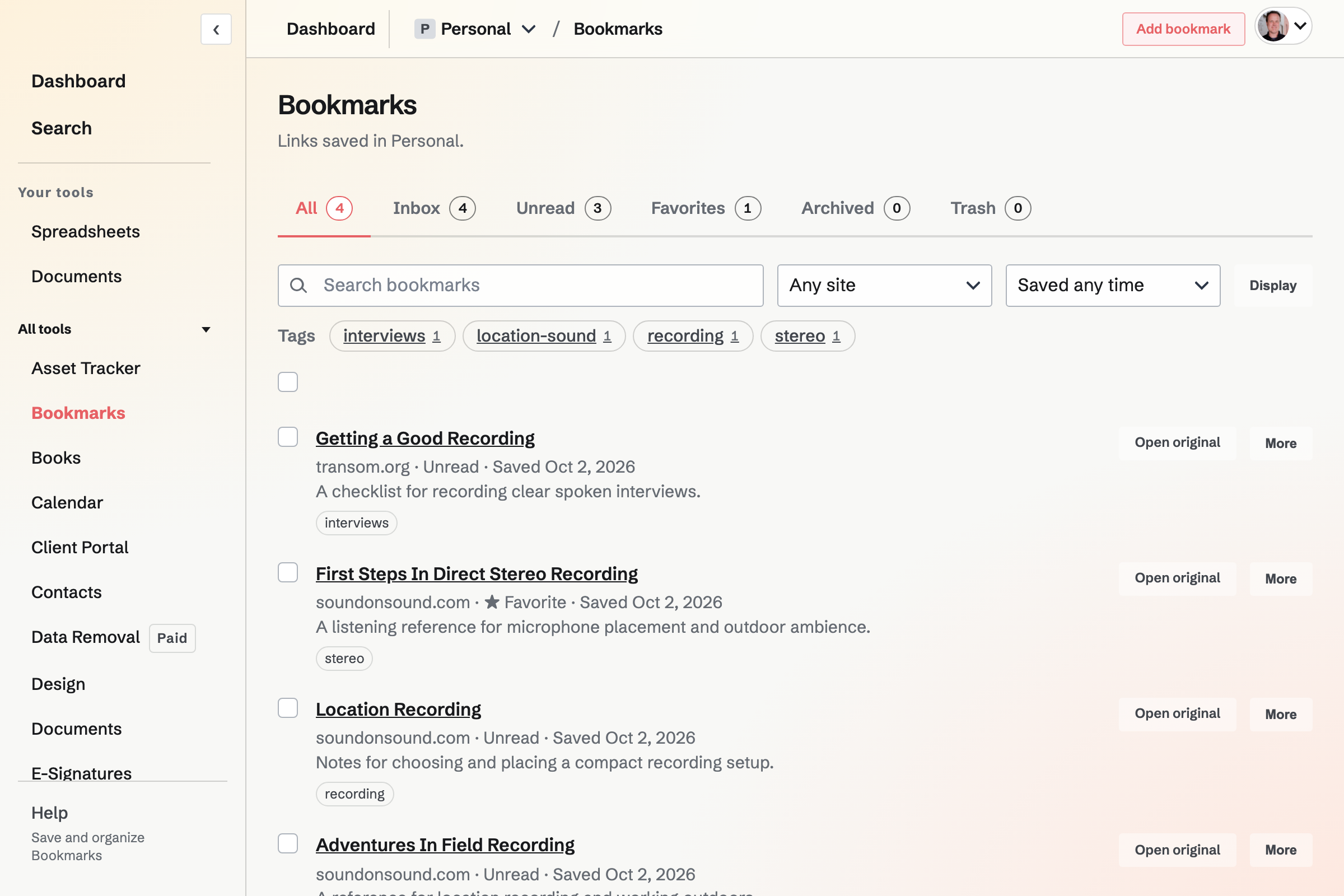
Magpie checks a saved address for its title, description, icon and preview image. If a page needs a sign-in, you can keep its address and supply a title. Duplicate detection ignores common tracking parameters and offers the existing bookmark or another copy.
Search titles, addresses, sites, descriptions, notes, tags and collection names. Filter by collection, combinations of tags, site or date saved.
Show the list as a compact list, a list with previews, or cards with images. Keyboard shortcuts move through the list, open Reader view and mark bookmarks read; they match RSS Reader where they do the same thing.
When a saved page is an article, Magpie keeps its text, headings, lists and links. Images, scripts and page styling are not kept. Not every page has a Reader view, and pages that need a sign-in do not.
Select text to highlight it, and add a note to each highlight. At the end of an article, Mark read and open next opens the next unread bookmark.
Save an RSS Reader entry to Bookmarks and it keeps the entry's text for Reader view after it leaves your feed. From a bookmark, Follow adds the site's feed to your RSS Reader subscriptions.
Send to a new note opens a note with the bookmark's link, your note and your highlights.
Personal bookmarks are visible only to you. A bookmark saved in a team is visible to everyone in that team, including its note and highlights.
It moves to the Trash. Restore it within 30 days; after that it is removed.
Reader view uses the article text Magpie stored when checking the page. Open original visits the saved site in your browser.
Yes. Magpie never contacts addresses on private networks, so the bookmark keeps the address and the title you give it.
Create an account and add your first bookmark.