Software startups and small product teams
A software startup is a small company with its own repositories, design system and hiring. It plans its issues in cycles.
Teams inside a company
You and the people you lead work in one Magpie team of your own.
Get started free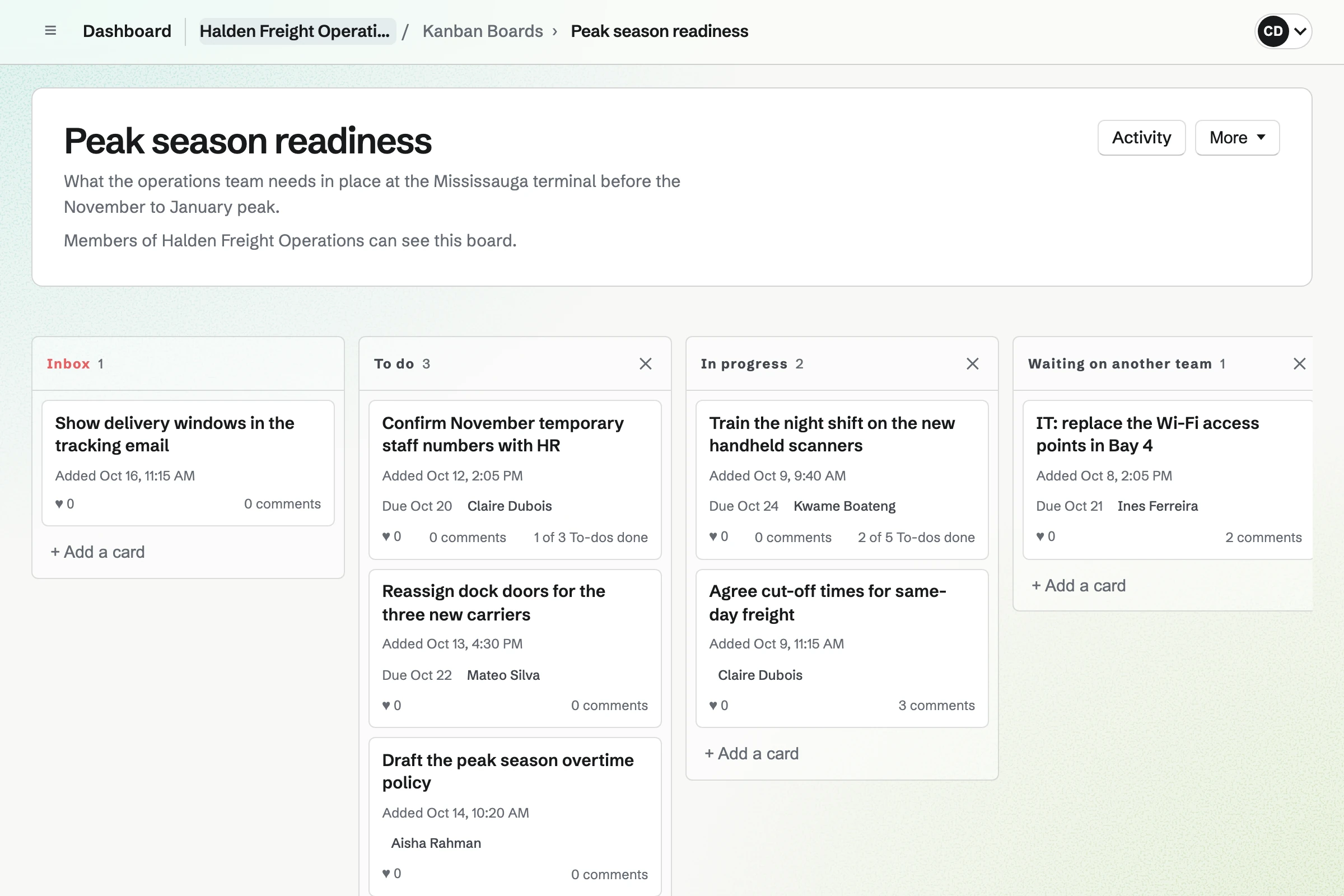
Kanban Boards lays the team's work out as cards on a board. A board starts with Inbox, To Do, In Progress and Done. You can rename them, add your own and change their order. Each card has an assignee, a due date and comments.
You can let colleagues outside the team open a board and see its cards. On a board that takes suggestions, anyone signed in to Magpie can suggest a card. It waits in Inbox until someone on the team moves it into a column.
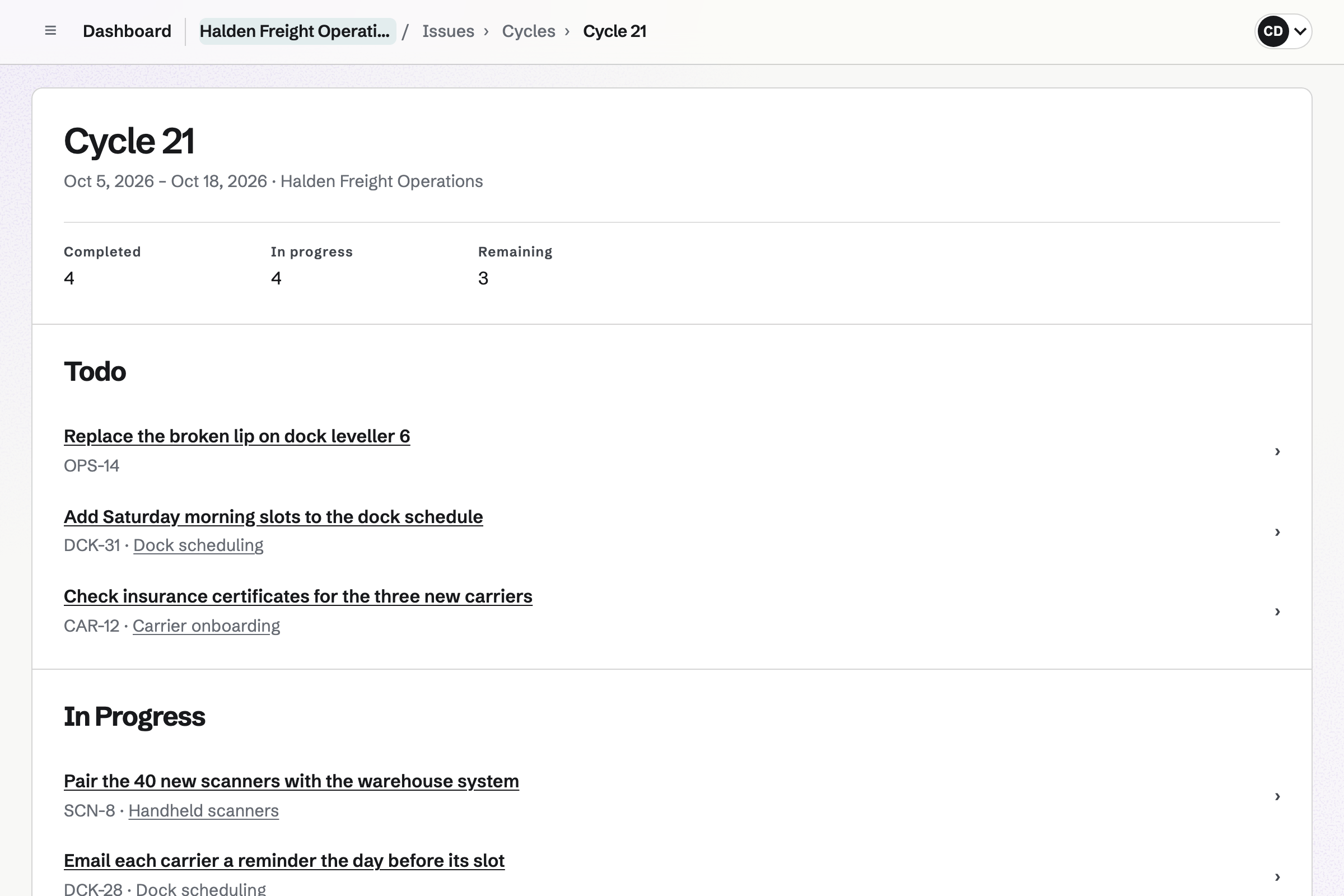
Issues gives each piece of the team's work an identifier, such as OPS-14. Each issue has a status, a priority, an assignee and a due date. A project has a lead, start and target dates and milestones.
With cycle planning on, you plan the work in cycles. A cycle is a week, two weeks or dates you choose. It counts its completed, in-progress and remaining issues. The Roadmap lists each dated project with how many of its issues are complete.
Team chat gives the team its own channels, starting with General, and you add the others. People reply in threads, react and add images. The assistant on the Dashboard can find a message by what it said.
You can let someone from another department, or another company, into one channel. They join as a guest and see nothing else of the team's chat.
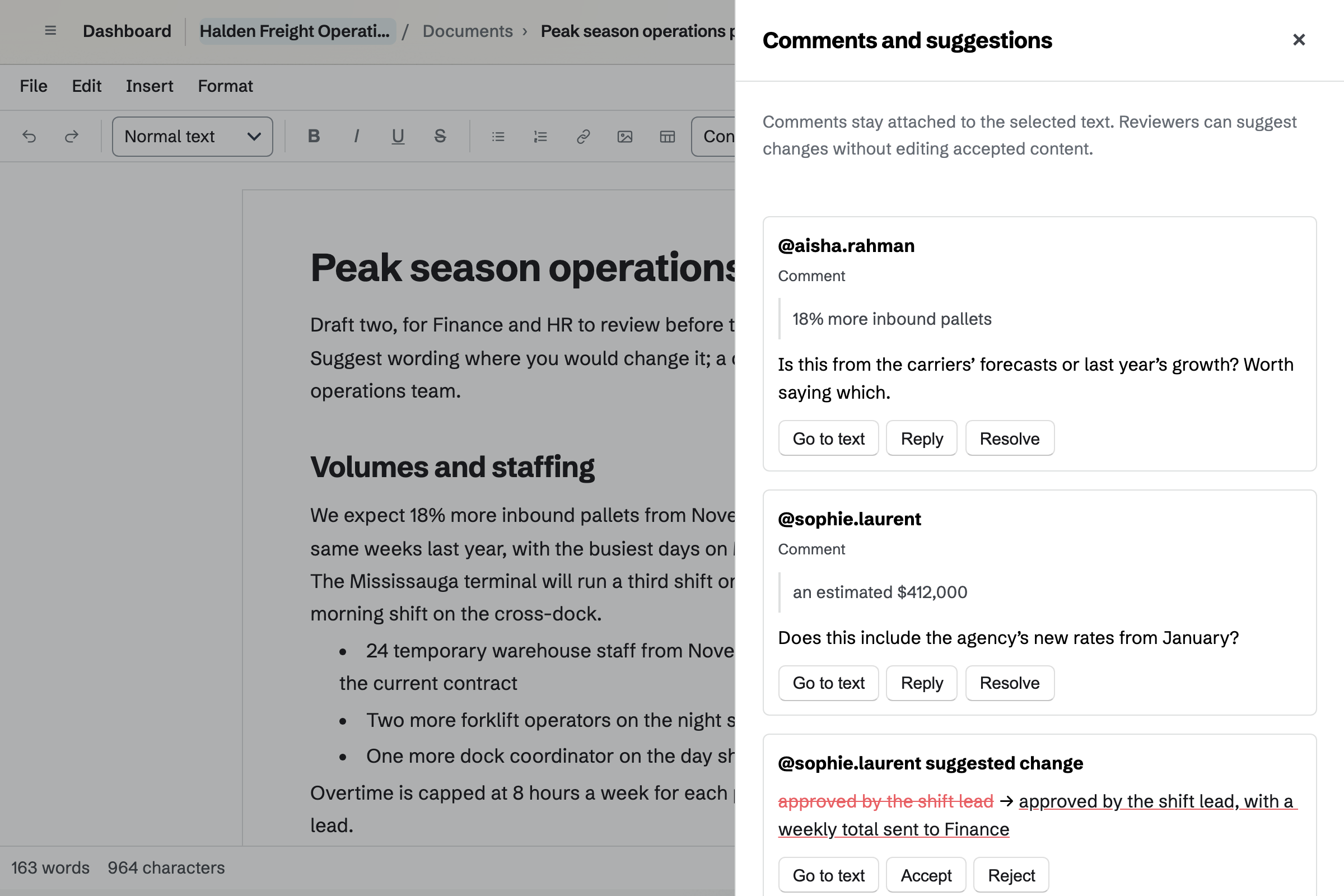
Documents holds what the team writes, with headings, tables, footnotes and page layout. It imports Word files with their comments and tracked changes. You can export a document as DOCX or Markdown, or download a PDF.
You choose whether each person can view, review or edit. A reviewer comments on the text and suggests new wording. The text changes only when an editor accepts the suggestion. A colleague from outside the team can join as a guest for that document alone.
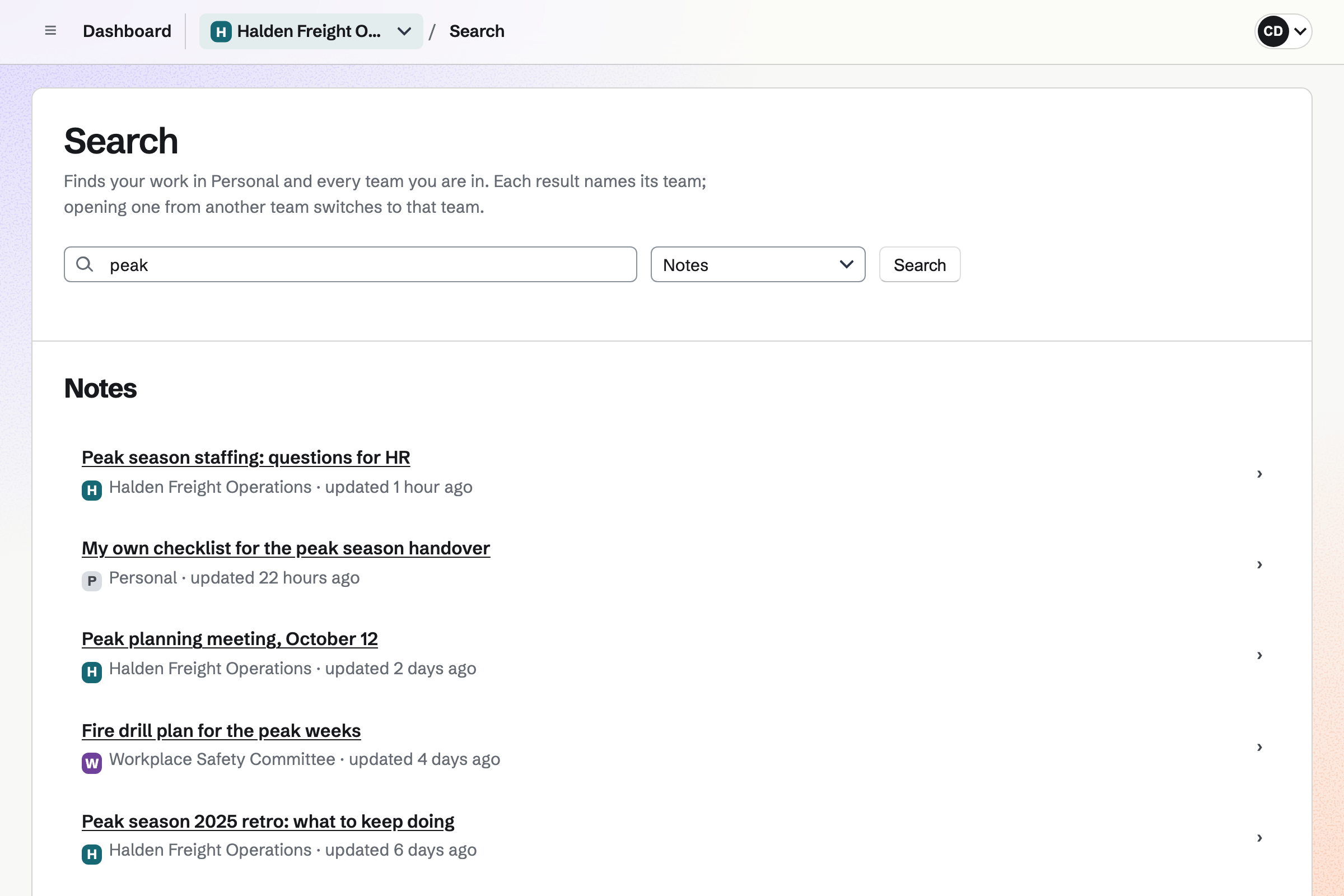
Notes gives the team shared notes, and keeps your own notes apart. A team note opens for everyone on the team who can use Notes. Only you see your own. Search reads the titles and text of all your notes, and names each one's team.
You can write in Markdown or in a formatted view. A checklist line can become a To-do, with its own date and reminder. The team's notes download as a .zip of Markdown files.
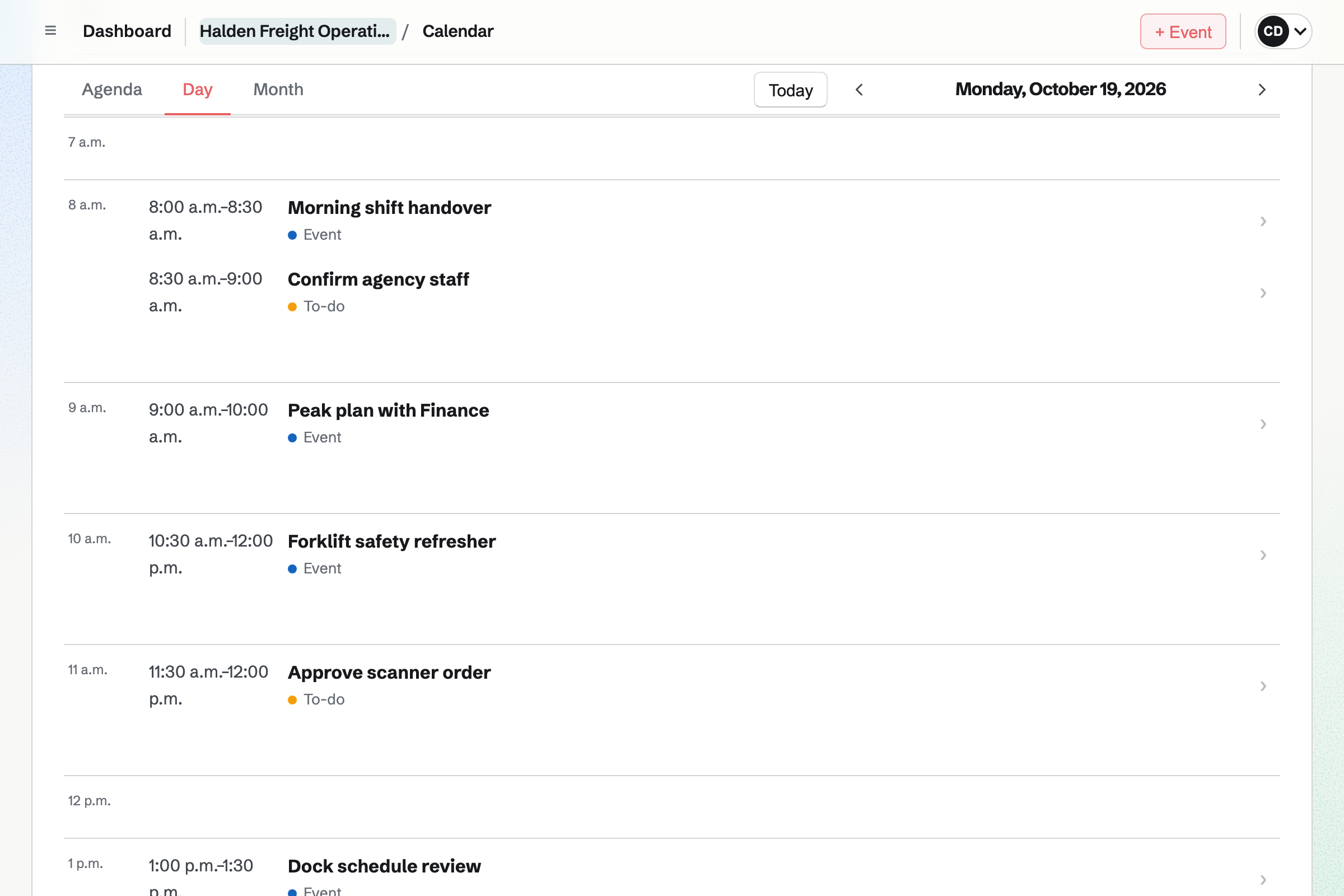
Calendar gives the team one calendar of its events, scheduled To-dos and deadlines. Everyone on the team sees it as an agenda, a day or a month. Each person also has their own calendar, with their own meetings.
Each person can connect their own Google Calendar. Their Google events will appear on their own calendar, never on the team's. Their Google Calendar can show every team event, or only those they are going to.
Nobody types it in again.
Someone in another department fills in your team's public issue form, without signing up first. It waits in Triage.
You accept it into a project, with an assignee, a priority and a due date. The Roadmap counts it in the project's progress.
The team writes the plan as a Document. A colleague outside the team can review it and suggest wording. The text changes only when an editor accepts it.
The Document has its own conversation, and anyone who can open the Document can join. Team chat lists it under Discussions.
A checklist line in the meeting's Note becomes a To-do. Its date and deadline will appear on the team's calendar.
You create a team for the people you lead, and give it a name. Help: Create and manage a team.
You invite each person as a member or an admin. You choose whether members can edit or only view. You also choose the areas each one uses. Help: Choose the areas a member can use.
You give a colleague from another department only what they work on. That can be one document, one channel or a whole area. Help: Guests on a team.
You import Word files into Documents, and CSV files into Spreadsheets and Issues. You can build a board by pasting JSON. Help: Write documents.
The Team plan is one price for the whole team. Its 25 member places fit a team of 10 to 15. Members do not pay for their own Magpie accounts. Guests from other departments take no member place, and the plan allows 100.
The Team plan keeps every Team chat message, in up to 100 channels. There is no limit on Kanban boards. It also includes a tool Magpie builds for your team.
A free team has 3 member places and 5 channels. Each channel shows its 2,000 most recent messages.
A software startup is a small company with its own repositories, design system and hiring. It plans its issues in cycles.
They join as guests, with only what you give them. Documents, Spreadsheets, Presentations, Forms and To-dos can be given whole or one record at a time. Team chat is given one channel at a time, and other areas as a whole. A guest never sees the team's pages, its billing or its Trash. Inside the team, you choose each member's areas, and whether members can edit or only view.
Yes. They join as guests who can review that document and nothing else. A reviewer comments on selected text and suggests new wording. The text changes only when an editor accepts it. A named version keeps the document as it was before the review.
Yes. Anyone can fill in the team's public issue form, without signing up first. Each request waits in Triage until someone on the team accepts it. A Kanban board can also take suggested cards from anyone signed in to Magpie. A Form can collect requests with the questions you choose.
Yes. With cycle planning on, you plan issues in cycles. A cycle is a week, two weeks or dates you choose. It counts its completed, in-progress and remaining issues. The Roadmap lists each dated project with how many of its issues are complete.
Yes. Each person connects their own Google Calendar. It can show every team event, or only those they are going to. Their Google events will appear on their own calendar in Magpie. The team's calendar never shows them.
Yes, with Resource Booking. Each room has open hours, shortest and longest booking, notice, and setup and cleanup time. People choose a room and a time, and Magpie checks the rules and every other booking. A room can hold each booking as a request for you to approve. Other people's bookings show only as Busy.
Yes. The assistant on the Dashboard searches the text of your team's Documents and Team chat. Search finds Documents, Spreadsheets, Presentations, Notes, Kanban Boards, Forms and To-dos by title. It looks in every team you belong to, and in your own work. It reads the text of Notes too.
Yes. A note, board or To-do List you keep for yourself is in no team. Only you can open it. The To-dos page lists all your To-dos in one list, each marked with its team. Team To-dos shows one team's.
Their work stays with the team. When you remove someone, their access stops. Magpie will email them to say who removed them, and from which team. Someone who leaves on their own is not emailed.
Yes. Each person can sign in with Google, Apple, LinkedIn or GitHub. They can also use an email address and password. An invitation to the team goes to an email address. A Google account joins the team when it uses that address.
Documents imports Word, .odt, Markdown, HTML and text files of up to 25 MB. A Word file keeps its headings, formatting, tables, comments and tracked changes. You add its pictures again from Your images. Spreadsheets imports CSV and TSV files of up to 5 MB. You save an Excel workbook as CSV first.
Yes. Documents export as DOCX, ODT, Markdown, HTML, text or PDF, and Presentations as a PDF. Notes export as a .zip of Markdown files, and Spreadsheets and Form responses as CSV. Issues export as CSV or JSON, with their comments and activity. Idea Boards export as a PNG, a PDF or a zip of their images.
Yes. Webhooks send signed issue, comment and project events to an HTTPS address you give. The REST API lists, creates and updates issues. A project can link a GitHub repository. Its issues can then list pull requests and commits from it.
Yes. Magpie builds a tool for a team that needs one Magpie does not have. You describe it on the team's page. Magpie will reply with what it would build and when it will be ready. Only the team's members see it, in the team's sidebar.
Create a Magpie account and make a team for the people you lead.