Store
Add products with options, prices and stock, group them into collections, and change many at once.
A product in a Store is a physical item you ship, a file people download, a gift card or a bundle of products you already sell. Options such as size and colour make variants, each with its own price, SKU and stock. Collections group products by hand or by rules.
Get started free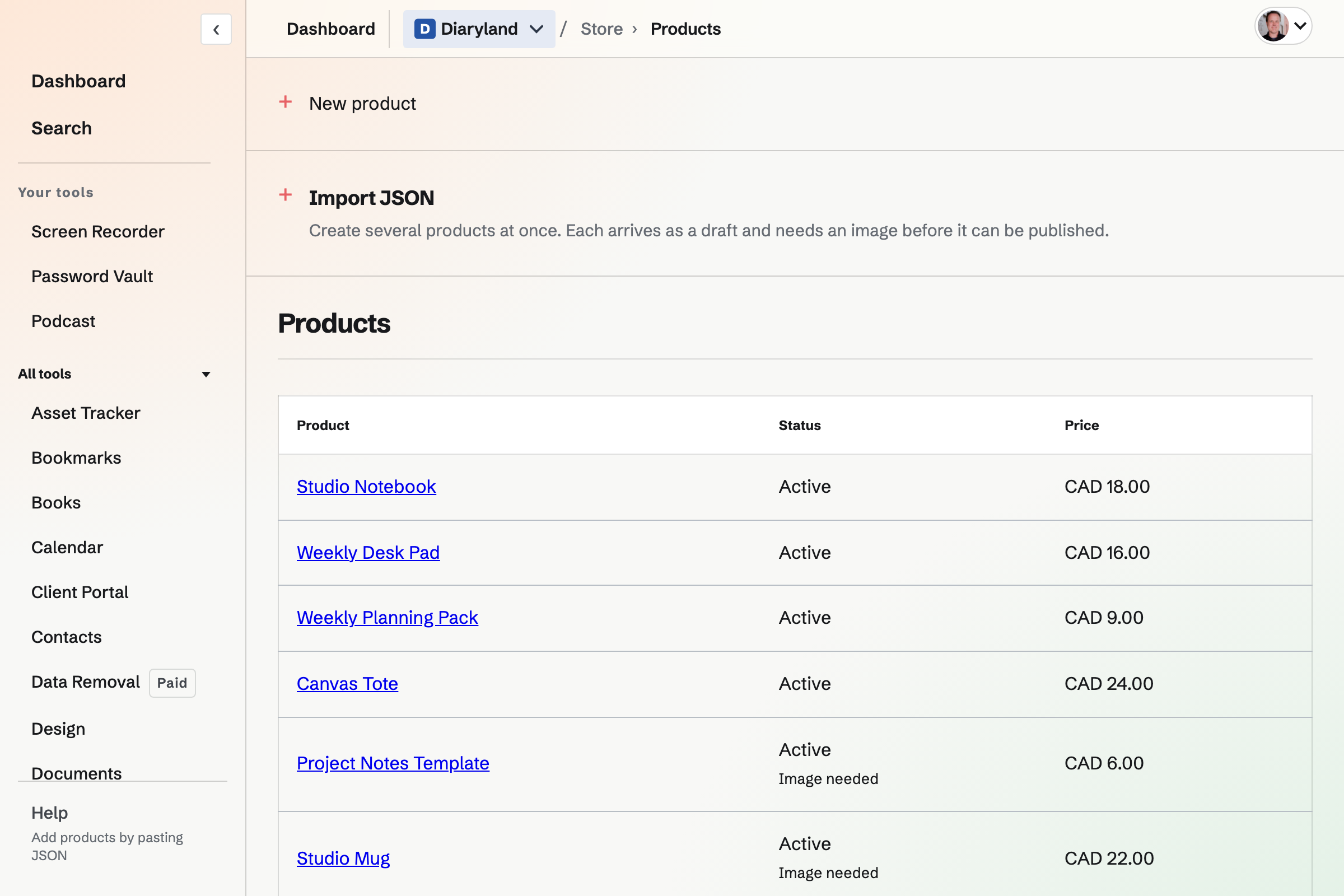
Products and variants
New product asks for a name and what you are selling, then opens the draft's page, where each detail is changed where it is shown. Make live puts the product in the Store once it has an image and a price.
- Options and variants
- Name an option, such as Size, with choices such as S, M and L, and add another such as Colour. Each combination is a variant with its own price, compare-at price, cost, SKU, barcode, weight and stock.
- Stock per variant
- With Track stock on, a variant stops selling when its available stock reaches zero, unless it sells when out of stock. Checkouts in progress hold what they take.
- Images
- Product images are chosen from your image library or uploaded.
- Type, vendor, tags and specifications
- A product has your own product type, a vendor (given to search engines as the brand), up to 30 tags, specifications such as Material: linen, and a size chart pasted from a spreadsheet.
- Who can change products
- Team admins, and members given the Manage products permission, change products on the website or in the Magpie app.
Pay what you want and personalisation
- Pay what you want
- Give a variant a Minimum price, and the product page asks for Your price, with the variant's price as the suggested amount. An amount below the minimum is refused, and discounts never lower an amount the customer chose.
- Personalisation
- Personalisation fields are what customers fill in when they buy, such as an engraving: short text, long text, a choice from a list or a date, optional or required, free or at an added price. A product can have up to 10 fields. The order, its emails and the packing slip show what was entered.
Bundles
A bundle is a product made of up to 50 products you already sell, each with a quantity, at its own price. A part can be one variant, such as a Blue Mug, or a draft that is not sold on its own.
A bundle has no stock of its own: the Store sells as many as the parts in stock allow, and each part leaves stock when a bundle sells. Digital parts' files are delivered with it.
Collections, filters and Goes with
A collection is a group of products with its own page in the Store, published at once or at a date and time you set.
- Chosen by hand
- You add up to 500 products and put them in order.
- Matched by rules
- Up to 20 rules on tag, product type, vendor, price, Is on sale, days since publishing and Is in stock, matching all rules or any rule. Products join and leave as they change.
- Search and filters
- Shoppers search by name, description, type, brand, tag or SKU, and filter by price, an option such as size, type, brand, tag and In stock only.
- Goes with
- Choose up to 8 products to show with a product. Its page shows up to 4 of them that are live, and the cart suggests those chosen for the products in it.
Search engines
Each product and collection has a title and description for search results. Product pages give search engines each variant's price, availability and SKU, and the product's average rating from published reviews. Each Store has a sitemap of its published collections and live products.
Change many products at once
The Products list has views for Live, Drafts, Needs attention and Archived. Tick products, or every product the list matches, up to 5,000 in one change.
Make live
Make live puts the chosen products in the Store after asking. A product without an image, a price or its file stays a draft, named with the reason.
Remove from store or Archive
Live products become drafts again, or are archived. Orders keep their records.
Tags, collections, vendor and product type
These change on every chosen product at once, and the message afterwards has Undo.
Edit in a table
A table lists each chosen variant's price, compare-at price, cost, SKU and stock, to change together.
CSV import and export, and pasting JSON
- Export as CSV
- The file has one row for each variant, drafts and archived products included, to change in a spreadsheet and import again.
- Import a CSV
- A file can have up to 2 MB and 5,000 rows. A row whose SKU matches a variant changes it, and other rows add draft products. The import lists every change, and each row it cannot import, before anything changes. A file of more than 100 rows will be imported in the background, and you will be emailed when it finishes.
- Paste JSON
- Paste names, descriptions, prices and SKUs as JSON to add several draft products at once. If any part of the document does not fit, nothing is created.
Add your first product.
Create a Magpie account, open Store and set it up with a name, then choose New product.