Wedding and event planners
An event planner runs weddings and parties for clients.
Planning a wedding or a big party
The two of you plan in one Magpie team, with room for one more. Guests use the website and the RSVP form.
Get started free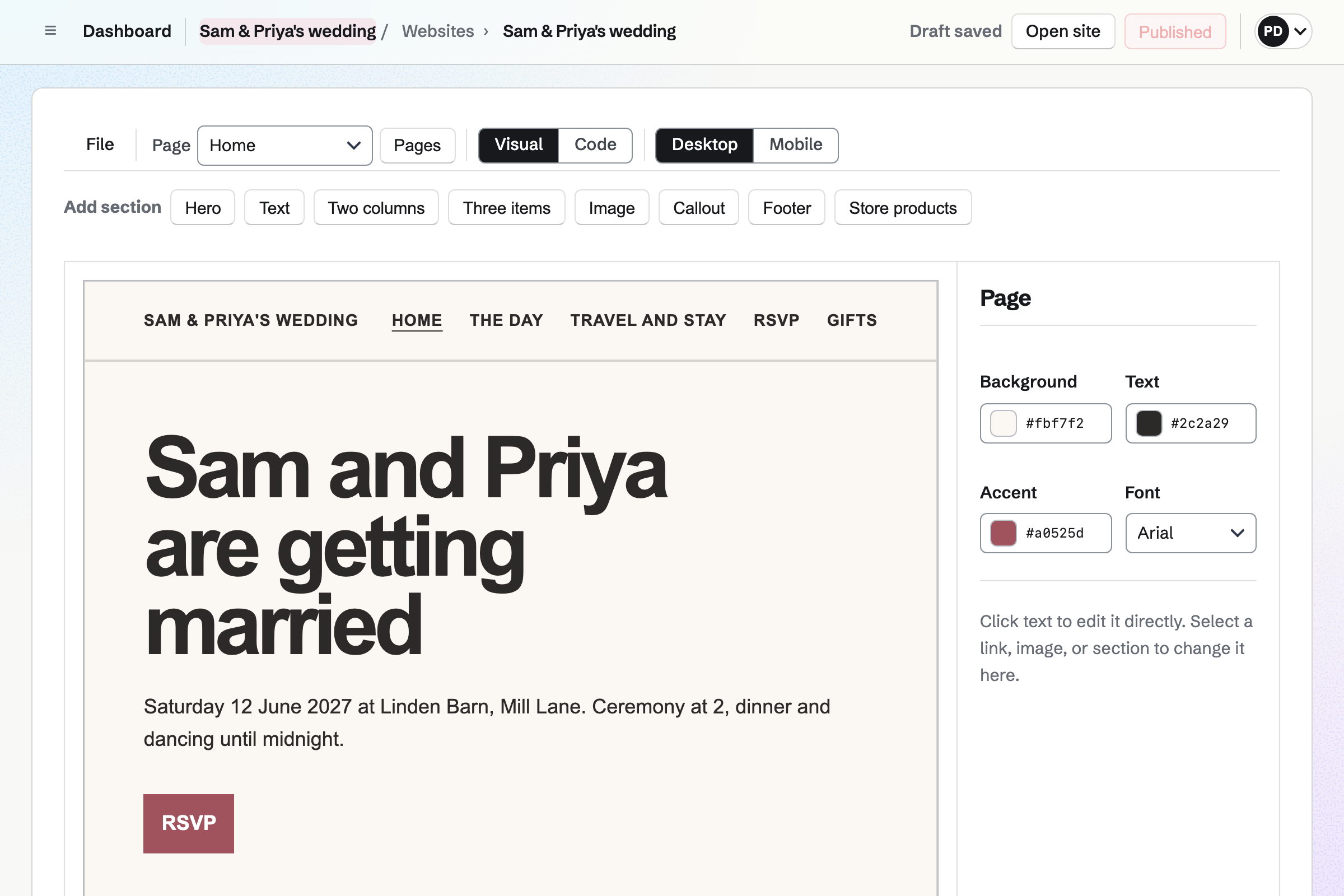
Websites is Magpie's site editor. Your website is built from sections, such as the day, the venue and where to stay. You change the words by clicking them.
A button can open the RSVP form. The website can be at a domain of your own.
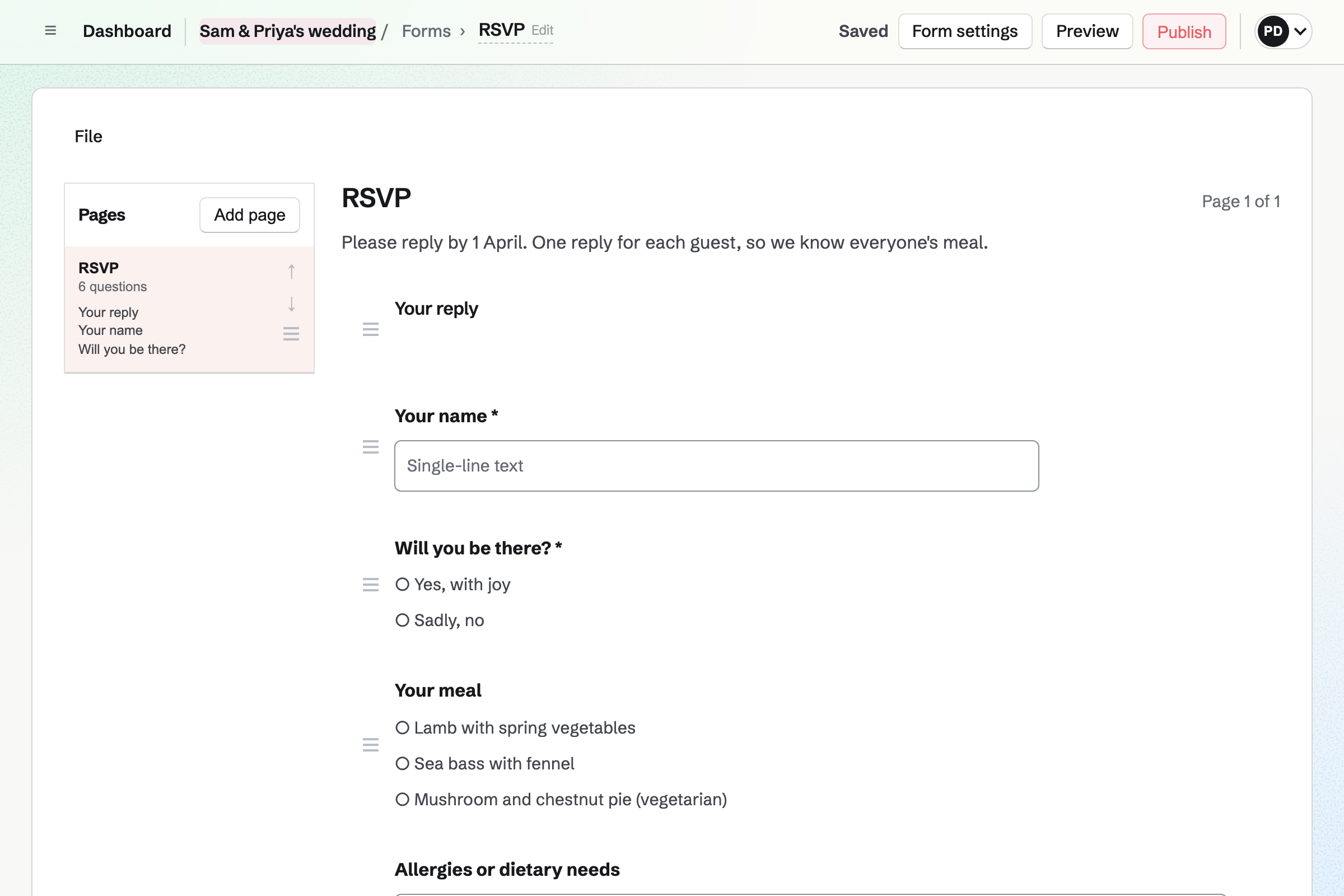
Forms starts from an RSVP form, and you add your questions, such as each guest's meal. A question can show only when the guest is coming.
Every reply comes into one list you can export. You get an email for each one.
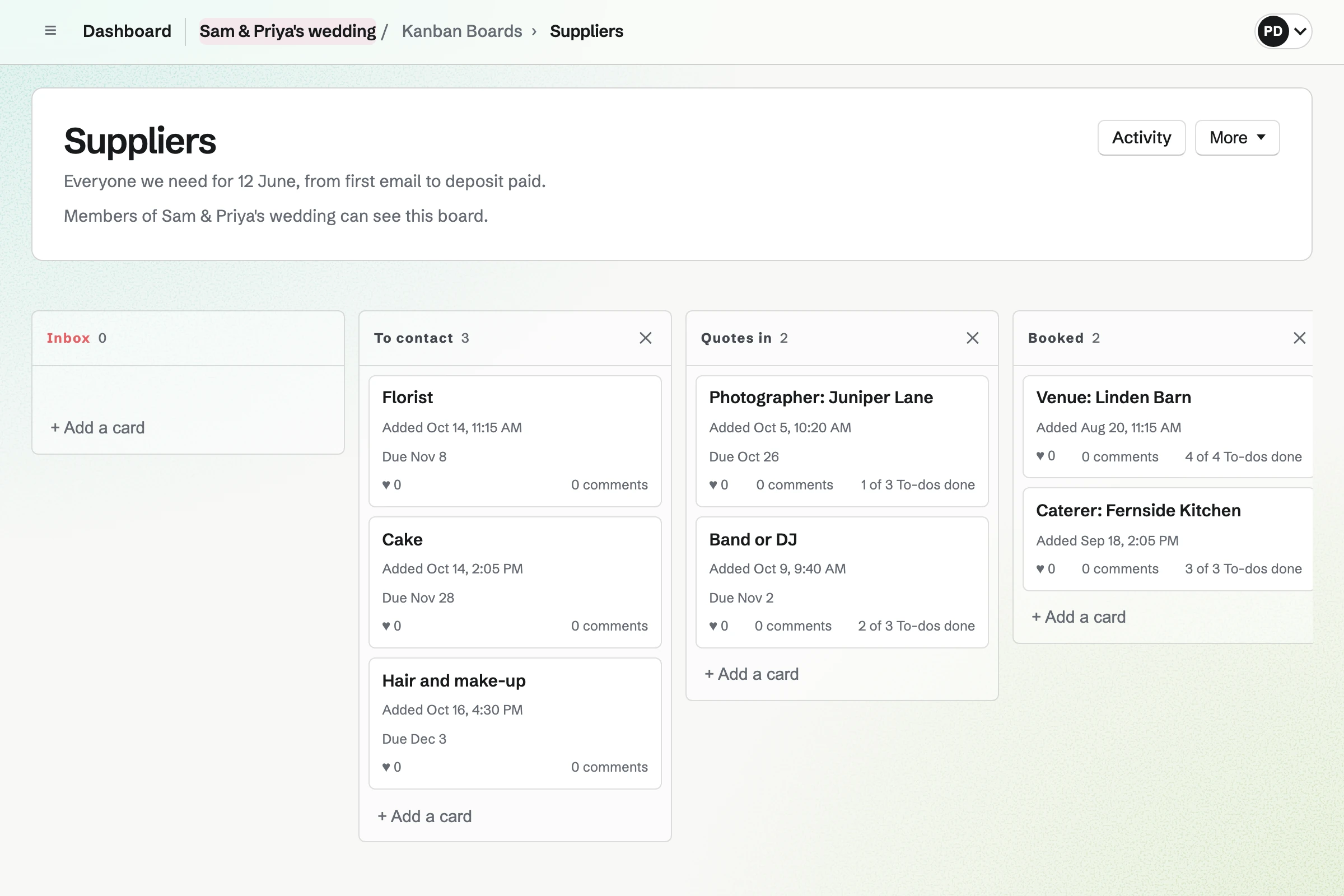
Kanban Boards holds each supplier as a card, such as the venue and the photographer. Each card has who is handling it, a due date and To-dos.
Quotes and contracts stay on the card, with your comments.
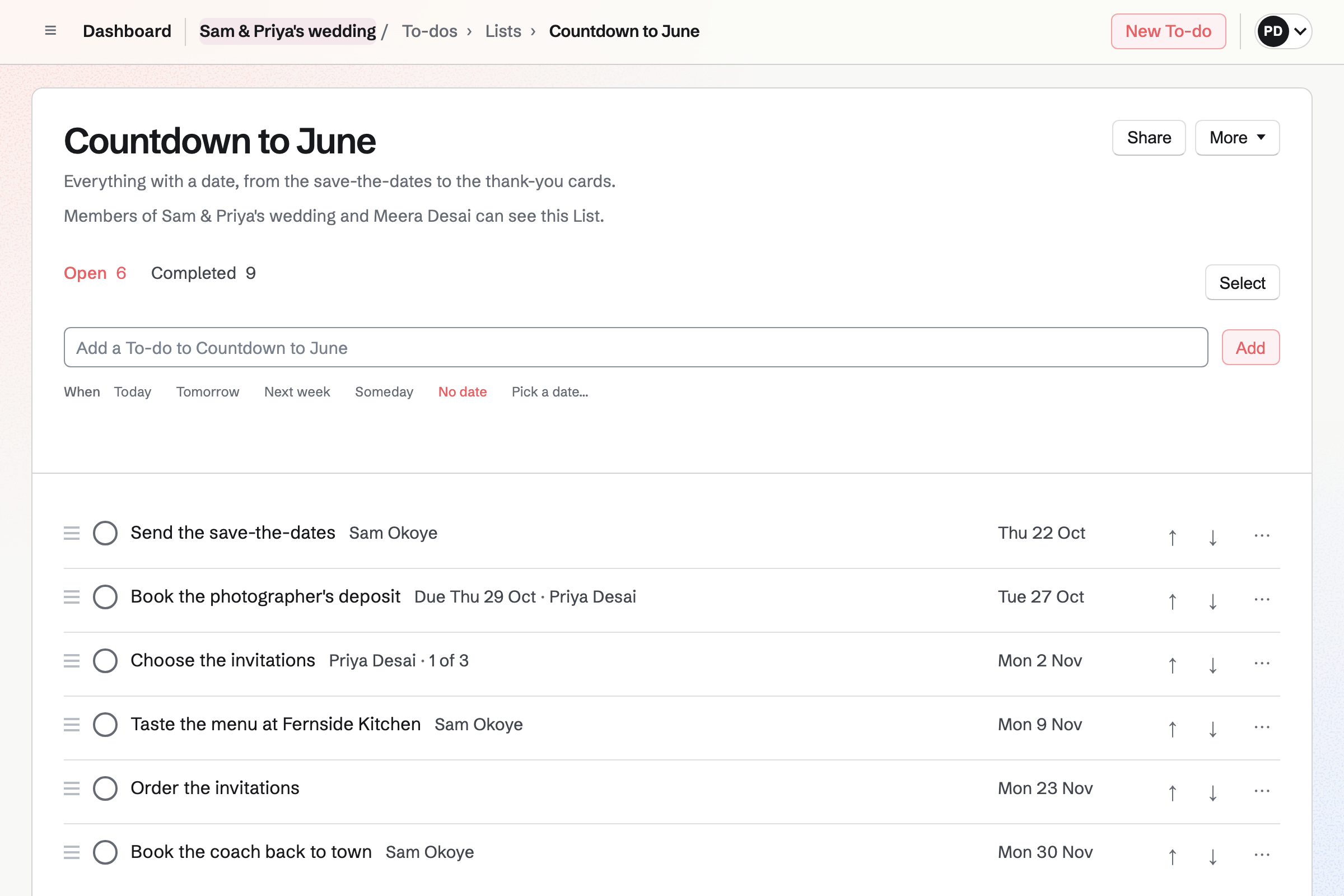
To-dos holds the jobs before the day, each with a date and who is doing it. A reminder can be emailed before each one.
A List can be shared with someone else, such as a parent, by their handle.
Spreadsheets keeps the budget, with formulas that add up what is paid and what is left. The seating plan can be a sheet of tables and names.
The RSVP list can be exported as CSV and opened in a sheet.
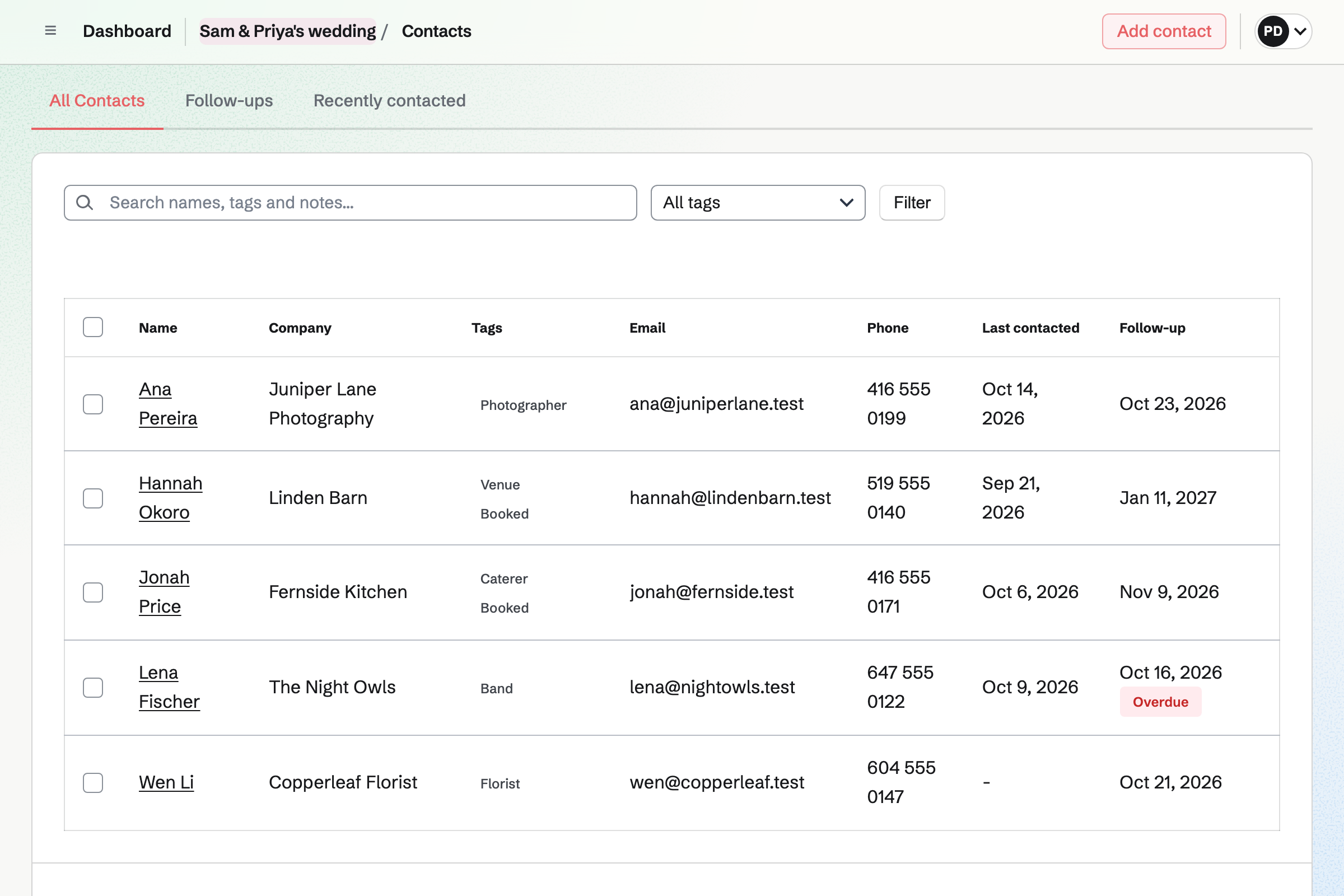
Contacts keeps each supplier, with notes on what you agreed. A follow-up becomes a To-do, such as confirming the final numbers.
Search finds a supplier by name, tag or note.
The venue is booked, and its card moves to booked.
It goes live, with the day and where to stay.
Each one has a QR code to the website.
Replies and meals come in on the form.
The last List is the thank-you cards.
You invite your partner by their handle. Help: Create and manage a team.
You start from the starter design. Help: Build and publish a website.
You start from the RSVP form and add your questions. Help: Build, publish, and share a form.
You set its columns once. Help: Track work with Kanban boards.
A wedding team on the free plan has places for 3 people. Guests who visit the website or RSVP are not added to it.
The Team plan raises the team's limits, at one price. Prices are on the Pricing page.
An event planner runs weddings and parties for clients.
A family shares a calendar, lists and a family chat.
A florist takes wedding enquiries and sends proposals.
Yes. The RSVP form can ask for each guest's meal and dietary needs. A question can show only when the guest says they are coming.
Yes. Every reply comes into the form's responses, which you can export as CSV. You get an email for each new one.
Yes. The editor builds pages from sections, such as the day, the venue and where to stay. It can be at a domain of your own.
Yes. QR Codes makes a code for the website's address, ready to print on each invitation.
Yes. You both work in the wedding's team, with the same board, lists and files. Each To-do can be given to one of you.
Yes. A spreadsheet keeps each, with formulas for what is paid and what is left. You type the seating plan as tables and names.
Yes. A List can be shared with them by their handle. They see that List and nothing else of the wedding's.
Create a Magpie account and make a team for the wedding.