Yoga, pilates, dance and martial arts studios
A yoga or dance studio runs group classes on a public timetable. A place is held for each student, and teachers are on a rota.
Personal trainers and fitness coaches
Your bookings, clients, training plans and invoices are in one Magpie account. Trainers who work together can share one team.
Get started free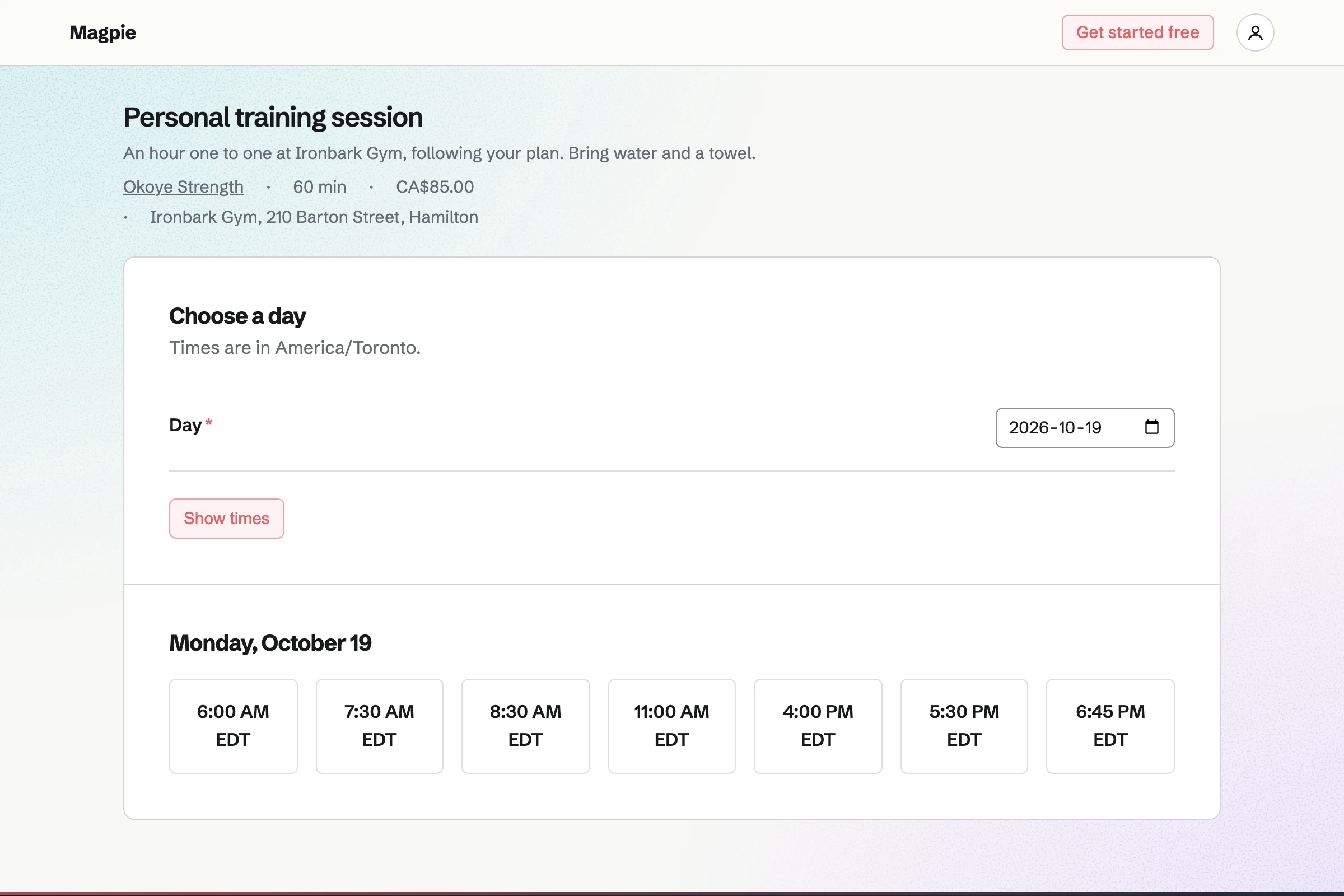
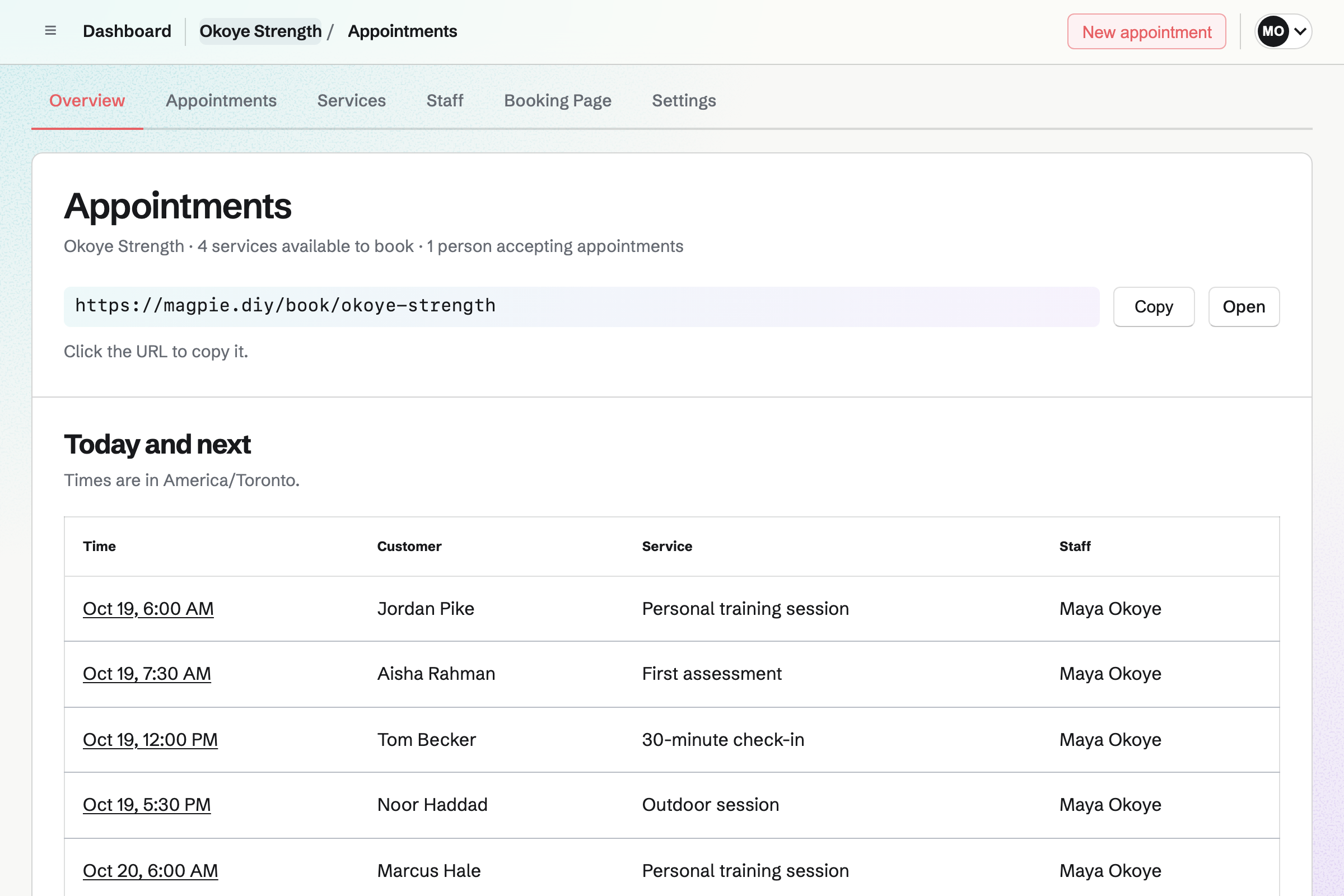
Appointments gives you a booking page for your sessions. Each session has its own length, price and place, such as the gym or a park. You can keep time free before and after a session to travel or set up.
Clients choose a session and a free time, then give their name and email address. Magpie offers only times your weekly hours, your Calendar and your other sessions leave free. Their confirmation email lets them move or cancel, until the notice you set.
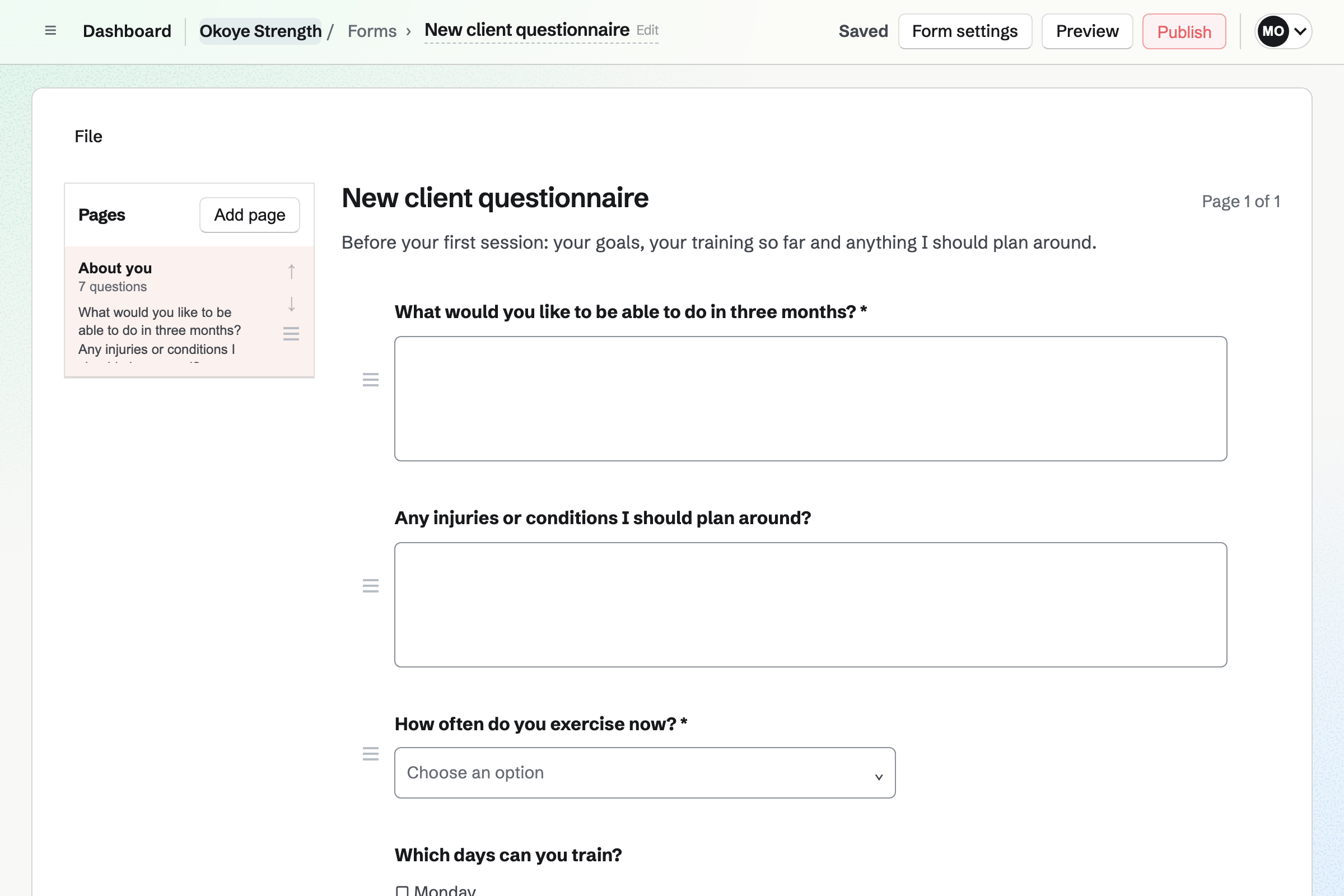
Forms gives you a questionnaire for new clients. You can ask about their goals, injuries to work around and the days they are free. A required tick box can make them confirm your terms before they send it.
You can send its link to a client who books a first session. It can also go on your Link-In-Bio List. Magpie will email you each response, and you can download them all as a CSV file.
Contacts keeps a record of each client. A booking will link the client to their contact by email address, or add one. The contact lists every session, and whether it was completed, cancelled or a no-show. It also shows what you have billed them.
A pinned note, such as a knee to work around, stays near the top. After each session, you add a dated note. You can set a follow-up for a client who has not booked in a month. It will become a To-do with a reminder.
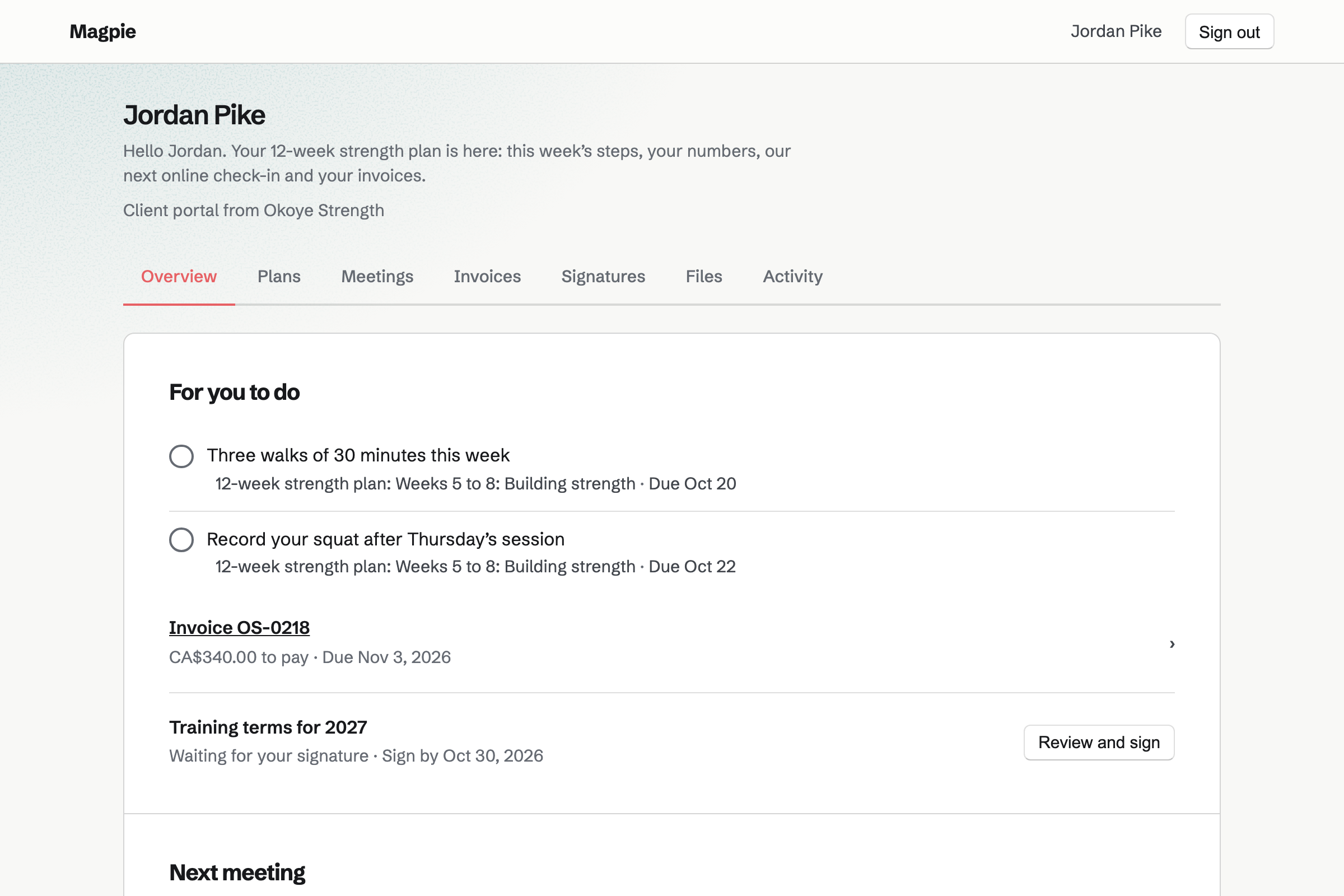
Client Portal gives each client a page of their own, with their training plan. A goal is a number to reach by a date, such as a 100 kg squat. Its stages are blocks of training, such as Weeks 1 to 4.
Each step is for you or for the client. The client sees their open steps first, then each goal and how far it has come. They tick their steps, such as three 30-minute walks, and record where a goal stands.
Invoicing bills each client for a session or a block of ten. Once you turn on card payments, the client can pay by card from the email. The money goes to your own Stripe account. You can record cash or a bank transfer too.
For a client who pays monthly, you can make their first invoice recurring. Magpie will issue and email the same invoice every month, until you pause or end it. A monthly proposal they accept with automatic payment can charge their saved card instead.
The client's name and email address are entered once, when they book.
They choose a first assessment and a time on your booking page. You can also add a booking they made by phone. Magpie will email them a confirmation.
The booking will add an event to your Calendar, named after the session and the client. It will link the client to their contact, or add one.
You send them your new client questionnaire. Magpie will email you their answers.
You create their portal from the contact and invite them by email. You start their plan from your starter. Sharing it will email them that it is ready.
You mark the session Completed or No-show and add a note to the contact. You also record where a goal stands.
You invoice the first month from the contact and make it recurring. Each month's invoice will be emailed with a Pay online button. Each payment will be added to the books.
You choose Start from scratch and add your sessions, each with its length, price and place. Then you type your weekly hours, preview the page and publish it. Help: Set up Appointments.
You build the new client Form and publish it. Help: Build, publish, and share a form.
You build the programme you start most clients on, with its goals, blocks and steps. Help: Reuse your process with starter plans.
You connect Stripe, then turn on card payments for invoices. Help: Connect Stripe to receive money.
A trainer working alone can use Magpie without a team. The Free plan has room for 100 contacts, one for each client who books. It allows 5 invoices a month, recurring ones included, and 2 Meeting types. Pro has no such limits.
In a team of trainers, each one clients can book takes a member place. A free team has 3 member places, counting you. The Team plan has 25, at one price for the whole team.
Magpie adds no fee to invoice payments. Supporters has a 3% fee. Stripe's processing fee is taken from each card payment.
A yoga or dance studio runs group classes on a public timetable. A place is held for each student, and teachers are on a rota.
A gym adds classes, a staff rota, equipment and daily safety checks.
A therapist or counsellor sees clients in person and over video, with intake forms. Secure Files keeps their files encrypted.
Yes. Clients open your booking page and choose a session, a day and a free time. They enter their name and email address, and a phone number if they like. Magpie will email them a confirmation with the session, the time and the place. Your booking page has its own address to share.
Yes. Each session has its own length, price, description and place. You type the length as you would say it, such as 45 min. You can keep time free before and after, such as 15 minutes to travel. That time has to fit inside your hours too.
Yes. Each session has its own place. A strength session can be at the gym and an outdoor one in a park. The client sees the place once they choose the session. It is also in their confirmation email and on the event in your Calendar.
Yes. The confirmation email links to a page for that one session. On it, the client can choose another free time or cancel. Within the notice you set, such as 24 hours, the page asks them to contact you. Magpie will email them the new time or the cancellation.
Yes. You set how much notice a booking needs, such as 12 hours. You also set how far ahead clients can book, such as four weeks. You choose how often start times are offered, such as every 30 minutes.
Yes. A Calendar event you created or are going to blocks that time. So does another of your sessions. The event's details are never shown on the booking page. You can type your hours for each day, such as 6am to 1pm, or Closed.
Each booking adds an event to your Calendar, named after the session and the client. Your appointments are listed under Today, Upcoming, Past and Cancelled. Each shows the time, the client and the session. The Overview shows today's sessions, or the next ones when there are none today.
Yes. Meetings gives you a page where clients book online sessions, such as a 45-minute one. With Zoom connected, each new meeting gets a Zoom call. Without it, Google Calendar adds a Google Meet link. Once you share the meeting in their portal, they can join it from the portal.
Yes. You build a Form with your questions, such as goals, injuries and how often they train. A required tick box can make them accept your terms. Clients answer from its link or a QR code, and Magpie emails you each response. Responses download as a CSV file.
Yes. You upload your terms as a PDF and place the signature, name and date fields. You save it once as a signing starter. For each new client, the starter opens a request ready to send to their email address. Once they sign, Magpie will email you both the signed PDF and its certificate of completion.
Notes go on the client's contact. A pinned note, such as an injury to work around, stays near the top. After each session, you add a dated note, call, email, meeting or message. Search finds every note, and the contact lists every session beside them.
Yes. Each client's portal shows the plans you share with them. They see each goal, how far it has come, and every block of training. Their open steps are listed first, under For you to do. Your steps are shown to them read only.
Yes. In an active plan, clients tick the steps that are theirs. They can also record where a goal stands, such as this week's 5 km time. Each value is listed on the goal's page with who recorded it and when. Each tick and value is also listed under Client activity on the portal.
Yes. You can save a plan as a starter, or build a new one. A step's due date is a number of days after the plan starts. A new plan from the starter gets its own copy, with dates counted from today. Changing the starter later leaves existing plans as they are.
Yes. You can share a programme as a PDF or an exercise video in their portal. Each file can be up to 500 MB. Clients can upload files of their own too, such as a food diary. Each upload is listed under Client activity.
You send an invoice from the client's contact, with the sessions on it. With Stripe connected and card payments on, the email has a Pay online button. The client pays by card into your Stripe account, and Magpie adds no fee. You can also record a payment in cash or by bank transfer.
Yes. You can make any invoice recurring. Magpie will issue and email it monthly, quarterly or yearly, each with a Pay online button. It stops when you pause or end it, or after the number you set. A monthly proposal the client accepts with automatic payment can charge their saved card instead.
Yes. You put the block on one invoice, with a line such as Ten personal training sessions. The client can pay it by card from the email. Each session they then book is listed on their contact, with whether it was completed. The invoice is on the same contact.
Yes. Supporters gives you a page with a free tier and monthly paid tiers. You write posts with images and workout videos, and choose which tiers can read each. Supporters join with a Magpie account and pay by card into your Stripe account. They can cancel from their own account.
Yes. Newsletter has a sign-up page, and subscribers confirm by email. You can also import a list as a CSV file, with a record of consent. An email about summer session times can be sent now or scheduled.
Yes. You make a team and invite them. Each trainer who takes sessions has their own weekly hours and sessions. Clients choose a trainer by name, or Anyone available. That offers each start time once, and gives it to the first trainer who is free.
A Link-In-Bio List is one page of links at one address. It can link to your booking page, your new client questionnaire and your supporter page. You can put headings between them. It counts the clicks on each link.
Create a Magpie account and publish your booking page.