Figma compared with Magpie

Figma vs Magpie: an in-depth comparison

Figma and Magpie both give you a shared canvas for designs, components and clickable prototypes. They are built for different teams.

  1. Figma is a design platform built around Figma Design. Slides, Sites, Make and Buzz come on the same seats. It is built for product and design teams, and for the developers who build from their files.
  2. Magpie is one subscription for a small business's software, and Design Canvas is one part of it. Beside the design files it includes Design System, Presentations, Websites and the areas a business runs on. It is built for someone whose designs are one part of running the business.
Create account
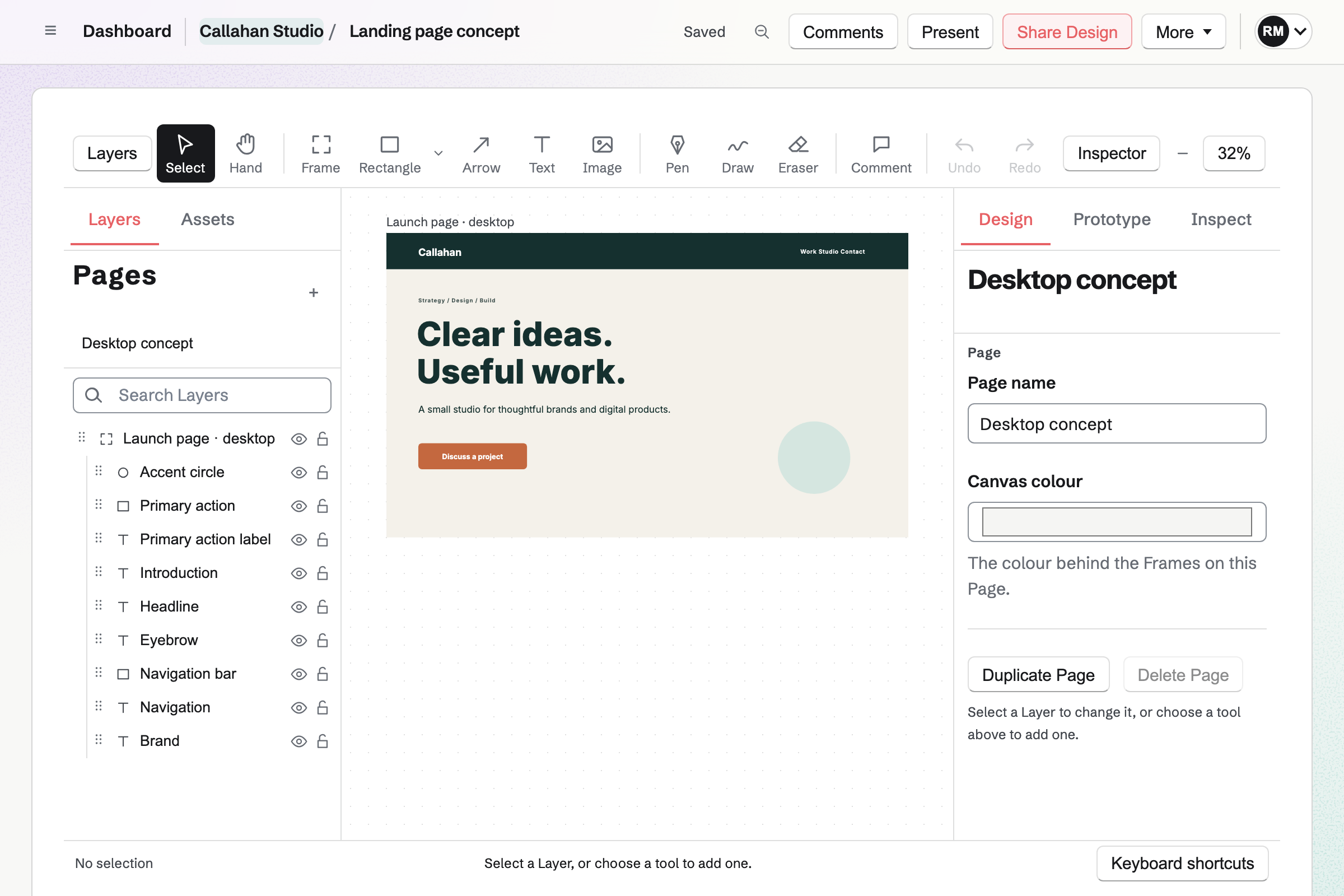
Callahan Studio’s landing page concept open in Design, with its Layers, the desktop frame on the canvas and the Page’s properties.

How is Magpie different?

1. The design files come with the rest of the business

One Magpie subscription includes the areas a small business would otherwise buy one at a time:

  • Design Canvas for design files, components and prototypes, and Design System for the written guide
  • Presentations for decks, and Websites for the site itself
  • Image Converter, Idea Boards, Documents and Spreadsheets for the rest of the making
  • Meetings, Invoicing, Store, Mail, Contacts and the other areas, in the same team

Everything is in one account with one bill. Figma covers design, slides, sites and marketing pictures, and leaves bookings, invoices and email to other software.

2. Every plan has the whole editor

No Magpie plan limits the number of Design files. Branches, Design Libraries, Inspect and version history with no time limit are on the Free plan. Prototypes use variables and conditions on every plan. Everyone who can view a file can inspect it and copy its CSS.

3. A team pays one price

The Team plan is one price for up to 25 people, and each can use Design Canvas. You add a designer, a developer or a marketer without changing the bill. Someone outside the team can join one file as a guest.

Comparing Magpie and Figma

Figma does more inside the design file; Magpie does more around it. Every line in the tables below was checked against Figma's own pages, linked from each row, and against Magpie's code and Help.

Platform

WhatFigmaMagpie
Design editorFrames, shapes, text, vectors and auto layout on a shared canvas Yes Yes
Components and design librariesReusable parts, styles and variables shared between files Libraries on Professional and above Yes
PrototypesClickable screens with transitions, overlays and logic Yes Yes
Developer handoffMeasurements, CSS and a ready-for-development status Dev Mode, paid plans Partly
BranchingTry a change on a branch and merge it Organization and above Yes
A written design systemA browsable guide with rules for people and coding assistants Partly Yes
IllustrationBrushes, variable-width strokes and text on a path Figma Draw Partly
Animation on a timelineKeyframes copied out as CSS Figma Motion, beta No
AI design and picturesScreens and images made from a description Yes No
Apps made with AIA working app from a prompt or a design Figma Make No
PluginsTools other people add to the editor Yes No
Slide decksMake and present slides Figma Slides Presentations
WebsitesPublish a site at your own domain Figma Sites, paid plans Websites, not from a design
Marketing pictures in bulkMany pictures from one template and a spreadsheet Figma Buzz, beta No
WhiteboardsSticky notes and diagrams with the team FigJam Idea Boards
Desktop appFigma or Magpie on a Mac or a Windows computer Yes No
Edit on a phoneChange a design from a phone or a tablet No Yes
Bookings, invoices and emailThe rest of the business in the same account No Yes

Good to know: Where Magpie says No or Partly, the line under the row says what Magpie does instead. Each gap has an item on Magpie's roadmap, and the line changes on the day it ships.

Design fundamentals

Both draw frames, shapes, text and vectors, and both have auto layout and constraints. Figma adds layout grids, more effects, picture adjustments and your own fonts.

WhatFigmaMagpie
Make a design file with several pages on a large canvas Source Yes Yes
Lay out screens in frames sized for a phone, a tablet or a desktop Source Yes Yes
Draw shapes, then arrange, group, hide and lock layers Source Yes Yes
Add text and set its font, size, weight and spacing Source Yes Yes
Use my own brand fonts in a design Source Magpie: The Font list has common Google Fonts and fonts found on most computers. The Brand section of a Design System can keep a font file, but Design Canvas does not offer it. Yes No
Make a frame rearrange its contents as they change size Source Yes Yes
Keep layers pinned or stretched when their frame is resized Source Yes Yes
Put a column, row or square grid on a frame to line things up Source Magpie: Rulers and Page guides dragged from them, which Layers snap to, as do the edges and centres of other Layers; a Frame has no column, row or square grid. Yes Partly
Draw and edit vector paths, and combine shapes into new ones Source Yes Yes
Style layers with gradients, shadows, blur and textures Source Magpie: Fills are solid, linear or radial gradients; effects are drop shadow, inner shadow and blur, with opacity and blend modes. There is no angular or diamond gradient, background blur, noise, texture or glass. Yes Partly
Crop a picture in place and adjust its exposure, contrast and colour Source Magpie: Image fit fills, fits or stretches a picture in its Layer, and Replace image swaps it; there is no cropping handle or colour adjustment. Image Converter crops, resizes and converts a copy outside the design. Yes Partly
Change the same thing on many layers at once Source Magpie: Several selected Layers can be aligned, distributed, grouped, combined and given one opacity, and applying a Style restyles all of them at once; otherwise a fill, stroke or text setting changes one Layer at a time. Yes Partly

Good to know: A Magpie Design file has Pages that share its Components, Styles and Variables. No plan limits how many files you make.

Drawing, pictures and motion

Figma Draw adds brushes and text on a path. Figma AI makes and edits pictures, and Figma Motion animates on a timeline. Figma does each of these better than we do today.

WhatFigmaMagpie
Illustrate with brushes, variable-width strokes and text on a path Source Magpie: Draw makes smoothed freehand strokes that follow pen pressure or speed, in sizes S to XL, and the Eraser removes them; there are no brushes, width points or text on a path. Yes Partly
Make and edit pictures with AI: generate one, remove its background, enlarge it or turn it into vectors Source Magpie: Pictures come from Your images or an upload; Image Converter resizes, crops and converts them without AI. Yes No
Animate a design on a timeline with keyframes Source Magpie: Prototype transitions fade or slide the next Frame in; nothing animates on a timeline, and no Layer moves between Frames. Yes No

Good to know: Magpie's Draw follows pen pressure or speed. Image Converter crops, resizes and converts a copy of a picture outside the design.

Design systems

Both have components, variants, styles and variables with modes, and both publish them as a library. A Figma instance follows its main component by itself; a Magpie Instance changes when someone chooses Update.

WhatFigmaMagpie
Make reusable components whose copies follow the original when it changes Source Magpie: Create Component makes a main Component and Insert adds Instances that keep their overrides, but each Instance keeps its own copy and changes only when someone chooses Update on it. Yes Partly
Give a component variants and properties that change on each copy Source Magpie: Variants capture a Component's appearance, and properties expose Text, visibility, fill and opacity on each Instance; a nested Component cannot be swapped for another, and there are no slots. Yes Partly
Save colours, text settings and effects as reusable styles Source Magpie: A Style records fill, stroke, corners, opacity, Text formatting and Variable bindings; Apply, Update and Detach style keep Layers in step, and Styles appear first among the colour swatches. Shadows and blur cannot be kept in a Style. Yes Partly
Keep design tokens as variables, with modes such as light and dark Source Yes Yes
Publish components, styles and variables for the whole team to use Source Yes Yes
Check a design against the design system and fix what does not match Source Magpie: The Design System area records tokens, components and rules; nothing checks a Design file against them. Yes No
Write a browsable guide to the design system, with rules for people and coding assistants Source Figma: Libraries share components, styles and variables between Figma files; the libraries guide describes no written guide to browse outside the files. Partly Yes

Good to know: Magpie's Design System area writes the system down: brand, tokens, components, patterns and rules. It can be imported from a codebase, shared as a page and exported for coding assistants.

Prototyping

Both link Frames into flows with triggers, overlays, scrolling and variables. Figma's transitions include Smart Animate; Magpie's fade or slide the next Frame in.

WhatFigmaMagpie
Link screens into a clickable prototype with transitions and overlays Source Yes Yes
Make a prototype remember choices with variables and conditions Source Yes Yes
Present a prototype and send people a link to try it Source Yes Yes
Try a prototype on a phone Source Yes Yes

Good to know: A Magpie Prototype link shows only the Frames its Flow reaches. It plays in a phone's browser, and Share Design turns any link off.

Working together

Both show each other's cursors, pin comments, keep versions and share one file. Figma adds mentions, following a presenter and folders.

WhatFigmaMagpie
Edit a file with others at the same time and see their cursors Source Yes Yes
Comment on a spot in the design and resolve the thread Source Yes Yes
Mention someone in a comment so they are told about it Source Magpie: Writing a username in a comment does not notify anyone; new comments appear to people who have the file open. Yes No
Follow a teammate's view while they walk through a file Source Magpie: Other people's cursors and selections show on the canvas, but nobody's view can be followed. Yes No
Give someone access to one file as a viewer or an editor Source Yes Yes
Go back to an earlier version of a file Source Yes Yes
Try a change on a branch and merge it back Source Yes Yes
Put design files in projects or folders Source Magpie: Files belong to Personal or a team, with search, Archived and Shared with me; there are no folders. Yes Partly

Good to know: Magpie keeps a file's Versions with no time limit, and Branches are on every plan. A clash on the same property is reported.

Dev Mode and handoff

Figma's Dev Mode shows measurements, changes and the team's own component code, on paid plans. Magpie's Inspect shows each Layer's CSS to everyone who can view the file.

WhatFigmaMagpie
Let developers inspect sizes, spacing and colours, and copy code Source Yes Yes
Export layers or a page as images, SVG or PDF Source Yes Yes
Mark a design ready for developers, with measurements and what changed Source Magpie: Developer handoff keeps a status, a note, an implementation path and a documentation link on each Layer; there are no measurements drawn for developers and no comparison of what changed. Yes Partly
Show developers the team's real code for each component Source Magpie: Variables keep a code name and the Design System area keeps implementation notes per component; Inspect shows generated CSS, not the team's code. Yes Partly
Let an AI coding tool read a design to build it Source Magpie: A connected app uses the assistant's Design tools to search, create and change Design files, but they do not hand over the file's Layers; the Design System area exports tokens and rules for coding assistants. Yes Partly

Good to know: Magpie's Developer handoff keeps a status, a note and an implementation path on each Layer. Exports are SVG, PNG, JPEG, WebP or PDF.

Figma AI and plugins

The Figma agent lays out screens from a description. Figma Make builds apps, and plugins add tools. Figma does each of these better than we do today.

WhatFigmaMagpie
Ask AI to lay out or change a design from a description Source Magpie: The Dashboard assistant creates a Design file and applies one exact change at a time after you confirm it; it does not lay out screens from a description. Yes Partly
Turn a description or a design into a working app with AI Source Magpie: Prototypes are built by hand from Frames and interactions. On the Team plan, Magpie builds a tool a team describes for its members, usually within a week of agreeing it; nothing turns a description or a design into an app on the spot. Yes No
Add tools to the editor with plugins Source Magpie: The editor's tools are Magpie's own; nothing can be added to it. Yes No

Good to know: Magpie's assistant creates a Design file and makes one exact change at a time after you confirm it. Connected apps can do the same.

Slides, Sites and Buzz

Figma's seats include Slides, Sites and Buzz. Magpie has Presentations and Websites as areas of their own, and nothing fills pictures from a spreadsheet.

WhatFigmaMagpie
Make and present a slide deck Source Yes Yes
Publish a design as a live website Source Magpie: Websites builds and publishes sites from its own sections, or from uploaded files, at your own domain; a Design file cannot be published as one. Yes Partly
Make many on-brand pictures from one template and a spreadsheet Source Magpie: A team administrator offers a file as a Team starter, and each copy is changed by hand; nothing locks parts of it or fills copies from a spreadsheet. Yes Partly

Good to know: Presentations has speaker notes, a presenter view, a viewer link and PDF export. Websites publishes at your own domain on the Free plan.

Plans, apps and admin

Figma has a desktop app, imports Sketch and .fig files and offers single sign-on on paid plans. Magpie runs in the browser and edits on a phone or a tablet.

WhatFigmaMagpie
Keep as many design files and pages as I need without paying Source Figma: Starter allows three Figma Design or Sites files in its one team folder, unlimited drafts, 30 days of history and no team libraries or Dev Mode. Partly Yes
Start from a template or a UI kit Source Yes Yes
Bring in designs made in Figma or Sketch Source Magpie: Import JSON creates a Design file from Magpie's own layout format, and pictures can be added; Figma and Sketch files cannot be opened. Yes No
Use a desktop app on Mac or Windows Source Magpie: Design Canvas runs in a web browser on a computer, tablet or phone. There is no desktop app, and the Magpie app is not yet in the App Store or Google Play. Yes No
Edit a design from a phone or tablet Source Figma: The mobile app views files, comments, plays prototypes and mirrors frames; Figma Design files cannot be edited in it. No Yes
Sign in through a company identity provider Source Magpie: People sign in with a password and two-factor code, a passkey, or a Google, Apple, LinkedIn or GitHub account. Yes No

Good to know: Magpie's Starters cover social media, print, work and screens. A team can offer its own files as Team starters.

Price comparison

How Figma charges

Figma charges per seat per month, on the Starter, Professional, Organization and Enterprise plans. Starter is free, with three files in its team folder and 30 days of history. A Full seat uses every Figma product; Dev and Collab seats leave out editing design files. Viewers and commenters need no paid seat. Each paid seat has monthly AI credits, and more can be bought for the team. Prices are on Figma's pricing page.

How Magpie charges

Magpie charges by plan, Free or a paid plan, for everything in the account. Design Canvas, Design System and Presentations are on every plan. The Team plan is one price for up to 25 people, not a price per seat. Prices are on Magpie's pricing page.

On top of the planFigmaMagpie
Design files without payingThree in the Starter team folder, with draftsNo limit on any plan
How a team paysPer seat, per month: Full, Dev or CollabOne Team plan for up to 25 people
Team librariesProfessional and aboveEvery plan
Developer handoffDev Mode on Dev and Full seats, paid plansInspect for everyone who can view, every plan
BranchingOrganization and EnterpriseEvery plan
Version history30 days on Starter, all of it on paid plansAll of it, every plan
AIMonthly credits per seat; more bought for the teamThe assistant makes exact changes; no AI layouts or pictures
Bookings, invoices and emailNot offeredIncluded

When to choose Magpie or Figma

  • Want design files, prototypes and a design system beside your bookings, invoices, website and email, for one price for the whole team? Go with Magpie.
  • Want a design editor with AI, plugins, Motion, a desktop app and the team's own code shown to developers? Figma is the right choice.

Recommendations by kind of business

For a product design team
Figma. Plugins, mentions, Dev Mode and Code Connect fit a team that designs all day. Its instances follow their component. Magpie cannot open .fig files.
For a designer who works with AI
Figma. The Figma agent lays out screens, Figma AI makes pictures, and Figma Make builds apps. Magpie's assistant makes one exact change at a time.
For a small business making its own graphics
Magpie. Starters for social media and print are beside a Design System for the brand. Presentations makes the decks. The website, the shop and the newsletter they promote are there too.
For a startup's first product
Magpie. Branches, libraries, Inspect and the whole version history are on the Free plan. The Team plan is one price for designers, developers and the rest of the team.
For a developer building from designs
Either. Magpie's Inspect shows CSS to everyone who can view a file, on every plan. Figma's MCP server hands a frame's layers to coding tools, which Magpie does not yet do. Choose by whether the coding tool or the price matters more.

Frequently asked questions

What is the difference between Figma and Magpie?

Figma is a design platform, with Figma Design beside Slides, Sites, Make and Buzz, priced per seat. Magpie is one subscription for a small business's software. Its Design Canvas is one area beside Design System, Presentations, Websites, bookings, invoicing and mail. Figma does more inside the design file; Magpie does more around it.

Does Magpie replace Figma?

Yes, for a business that designs its own screens, graphics and prototypes. Magpie has frames, auto layout, components, variables, prototypes, comments, branches and libraries, on every plan.

Consider keeping Figma if you open .fig or Sketch files, rely on plugins, or want AI to lay out screens. Keep it too if you need a desktop app or instances that follow their component by themselves. Figma does each of these better than Magpie does today.

How much does Figma cost?

Figma has Starter, which is free, and Professional, Organization and Enterprise, priced per seat per month. A Full seat uses every Figma product; Dev and Collab seats view and comment on design files. Starter keeps three files in its team folder. The prices are on Figma's pricing page.

How much does Magpie cost?

Magpie has a Free plan and paid plans, each covering every area. Design Canvas has no file limit on any plan. A free team has 3 people. The Team plan is one price for up to 25. The prices are on Magpie's pricing page.

Can Magpie open Figma files?

No. Design Canvas cannot open .fig or Sketch files. Import JSON makes a Design file from Magpie's own layout format. Pictures exported from Figma can be added as images. Importing Figma and Sketch files is on Magpie's roadmap.

Does Magpie have AI that designs for you?

No. The assistant creates a Design file and makes one exact change at a time after you confirm it. It does not lay out screens from a description or make pictures. The Figma agent and Figma AI do both, using monthly AI credits.

Do Magpie components update everywhere when I change them?

Not by themselves. Each Instance keeps its own copy and its overrides, and changes when someone chooses Update on it. A Figma instance takes changes to its main component on its own. Instances that follow their Component are on Magpie's roadmap.

Does Magpie have plugins?

No. The editor's tools are Magpie's own, and nothing can be added to it. Figma's plugins come from the Figma Community and run on every plan.

Does Magpie have a desktop app?

No. Design Canvas runs in a browser on a computer, a tablet or a phone. The Magpie app is not yet in the App Store or Google Play. Figma has desktop apps for macOS and Windows, which also use the computer's own fonts.

Can I use my own fonts in Magpie?

No. The Font list has common Google Fonts and fonts found on most computers. A Design System's Brand section can keep a font file, but Design Canvas does not offer it. Figma uses fonts installed on your computer, and admins on Organization and Enterprise upload fonts for the team.

Can I edit a design on my phone?

In Magpie, yes. The editor works in a phone's or a tablet's browser. You pinch to zoom and pan with two fingers. On a phone the tools are a strip below the canvas. Figma's mobile app views files, comments and plays prototypes, but does not edit Figma Design files.

Does Figma have branching on every plan?

No. Figma's branches, with review requests and merging, are on Organization, Enterprise, Government and K-12 Education plans. Magpie has Branches on every plan, with their own comments and Versions, and Merge.

Does Figma have Dev Mode on the free plan?

No. Dev Mode is on paid plans, with a Dev or Full seat. Viewers on a paid plan get basic inspection. Magpie's Inspect shows each Layer's CSS to everyone who can view the file, on every plan.

Can I tag someone in a comment?

Not in Magpie yet. A comment pins to a spot or a Layer, with replies and Resolve. Writing a name in it does not tell anyone. Mentions are on Magpie's roadmap. In Figma, an @mention emails the person.

Can I animate a design in Magpie?

Not on a timeline. Prototype transitions fade or slide the next Frame in, and nothing moves matching Layers between Frames. Figma Motion, in open beta, has a timeline with keyframes, and Figma's prototypes have Smart Animate.

Can I publish a design as a website?

Not from a Design file. Magpie's Websites builds a site from its own sections, or serves uploaded files, at your own domain. Figma Sites publishes responsive sites at your own domain, on paid plans.

Can a coding assistant read my designs?

Partly. A connected app can search, create and change Design files, but it cannot read a file's Layers. The Design System area exports tokens and rules for coding assistants. Figma's MCP server hands a frame's code, variables and layout to coding tools.

Can I share a prototype with a client?

Yes, in both. Magpie's Present Flow makes a Prototype link that shows only the Frames the Flow reaches. The person signs in to Magpie or makes a free account. Share Design lists every link and turns any one off.

Can I use Figma and Magpie together?

Yes. A design team can keep its files in Figma while the business runs on Magpie. Pictures exported from Figma go into Your images for a website, a post or a deck.

How do I move from Figma to Magpie?

Make each file again in Design Canvas, starting from a Starter or a blank file. Export pictures and icons from Figma and add them as images. Keep your Figma account until every file you need is rebuilt.

What is included in Magpie's Free plan?

Design Canvas with no file limit, Design Libraries, Branches, Inspect and the whole version history. Also Design System, Presentations, a website, booking pages, Invoicing, Store and a team of 3.
If a line on this page is wrong, tell us and we will correct it.

Figma changes, and so does Magpie. If a line is out of date about either product, email support@magpie.diy with the page that shows it. We check the line against that page, change it, and give it the new date. That goes for Figma's own team as much as for anyone who uses it.

Make your first design on Magpie's Free plan.

Create a Magpie account, then open Design Canvas.

Create account