Zoom compared with Magpie

Zoom vs Magpie: an in-depth comparison

Zoom and Magpie both let a small business talk to people on video in the browser. Zoom is built around the meeting; Magpie puts the call beside the rest of the business.

  1. Zoom is a video meeting platform, Zoom Workplace. Around the meeting it adds team chat, a whiteboard, documents, clips and a booking page. Zoom Webinars and Zoom Events are sold beside it. It is built for anyone whose work happens in meetings, at any size of company.
  2. Magpie is one subscription for a small business's software, and Video Chat is one part of it. Beside the calls it includes Team chat, booking pages, invoicing, coaching, hiring and email at your domain. It is built for someone whose calls are one part of running the business.
Create account
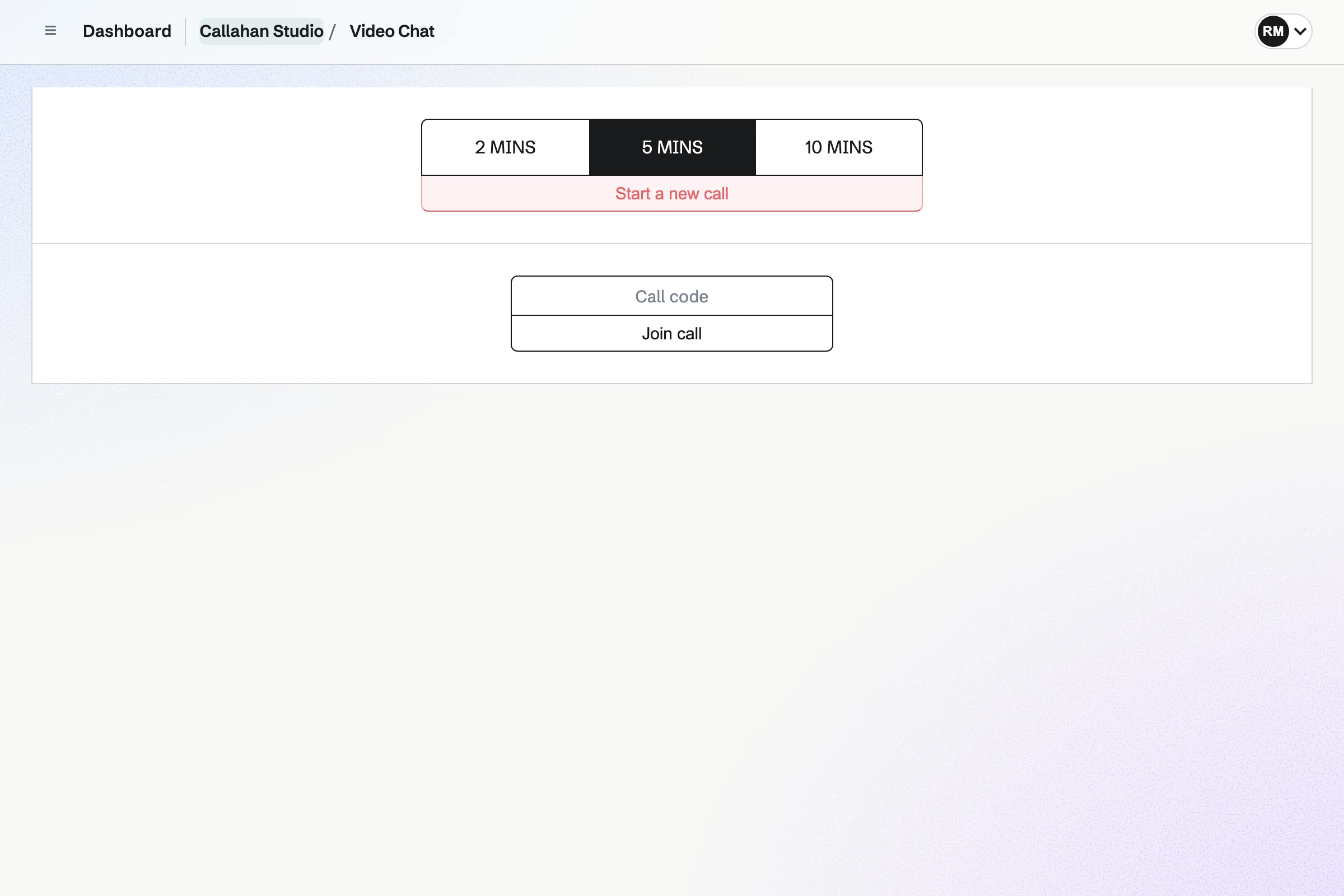
Video Chat in Callahan Studio: call lengths of 2, 5 and 10 minutes with 5 chosen and Start a new call, and a call-code field to join a call.

How is Magpie different?

1. Calls come with the rest of the business

One Magpie subscription includes the areas a small business would otherwise buy one at a time:

  • Video Chat for calls, and Team chat and Walkie Talkie for talking between them
  • Meetings and Appointments for booking pages, with a Zoom or Google Meet link on each booking
  • Coaching, Courses and Hiring, which each make the call their sessions and interviews need
  • Invoicing for billing clients, and Mail for email at your domain
  • Documents, Idea Boards, Screen Recorder and the other areas, in the same team

Everything is in one account with one bill. Zoom covers meetings, chat, documents and clips, and leaves invoicing and coaching to other software.

2. A team pays one price

The Team plan is one price for up to 25 people, with every area included. A guest let into a call or a channel takes no place on the plan. Zoom's paid plans are priced per user.

3. The call is made by the work it is for

Scheduling a Hiring interview, a Courses live session or a Coaching session makes its Video Chat call. Each call takes up to 6 people at a set time, on Pro and Team plans. A candidate joins from a private link without an account. A coaching client joins from the call link in their portal or invitation, without signing in.

Comparing Magpie and Zoom

Zoom does more inside the meeting; Magpie does more around it. Every line in the tables below was checked against Zoom's own pages, linked from each row, and against Magpie's code and Help.

Platform

WhatZoomMagpie
Video callsStart a call now and send a link Yes Yes
Long meetingsA call that runs an hour or more Paid plans Scheduled calls only
Group meetingsSeveral people on one call Yes Scheduled calls only
Joining without an accountAnyone with the link joins in a browser Yes Guests of scheduled calls
Screen sharingShow your screen during a call Yes Yes
Breakout rooms, polls and reactionsRun a group call with structure Yes No
Recording and transcriptsKeep a call to watch or read later Yes No
AI meeting summariesA summary and next steps after the call AI Companion No
Phone dial-inJoin a call by phone Yes No
Desktop and phone appsCalls in an app on any device Yes In the browser
WebinarsA presenter, an audience and a registration page Webinars add-on No
Team chatChannels and direct messages between calls Yes Yes
DocumentsWrite and share documents with the team Canvas Yes
WhiteboardDraw and plan together Yes Idea Boards
Screen recordingsRecord your screen and share a link Clips Screen Recorder
Booking pagesPeople choose a time with you Scheduler Yes
Email at your domainMailboxes at the business's own domain Business Paid plans
Interview callsA call made from the candidate's record No Yes
InvoicingBill a client and get paid online No Yes
Single sign-onSign in through the company's identity provider Business No

Good to know: Where Magpie says No or Partly, the line under the row says what Magpie does instead. Each gap has an item on Magpie's roadmap, and the line changes on the day it ships.

Starting, scheduling and joining meetings

Zoom holds meetings of up to 30 hours on a paid plan, for hundreds of people. Magpie's Video Chat makes short calls for two. Its scheduled calls are made by Hiring, Courses and Coaching.

WhatZoomMagpie
Start a video call now and send people a link to join Source Yes Yes
Hold a meeting for as long as it needs, an hour or more Source Magpie: A Video Chat call lasts 2 or 5 minutes on the free plan and 2, 5 or 10 minutes with Pro or the Team plan, then ends. Only a scheduled call runs longer, on Pro and Team plans: Hiring makes one for an interview, Courses for a live session, and Coaching for a session, up to 120 minutes. Yes Partly
Meet with several people on one call Source Magpie: A Video Chat call takes two people, and nobody else can join once both are in. A scheduled call takes up to 6 people on Pro and Team plans, but only Hiring interviews, Courses live sessions and Coaching sessions make one. Yes Partly
Schedule a call for later and send the invitation Source Magpie: Video Chat calls start when you start them. A call at a set time is made only by Hiring for an interview, Courses for a live session or Coaching for a session. A Calendar event can have a call link typed into its Location, and a Meetings booking gets a Zoom or Google Meet link. Yes Partly
Let anyone with the link join, without an account or an app Source Magpie: Both people in a Video Chat call must be signed in to Magpie. Someone signed out who opens an invite link sees Magpie's page about Video Chat, not the call. Only a guest invited to a scheduled call joins from a private link without signing in: a candidate in a Hiring interview, who needs no account, or a student in a Courses live session or a client in a Coaching session. Yes Partly
Keep one call link of my own that people can always use Source Magpie: Every Video Chat call has a new code, and codes expire, so each call is sent again. Yes No
Let someone join by phone when they cannot use the internet Source Magpie: Video Chat is joined only from a web browser, with an internet connection. Yes No
Let people book a time with me from a page of my own Source Yes Yes
Give every booked meeting its own video call Source Magpie: Meetings gives each booking a Zoom or Google Meet link once one is connected, so the call still needs a Zoom or Google account. A booking cannot get a Magpie Video Chat call. Yes Partly
Join and start calls from my phone Source Yes Yes
Hold calls in an app on my computer Source Magpie: Video Chat runs in the browser on a computer. Magpie has no app for calls on a computer. Yes No

Good to know: A Video Chat call lasts 2 or 5 minutes on the free plan, or 2, 5 or 10 minutes on a paid plan. A Coaching session's call runs up to 120 minutes.

In the meeting

Both share a screen during a call. Zoom also blurs backgrounds, chats, splits a call into breakout rooms and shows live captions. They do each of these better than we do today.

WhatZoomMagpie
Share my screen during a call Source Yes Yes
Blur or replace the background behind me on camera Source Magpie: The camera is sent as the browser gives it. Yes No
Send messages, links and files to the people in a call Source Magpie: A Video Chat call has no chat. Messages and files go through Chat, in another tab. Yes No
Raise a hand or react with an emoji during a call Source Magpie: A Video Chat call has buttons for the microphone, the camera, sharing a screen and ending the call, and no reactions. Webinars has reactions and raised hands, but is open only to site administrators. Yes No
Split a group call into smaller rooms and bring everyone back Source Magpie: Video Chat has no group calls to split. Webinars has breakout rooms, but is open only to site administrators. Yes No
Ask the people in a call a quick poll or quiz Source Magpie: Video Chat has no polls. Webinars runs polls, but is open only to site administrators. Yes No
Draw and plan together on a whiteboard during a call Source Magpie: An Idea Board is a canvas of notes, to-dos, links, images and arrows that the team works on, but it has no freehand drawing or shapes, and it is used beside a call in another tab, not inside it. Yes Partly
See live captions of what is said, in my own language Source Magpie: Neither Video Chat nor Webinars shows captions. Webinars leaves them out because it calls no AI service. Yes No
Have interpreters speak on their own language channels Source Magpie: A Video Chat call has one audio channel. Yes No
Choose who gets in and keep order: let people in, mute them or remove them Source Magpie: A call code lets in one other person and no more, and both are signed in. Nobody can be held in a waiting room, muted by the other or removed. Yes Partly

Good to know: During a Video Chat call, the buttons mute your microphone and turn your camera off. The clock on the call shows the time left.

Recording, transcripts and AI

Zoom records meetings, writes transcripts and sums up each meeting with AI Companion. Magpie's Video Chat keeps nothing from a call.

WhatZoomMagpie
Record a call to watch or share later Source Magpie: A Video Chat call is not recorded. Meeting Notes, being built and open only to site administrators, records a call's sound to write a transcript and keeps it for 7 days; it makes no recording to watch. Yes No
Get a written transcript of a recorded call Source Magpie: Video Chat keeps no recording to transcribe. Meeting Notes makes transcripts, but is open only to site administrators. Yes No
Get a summary of the meeting and its next steps written for me Source Magpie: Video Chat writes nothing from a call. Meeting Notes, open only to site administrators, makes a transcript and leaves the write-up to a chatbot you choose. Yes No

Good to know: Screen Recorder records your screen and camera to share as a link. The free plan makes 1 recording a week of up to 3 minutes. A paid plan records up to 30 minutes.

The rest of Zoom Workplace

Both put team chat, documents and screen recordings beside the calls. Zoom adds a whiteboard, single sign-on and a mail and calendar client; Magpie adds interviews and invoicing.

WhatZoomMagpie
Chat with my team in channels between calls Source Yes Yes
Write documents and share them with my team Source Yes Yes
Record a short video of my screen and camera and share it by link Source Yes Yes
Read my email and my calendar beside my calls Source Magpie: Mail hosts email at your own domain on Pro or the Team plan, read in Inbox on the website, and Calendar shows a connected Google Calendar's events beside your own. Mail cannot read a Gmail or Outlook account you already have, and Calendar does not connect to Outlook. Yes Partly
Sign in through my company's identity provider Source Magpie: People sign in with a password and two-factor code, a passkey, or a Google, Apple, LinkedIn or GitHub account. Yes No
Schedule a job interview call from the candidate's record Source Zoom: Zoom Workplace has no hiring tools: an interview is scheduled like any other meeting. No Yes
Bill a client for a session and get paid online Source Zoom: Zoom Workplace plans have no invoicing; only Zoom Webinars can charge a registration fee, through PayPal. No Yes

Good to know: Every Magpie area is in the same team and on the same bill. A Hiring interview on Video Chat makes the call for the interviewers and the candidate.

Webinars: scheduling and registration

Zoom Webinars schedules a webinar for 500 people or more, with registration questions, reminder emails and paid places. Magpie has no webinars open to members today.

WhatZoomMagpie
Schedule a webinar and share its registration page Source Magpie: Webinars schedules a webinar, plans it on its own page and publishes its registration page. Webinars is open only to site administrators for now, so it counts as no. Yes No
Hold a webinar for thousands of people Source Magpie: Even once Webinars opens, a webinar takes up to 100 attendees on Pro and 500 on the Team plan. Webinars is open only to site administrators for now, so it counts as no. Yes No
Ask my own questions when people register, and approve who comes Source Magpie: Webinars asks up to 5 questions of your own and can hold each registration for your approval. Webinars is open only to site administrators for now, so it counts as no. Yes No
Email registrants their confirmation, reminders and a follow-up Source Magpie: Webinars emails a confirmation with a calendar invitation, reminders a day and an hour before or at a time you choose, and a follow-up with the replay. Webinars is open only to site administrators for now, so it counts as no. Yes No
Run the same webinar at several times Source Magpie: A webinar can have several sessions, each with its own places and waiting list, and people choose a time when they register. Webinars is open only to site administrators for now, so it counts as no. Yes No
Show my banner, logo and speakers on the registration page Source Magpie: The registration page shows a cover picture and the hosts and speakers with their job titles and bios; it has no logo or colours of your own. Webinars is open only to site administrators for now, so it counts as no. Yes No
Charge people for a place at my webinar Source Magpie: Webinars takes free registrations only, and its specification leaves paid places for later. A Form can take one fixed payment, without a webinar's join links or reminders. Yes No

Good to know: A Courses live session makes a Video Chat call at a set time. It takes up to 6 people, the host included.

Webinars: running it live

Zoom Webinars puts panelists in front of attendees, with Q&A, polls, practice sessions and live streaming. Webinars Plus adds backstage and simulive.

WhatZoomMagpie
Have speakers present while attendees watch Source Magpie: Hosts, co-hosts and speakers go on the stage while attendees watch, and a host can invite an attendee who raised a hand onto it. Webinars is open only to site administrators for now, so it counts as no. Yes No
Let attendees ask questions and chat during the webinar Source Magpie: Webinars has a chat and a Q&A where attendees vote, with questions held for approval when you choose. Webinars is open only to site administrators for now, so it counts as no. Yes No
Run polls during the webinar Source Magpie: Webinars opens polls to attendees and shows their results on the stage. Webinars is open only to site administrators for now, so it counts as no. Yes No
Rehearse with the speakers before attendees are let in Source Magpie: Start a test tries the stage, cameras, microphones and screen sharing without attendees. Webinars is open only to site administrators for now, so it counts as no. Yes No
Talk privately with the speakers while the webinar runs Source Magpie: Everyone running a webinar sees and hears each other backstage and has a backstage chat. Webinars is open only to site administrators for now, so it counts as no. Yes No
Play a recorded webinar at a set time as if it were live Source Magpie: A webinar can play one of your Screen Recorder recordings at its start time, with chat, Q&A and polls working as live. Webinars is open only to site administrators for now, so it counts as no. Yes No
Send webinar attendees into small groups Source Magpie: Webinars sends attendees into breakout rooms with their own video and chat. Webinars is open only to site administrators for now, so it counts as no. Yes No
Stream a webinar or meeting live to YouTube, Facebook or another site Source Magpie: Neither Video Chat nor Webinars streams to another site; the Webinars specification leaves it for later. Yes No

Good to know: A Courses live session can use Zoom instead of Video Chat. The host's Zoom account makes the meeting, and students join from the lesson page.

Webinars: after the webinar

Zoom Webinars keeps registration open for the recording, reports on who came and sends registrants to a CRM. Magpie does none of these today.

WhatZoomMagpie
Let people register and watch the recording after the webinar Source Magpie: The recording becomes the replay, watched by registrants or by anyone with the link, as you choose. Webinars is open only to site administrators for now, so it counts as no. Yes No
See who registered, who came and what they did Source Magpie: The report shows who came live and for how long, replay minutes, questions, poll answers and call-to-action clicks, with CSV files. Webinars is open only to site administrators for now, so it counts as no. Yes No
Ask attendees for feedback when the webinar ends Source Magpie: An exit survey, one of your published Forms, is offered when the webinar ends. Webinars is open only to site administrators for now, so it counts as no. Yes No
Send registrants to my contact list or marketing tool Source Magpie: Webinars adds each registrant to Contacts, and to the Newsletter when they tick its box, and sends webhooks; it connects to no outside CRM. Webinars is open only to site administrators for now, so it counts as no. Yes No

Good to know: A Courses live session's recording plays on the lesson page for the students in that session. You add it as a video or a Screen Recorder recording.

Price comparison

How Zoom charges

Zoom charges by plan: the free Basic plan, then Pro, Business and Enterprise, priced per user. Basic ends a meeting at 40 minutes; paid plans run meetings up to 30 hours and add cloud recording. Zoom Webinars, Webinars Plus and Zoom Events are add-ons sold by audience size. Toll-free dial-in needs the Audio Plan add-on. Prices are on Zoom's pricing page.

How Magpie charges

Magpie charges by plan, Free or a paid plan, for everything in the account. Video Chat is on every plan; a paid plan adds the longest call length and scheduled calls. The Team plan is one price for up to 25 people, not a price per user. Prices are on Magpie's pricing page.

On top of the planZoomMagpie
How a team paysPer user, per monthOne Team plan for up to 25 people
Calls on the free planUp to 40 minutes, for up to 100 people2 or 5 minutes, for two people
Calls on a paid planUp to 30 hours; 100 people on Pro, 300 on Business2, 5 or 10 minutes for two; scheduled calls of up to 6 people from Hiring, Courses and Coaching
Cloud recording10 GB a licence on Pro and Business; no limit on EnterpriseNot available
AI summaries3 a month on Basic; no limit on paid plansNot available
WebinarsZoom Webinars, Webinars Plus or Zoom Events, separate add-onsNot available
Phone dial-inToll numbers on every plan; toll-free with the Audio Plan add-onNot available
Email at your domainA mail domain of your own on BusinessIncluded on a paid plan
Booking pages and invoicingScheduler booking pages; no invoicingIncluded

When to choose Magpie or Zoom

  • Want your calls beside your bookings, invoices, coaching, hiring and email, for one price for the whole team? Go with Magpie.
  • Want long meetings for hundreds of people, with recording, AI summaries, apps on every device and webinars? Zoom is the right choice.

Recommendations by kind of business

For a team that spends its day in meetings
Zoom. Zoom's paid plans hold meetings of up to 30 hours and record the call. A call started in Magpie's Video Chat lasts 2, 5 or 10 minutes. Scheduled calls take up to 6 people.
For webinars, classes and events
Zoom. Zoom Webinars registers attendees, puts panelists in front of them and reports on who came. Magpie has no webinars open to members today.
For a coach
Magpie. A Coaching session on Video Chat makes its own call. The client joins it from the link in their portal or invitation, without signing in. The bookings, session notes and invoices are in the same team.
For a small business that hires
Magpie. Scheduling an interview in Hiring makes the Video Chat call for the interviewers and the candidate. The candidate joins from a private link, and the call is in the interviewers' Calendar.
For a service business that meets clients on video
Either. Magpie's Meetings books the time and adds a Zoom or Google Meet link to each booking. Choose by whether you want Magpie's booking pages and invoices with Zoom's calls, or Zoom alone.

Frequently asked questions

What is the difference between Zoom and Magpie?

Zoom is a video meeting platform, with team chat, a whiteboard, documents and webinars around the meeting. Magpie is one subscription for a small business's software. Its Video Chat is one area beside Team chat, booking pages, invoicing, coaching, hiring and email. Zoom does more inside the meeting; Magpie does more around it.

Does Magpie replace Zoom?

No, for a business that holds long meetings or calls with many people. Magpie replaces it for short calls between two people. It also makes the calls for its own interviews, coaching sessions and live lessons.

Consider keeping Zoom if you hold long meetings, or calls with more than 6 people. Keep it too if you record calls, want AI summaries or run webinars. Zoom does each of these better than Magpie does today.

How much does Zoom cost?

Zoom has a free Basic plan and Pro, Business and Enterprise plans, priced per user. Basic ends a meeting at 40 minutes; paid plans run up to 30 hours. Zoom Webinars and Zoom Events are add-ons sold by audience size. The prices are on Zoom's pricing page.

How much does Magpie cost?

Magpie has a Free plan and paid plans, each covering every area. Video Chat is on the Free plan, with calls of 2 or 5 minutes. The Team plan is one price for up to 25 people, not a price per user. The prices are on Magpie's pricing page.

How long can a Magpie video call last?

A Video Chat call lasts 2 or 5 minutes on the free plan, or 2, 5 or 10 minutes on a paid plan. On Pro and Team plans, Hiring, Courses and Coaching make scheduled calls, which run longer. A Coaching session's call lasts up to 120 minutes. Longer calls are on Magpie's roadmap. Zoom's paid plans run a meeting for up to 30 hours.

Can more than two people join a Magpie video call?

Only a scheduled call, which takes up to 6 people. Hiring interviews, Courses live sessions and Coaching sessions make one, on Pro and Team plans. A call you start in Video Chat is for two people. Group calls are on Magpie's roadmap. Zoom meetings take 100 people on Pro and 300 on Business.

Can I share my screen in a Magpie video call?

Yes, from a browser on a computer. Share screen shows everyone in the call a screen, a window or a tab in place of your camera. Nobody can draw on it, and a phone's browser cannot share a screen. Zoom shares a screen on every plan, and others can draw on it.

Can I record a Magpie video call?

No. A Video Chat call is not recorded, and nothing is kept after it ends. Recording calls is on Magpie's roadmap. Zoom records to your computer on every plan, and to the cloud on paid plans.

Does Magpie write meeting notes or summaries?

No. Video Chat writes nothing from a call, and the assistant does not read calls. Meeting notes are on Magpie's roadmap. Zoom's AI Companion writes a summary with next steps after a meeting. Basic has 3 a month, and paid plans have no limit.

Does Magpie have webinars?

No. Magpie has no webinars open to members today, and Webinars is on Magpie's roadmap. A Courses live session makes a call for up to 6 people, the host included. Zoom Webinars holds webinars for 500 people or more, with registration, Q&A and reports.

Can people join a Magpie call without an account?

Partly. Both people in a Video Chat call you start must be signed in to Magpie. A guest invited to a scheduled call joins from a private link without signing in. Candidates in Hiring join this way without an account, and clients in Coaching join this way from their portal or invitation. Anyone can join a Zoom meeting from its link, in the app or a browser.

Does Magpie have a desktop or phone app for calls?

Not yet. Video Chat works in the browser on a computer or a phone. The Magpie app starts and joins calls, but it is not yet in the App Store or Google Play. Zoom has apps for Windows, macOS, Linux, iPhone and Android.

Can people join a Magpie call by phone?

No. Video Chat is joined only from a web browser, with an internet connection. Phone dial-in is on Magpie's roadmap. Zoom lists toll numbers on every plan, and toll-free numbers with the Audio Plan add-on.

Can I blur my background in a Magpie call?

No. The camera is sent as the browser gives it. A camera background is on Magpie's roadmap. Zoom blurs the background or replaces it with a picture or a video, on every plan.

Does Magpie have a whiteboard?

Partly. An Idea Board is a canvas of notes, to-dos, links and images that the team works on together. It has no freehand drawing, and it opens beside a call in another tab. Zoom Whiteboard works in and out of meetings.

Does Zoom have booking pages?

Yes. Zoom Scheduler gives a booking page where people choose a time, and each booking can be a Zoom meeting. Magpie's Meetings and Appointments are included in every plan. Meetings adds a Zoom or Google Meet link to each booking.

Does Zoom have invoicing?

No. Zoom Workplace has no invoices; only Zoom Webinars charges a registration fee, through PayPal. Magpie's Invoicing sends an invoice the client pays online by card, in the same team as the calls.

Does Zoom schedule job interviews?

No. Zoom has no hiring area, so an interview is scheduled like any other meeting. On Pro and Team plans, scheduling an interview in Magpie's Hiring makes its Video Chat call.

Can I use Zoom and Magpie together?

Yes. Connect Zoom to Meetings, and each new booking gets a Zoom call. The join link is in the attendee's email. A Courses live session or a Coaching session can be held on Zoom too. A business can keep Zoom for long meetings and use Magpie for the rest.

How do I move from Zoom to Magpie?

Start calls in Video Chat, and choose Video Chat as the place for Coaching sessions and Courses live sessions. Your Zoom recordings and chat stay in your Zoom account, so keep it until you no longer need them. Meetings can keep adding Zoom links to bookings while you decide.

What is included in Magpie's Free plan?

A team of 3, with Video Chat calls of 2 or 5 minutes and Team chat. It also includes booking pages, Invoicing, Screen Recorder, Store, a website and the Newsletter. Scheduled calls need Pro or the Team plan, and Mail needs a paid plan too.
If a line on this page is wrong, tell us and we will correct it.

Zoom changes, and so does Magpie. If a line is out of date about either product, email support@magpie.diy with the page that shows it. We check the line against that page, change it, and give it the new date. That goes for Zoom's own team as much as for anyone who uses it.

Put your calls beside the rest of the business.

Create a Magpie account, then start a call in Video Chat.

Create account