Google Slides compared with Magpie

Google Slides vs Magpie: an in-depth comparison

Google Slides and Magpie both make slide decks in the browser, present them and share them. They are built around different things.

  1. Google Slides is a slide editor in the browser and on phones, part of Google Workspace. It is free with a Google account. It is built for anyone who makes decks with others, from a classroom to a large company.
  2. Magpie is one subscription for a small business's software, and Presentations is one part of it. Beside the decks it includes proposals, a client portal, screen recording, invoicing, booking pages and the rest. It is built for someone whose decks are one part of running the business.
Create account
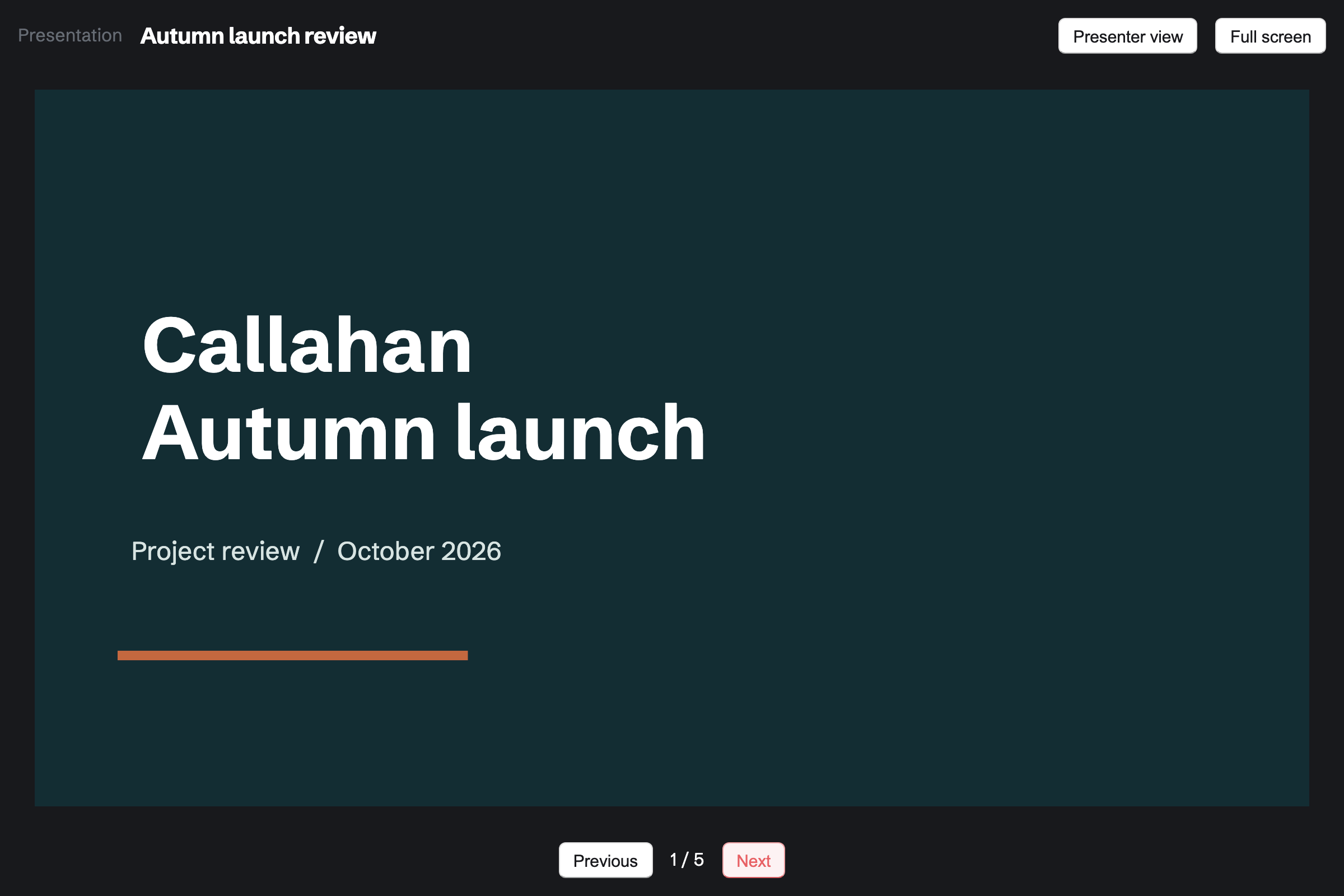
The cover slide of Callahan Studio’s autumn launch review in presentation mode, with Presenter view and Full screen above it and Previous and Next below.

How is Magpie different?

1. The deck comes with the rest of the business

One Magpie subscription includes the areas a small business would otherwise buy one at a time:

  • Presentations, the area this page is about, with a presenter view and PDF export
  • Proposals that a client opens, accepts, signs and pays a deposit on
  • Client Portal, a private page for each client's meetings, files, proposals and invoices
  • Screen Recorder for a recorded walk-through of a deck, with a share page and link
  • Documents, Spreadsheets, Meetings, Invoicing, Store, Contacts, Team chat and the other areas, in the same team

Everything is in one account with one bill. Google Workspace covers decks, documents, email, a calendar and files, and leaves invoices and selling to other software.

2. People see the finished deck while you keep working

Editing a Magpie deck changes a draft. The shared link shows the published version until you select Publish changes. A Slides deck published to the web follows every change within minutes, and Slides cannot turn that off.

3. A team pays one price

The Team plan is one price for up to 25 people, and members do not pay. Guests from outside the team see only the deck shared with them. Google Workspace's plans are priced per user. Both plans' prices are on Magpie's pricing page and Google's.

Comparing Magpie and Google Slides

Google Slides does more inside the deck; Magpie does more around it. Every line in the tables below was checked against Google's own pages, linked from each row, and against Magpie's code and Help.

Platform

WhatGoogle SlidesMagpie
Slide editor in the browserMake a deck with nothing to install Yes Yes
Designed templates and themesStart from a ready-made design and restyle the deck Yes Three starters
AI that builds a deckDescribe a deck and get its slides Eligible plans Yes
AI inside the deckAdd a slide or rewrite its words with AI Eligible plans Through an AI chat
Charts and tablesNumbers shown on a slide Yes No
Video and soundPlay a video or a sound on a slide Yes No
Animations and transitionsItems that move, and changes between slides Yes No
Live co-editingSeveral people in one deck at once Yes No
Comments on slidesDiscuss a slide and resolve it Yes No
Version historyBring back an earlier version Yes No
Presenter viewNotes and the next slide for the presenter Yes Yes
Audience questions and captionsQuestions from a link, and live captions Yes No
Recording yourself presentingA video of the slides with your camera and voice Some accounts Screen Recorder
Embed on a websiteShow the deck on your own site Yes No
PowerPoint import and exportOpen and save .pptx files Yes No
PDF exportDownload the deck as a PDF Yes Yes
Draft and published versionsKeep editing while people see the finished deck No Yes
Phone apps and offline editingWork on decks on a phone, or without a connection Yes In the browser
Add-onsPolls and other tools inside the deck Yes No
Proposals a client signs and paysAccept, sign and pay a deposit No Yes
Invoices and a shopBill clients and sell online No Yes

Good to know: Where Magpie says No or Partly, the line under the row says what Magpie does instead. Each gap has an item on Magpie's roadmap, and the line changes on the day it ships.

Building slides

Both place text, pictures, shapes and arrows on a slide. Google Slides also styles single words, adds links, tables, charts, video and animations. They do it better than we do today.

WhatGoogle SlidesMagpie
Make a slide deck in the browser, with nothing to install Source Yes Yes
Add, duplicate, reorder and delete slides Source Yes Yes
Put text, shapes, lines and arrows on a slide and style them Source Yes Yes
Style single words inside a text box, with bulleted and numbered lists Source Magpie: A text box has one style: its text style, font, size, weight, colour and italic apply to all of its words, so a word in bold needs its own box. List adds bullet markers to the selected text; there are no numbered lists and no underline. Yes Partly
Line up, space out and group items on a slide Source Magpie: Items snap to the slide's edges and centre as they move, several can be selected with Shift and moved together, and Bring forward and Send back set their order. Nothing aligns, spaces out or groups them. Yes Partly
Put pictures on a slide Source Yes Yes
Search for a photo, GIF or sticker to add without leaving the deck Source Magpie: The image picker shows only Your images and what you upload, GIF files included; it cannot search the web, stock photos or stickers. Yes No
Crop a picture on a slide and adjust its colour and brightness Source Magpie: A picture fills the box it is given and is cut to it, and Format sets its opacity and rotation. There is no crop to choose the part shown, and no brightness, contrast or colour. Yes Partly
Describe a picture for people who use a screen reader Source Magpie: A picture on a slide is stored with an empty description, and neither the editor nor the app has a field for one. Yes No
Play a video or a sound on a slide while presenting Source Magpie: A slide holds text, pictures, shapes and lines only; a video or sound cannot be added. Yes No
Put a table on a slide Source Magpie: A slide has no tables; side-by-side text is made from separate text boxes, or a JSON import's columns or cards. Yes No
Show a chart on a slide that updates when the numbers change Source Magpie: Presentations has no charts, and Spreadsheets cannot make one either. A picture of a chart made elsewhere can be placed on a slide with Image. Yes No
Add a ready-made diagram, such as a timeline or a process Source Magpie: A deck built from pasted JSON can have timeline, cards, stats and agenda slides laid out for it; the editor cannot add one, so a diagram is drawn from shapes and arrows. Yes Partly
Link words on a slide to a web page Source Magpie: Text on a slide is plain text and cannot hold a link. Yes No
Animate text and pictures, and the change from one slide to the next Source Magpie: Slides change at once when presenting, and nothing on a slide moves. Yes No
Choose the slide size, such as 4:3 or a size of my own Source Magpie: Every slide is widescreen 16:9. Yes No

Good to know: A new item in Magpie goes into a clear part of the slide, so it covers nothing. Items snap to the slide's edges and centre as you drag.

Templates, themes and layouts

Google Slides has a gallery of templates, themes that restyle the deck, and a theme builder. Magpie starts from three starters or a pasted JSON document in one of nine styles.

WhatGoogle SlidesMagpie
Start a deck from a ready-made design Source Magpie: Create presentation offers Blank deck, Project update and Pitch deck, which are plain dark text on white. Nine styles come only through Paste JSON, written by hand or by an AI chat with Copy the prompt. Yes Partly
Change the look of the whole deck in one step Source Magpie: Theme sets the deck's heading and text fonts, and every text in them changes on every slide at once; its Colour of shapes and arrows recolours every shape and arrow on every slide. Background sets the current slide's colour or gradient, and Use on every slide copies it to all of them. A text's colour is changed one item at a time. Yes Partly
Choose a layout for each slide, and change it later Source Magpie: The editor adds a title slide or a two-column slide; pasted JSON has thirteen layouts, from bullets to timelines. A slide's layout cannot be changed once it is made. Yes Partly
Put a logo or design on every slide and change it in one place Source Magpie: A deck has no master slide; a logo or footer is placed on each slide, or added to every slide by duplicating one. Yes No
Keep our own decks as starters for the team Source Magpie: Create presentation offers Magpie's three starters only; More, then Duplicate copies one of the team's decks to start from. Yes Partly

Good to know: Theme in Magpie sets the deck's heading and text fonts and the colour of its shapes and arrows, on every slide at once. Use on every slide copies a background to all slides.

Gemini

Gemini builds a deck, adds slides, sums one up and makes pictures, on eligible plans. Magpie's assistant builds a deck, and any AI chat you use can write or change one.

WhatGoogle SlidesMagpie
Describe a deck and have AI build it Source Yes Yes
Ask AI to add a slide or rewrite the words in a deck Source Magpie: Import JSON, then Change what I have, copies the deck into a prompt for an AI chat you use; the chat's changed deck, pasted back, replaces the slides and can keep every word as it was. Nothing inside the editor asks AI, and the assistant cannot read a deck's slides. Yes Partly
Get a short summary of a deck Source Magpie: The assistant finds decks by title, but their slides are not returned to it, so it cannot sum one up. Yes No
Make a picture with AI, or remove a picture's background Source Magpie: Pictures come from Your images or an upload; Magpie does not make or change them with AI. Yes No
Have the AI chat I already use write a deck, and bring it in laid out Source Google Slides: Slides gives another AI chat no format of its own to write a deck in, but a PowerPoint file made elsewhere, by an AI tool or anyone, opens in Slides. Partly Yes

Good to know: Change what I have hands a Magpie deck to an AI chat you use. Magpie checks that the words come back unchanged before it loads the new slides.

Sharing and working together

Google Slides is built for several people editing a deck at once, with comments and version history. In Magpie one person edits at a time, and Google Slides does this better than we do today.

WhatGoogle SlidesMagpie
Share a deck with named people as viewers or editors Source Yes Yes
Share a link anyone can open without an account Source Yes Yes
Several people editing one deck at the same time Source Magpie: One person edits a deck at a time. When someone else saves while you edit, the editor stops saving and offers Keep my version, Save mine as a new presentation or Show the saved version. Nobody sees another person's changes as they happen. Yes No
Comment on a slide, mention a teammate and resolve the discussion Source Magpie: Presentations has no comments; a deck is discussed in Chat or elsewhere. Yes No
See earlier versions of a deck and bring one back Source Magpie: Undo works while the editor is open, and the published version stays until the next Publish; earlier drafts are not kept. Yes No
Keep working on a deck while people see the finished version Source Google Slides: A deck published to the web follows every change within minutes, and Slides cannot turn that off. No Yes

Good to know: Share adds someone outside the team as a guest who sees that deck only. A team has up to 10 guests on Free and 100 on a paid plan.

Presenting

Both present full screen with a presenter view of the notes. Google Slides adds audience questions, captions, a laser pointer and a pen. Its slides can move on by themselves, and a deck can be embedded on a website.

WhatGoogle SlidesMagpie
Present the deck full screen Source Yes Yes
Write speaker notes for each slide Source Yes Yes
See my notes, the next slide and a timer while the audience sees only the slides Source Yes Yes
Take questions from the audience while presenting Source Magpie: Presentations takes no questions from an audience. Webinars has a question list, but Webinars is not open to members yet. Yes No
Point at or draw on a slide while presenting Source Magpie: The presenting tab has next, previous and full screen only. Yes No
Show live captions of what I say while presenting Source Magpie: Presenting shows the slides only. Yes No
Have the slides move on by themselves Source Magpie: Each slide stays until someone moves to the next one. Yes No
Present a deck in a video call, with my camera on the slides Source Magpie: In a Video Chat call in the browser, Share screen shows the Present tab in place of your camera, so the others see the slides but not you on them. A call started in Video Chat is for two people; scheduled calls from Hiring, Courses and Coaching take more. Yes Partly
Record myself presenting and share the recording Source Yes Yes
Show a deck on my own website or blog Source Magpie: A deck has no embed code, and its link asks the visitor to sign in to Magpie. Yes No

Good to know: Magpie's presenter view shows the next slide and a timer with Pause and Restart. Screen Recorder records the Present tab with your camera and gives it a share page.

Files and formats

Google Slides opens and saves PowerPoint files, and copies slides between decks. Magpie downloads a deck as a PDF and duplicates a whole deck.

WhatGoogle SlidesMagpie
Open a PowerPoint file and keep working on it Source Magpie: A deck can be imported only from Magpie's own JSON format; a PowerPoint or Keynote file cannot be opened. Yes No
Download a deck as a PowerPoint file Source Magpie: A deck downloads as a PDF only. Yes No
Download a deck as a PDF Source Yes Yes
Copy slides from another deck, and keep them in step with it Source Magpie: Slides cannot be copied between decks; Duplicate copies a whole deck, and Import JSON replaces every slide. Yes No
Make a copy of a deck Source Yes Yes

Good to know: Export PDF in Magpie leaves out speaker notes and hidden slides. The deck does not need to be published first.

Phones, offline and add-ons

Google Slides has phone apps, offline editing and add-ons such as Pear Deck and Slido. Magpie works in a browser, and its API makes and changes decks on a paid plan.

WhatGoogle SlidesMagpie
Work on a deck and present it from a phone Source Magpie: In a phone's browser, Present shows the deck with a Full screen button and a swipe between slides, and the editor fits the screen: tap an item to select it and change its words and look from Format, but nothing can be dragged to move or resize it by touch. The Magpie app, which edits slides by touch, is built but not yet in the App Store or Google Play. Yes Partly
Edit a deck with no internet connection Source Magpie: Presentations needs a connection on the website and in the app. Yes No
Add other tools to the deck, such as live polls Source Magpie: Presentations takes no add-ons. Yes No
Make and change decks from our own software Source Yes Yes

Good to know: The Magpie app edits decks by touch and presents them. It is not yet in the App Store or Google Play.

Price comparison

How Google Slides charges

Google Slides is free with a Google account. A business pays per user each month for a Workspace plan: Business Starter, Standard, Plus or Enterprise. The plan sets storage and what Slides can do: Standard and above add Gemini in Slides and the team's own templates. Prices are on Google's pricing page, in your currency.

How Magpie charges

Magpie charges by plan, Free or a paid plan, for everything in the account. Personal is on Free or Pro, and a team on Free or the Team plan, one price for up to 25 people. Presentations has no limit on decks on any plan. The plan sets limits such as storage, guests and team members. Prices are on Magpie's pricing page.

On top of the planGoogle SlidesMagpie
Making decksFree with a Google accountIncluded on every plan, Free too
How a business paysPer user, per monthOne Team plan for up to 25 people
AI in decksGemini in Slides on Business Standard and aboveThe assistant on Dashboard, and Copy the prompt for any AI chat
The team's own templatesBusiness Standard and aboveNot available; Duplicate copies a deck
StorageSet by the Workspace plan5 GB on Free, 100 GB on Pro, 1 TB for a team on the Team plan
Guests from outside the teamShared with named people, or by link10 a team on Free, 100 on a paid plan
An API for decksDeveloper tools for SlidesPaid plans
Proposals, invoicing and booking pagesNot in SlidesIncluded

When to choose Magpie or Google Slides

  • Want decks beside proposals clients sign and pay, a client portal, invoices and bookings, at one team price? Go with Magpie.
  • Want live editing, comments, charts, video, PowerPoint files and Gemini, free with a Google account? Google Slides is the right choice.

Recommendations by kind of business

For a school or a teacher
Google Slides. Audience questions, live captions and a pen on the slide are built for a classroom. So are add-ons such as Pear Deck and Nearpod. Magpie presents the slides and nothing else.
For a team that builds decks together
Google Slides. Several people edit the same slide at once, comment on it and bring back an earlier version. Magpie's editor is used by one person at a time.
For a consultant or an agency that pitches to clients
Magpie. A deck, a proposal the client signs and pays, and a client portal are in one team. Google Slides shares the deck, and the proposal and the invoice are made elsewhere.
For a small team that pays per seat today
Magpie. The Team plan is one price for up to 25 people, with no limit on decks. Google Workspace's plans are priced per user.
For a speaker who presents alone
Either. Both present full screen with speaker notes in a presenter view. Google Slides has animations, video and a laser pointer; Magpie has the rest of the business beside the deck. Choose by which of the two matters more.

Frequently asked questions

What is the difference between Google Slides and Magpie?

Google Slides is a slide editor, free with a Google account. It has live editing, comments, charts, video and Gemini. Magpie is one subscription for a small business's software. Its Presentations area is one part, beside proposals, a client portal, invoicing and booking pages. Google Slides does more inside the deck; Magpie does more around it.

Does Magpie replace Google Slides?

Yes, for a business that makes plain decks and presents them itself. Magpie builds slides with text, pictures and shapes, presents them with a presenter view and exports a PDF. It adds proposals, a client portal and invoices in the same team.

Consider keeping Google Slides if several people edit decks at once. Keep it if your slides need charts, tables, video or animation. Keep it too if you open PowerPoint files or embed decks on a website. Google Slides does each of these better than Magpie does today.

How much does Google Slides cost?

Google Slides is free with a Google account. A business pays for a Workspace plan: Business Starter, Standard, Plus or Enterprise, priced per user each month. Standard and above add Gemini in Slides and the team's own templates. The prices are on Google's pricing page.

How much does Magpie cost?

Magpie has a Free plan and paid plans, each covering every area. Personal is on Free or Pro. A team is on Free or the Team plan, one price for up to 25 people. Presentations has no limit on decks on any plan. The prices are on Magpie's pricing page.

Can several people edit a Magpie presentation at once?

No. One person edits a deck at a time. If someone else saves while you edit, the editor stops saving. You keep your version, save it as a new deck, or load theirs. Live co-editing is on Magpie's roadmap. In Google Slides several people edit the same slide at once and see each other's pointers.

Does Magpie have comments on slides?

No. Presentations has no comments, so a deck is discussed in Team chat or elsewhere. Comments are on Magpie's roadmap. Google Slides has comments with replies, mentions, assigned tasks and Resolve.

Does Magpie keep a version history of a deck?

No. Undo works while the editor is open, and the published version stays until the next Publish. Earlier drafts are not kept. Version history is on Magpie's roadmap. Google Slides shows earlier versions with who changed what, and restores one.

Can I open a PowerPoint file in Magpie?

No. Magpie imports a deck only from its own JSON format. Opening PowerPoint files is on Magpie's roadmap. Google Slides opens a PowerPoint file from Drive. Macros are dropped, and embedded charts and videos become pictures.

Can I export a Magpie deck to PowerPoint?

No. A Magpie deck downloads as a PDF, one slide per page, without speaker notes or hidden slides. Google Slides downloads a deck as a PowerPoint file.

Does Magpie have charts and tables on slides?

No. A Magpie slide holds text, pictures, shapes and lines. A picture of a chart made elsewhere can be added with Image. Charts and tables are on Magpie's roadmap. Google Slides puts a table on a slide, and a chart linked to a Google Sheet that updates.

Can I put a video on a Magpie slide?

No. A slide cannot hold a video or a sound. Screen Recorder can record you talking through the deck as a separate video. Google Slides plays a YouTube or Drive video, and an MP3 or WAV file from Drive.

Does Magpie have animations or slide transitions?

No. Slides change at once when presenting, and nothing on a slide moves. Animations are on Magpie's roadmap. Google Slides animates items on click or after each other, and gives each slide a transition.

Does Magpie have a presenter view?

Yes. While presenting, Presenter view opens a second window. It shows the slide being shown, the next one, its speaker notes and a timer. Both windows stay on the same slide whichever one moves. The audience never sees the notes.

Can my audience ask questions during a Magpie presentation?

No. Presentations takes no questions from an audience and shows no captions. Both are on Magpie's roadmap. Google Slides takes questions from a link on any device, and people vote on them. It also shows live captions of what you say.

Can Magpie make a deck with AI?

Yes. Asked on Dashboard, the assistant creates a deck and writes its slides. Copy the prompt gives any AI chat the format, and its answer pasted back builds the deck. Change what I have hands an existing deck to an AI chat for changes. Gemini in Slides also works inside the editor, which Magpie does not.

Can I put a Magpie presentation on my website?

No. A Magpie deck has no embed code, and its link asks the visitor to sign in. Embedding is on Magpie's roadmap. Google Slides gives an embed code with a chosen size and slide timing.

Can people view a Magpie presentation without an account?

No. Anyone with the link views the published deck after signing in to Magpie. Someone without an account gets a free one first. A Google Slides link can open for anyone, as a viewer, a commenter or an editor.

Does Google Slides keep a draft apart from what people see?

No. A deck published to the web follows every change within minutes, and Slides cannot turn that off. In Magpie, editing changes a draft. The shared link shows the published version until you publish again.

Does Magpie work offline or have a phone app?

No, not yet. Presentations works in a browser and needs a connection. In a phone's browser, Present swipes between slides, and the editor changes an item's words and look. The Magpie app edits by touch, but it is not yet in the App Store or Google Play. Google Slides has phone apps and edits offline in Chrome or Edge.

Can I use Google Slides and Magpie together?

Yes. A team can keep making decks in Google Slides while Magpie runs its proposals, invoices and bookings. A Slides deck downloaded as a PDF can be shared in a client's Client Portal.

How do I move from Google Slides to Magpie?

Magpie cannot read a Slides or PowerPoint file, so each deck is made again. Copy the prompt in Create presentation, and give it to an AI chat with the deck's text. Paste its answer back to build the slides. Pictures are uploaded through the image picker. Keep your Google account until every deck you need is moved.

What is included in Magpie's Free plan?

Presentations with no limit on decks, Documents, Spreadsheets, Proposals, Invoicing, booking pages and most other areas. It has a team of 3, 10 guests and 5 GB of storage. Free sends 5 proposals a month.
If a line on this page is wrong, tell us and we will correct it.

Google Slides changes, and so does Magpie. If a line is out of date about either product, email support@magpie.diy with the page that shows it. We check the line against that page, change it, and give it the new date. That goes for Google's own team as much as for anyone who uses Slides.

Make your next deck on Magpie's Free plan.

Create a Magpie account, then create a presentation.

Create account